Hello @ian00
For example, assuming you have two fields and you want to display them side by side, even on small screens. Enter the class name: col-xs-6 through their attributes: “Add CSS Layout Keywords”. Every row contains 12 columns, assigning the class names col-xs-6 to the fields, you are configuring them to take six columns in the row.
More information about the columns class names by reading the following post in the plugin’s blog:
https://cff.dwbooster.com/blog/2019/01/06/columns
Best regards.
Thread Starter
 ian00
ian00
(@ian00)
thanks you! this was very helpful
Thread Starter
ian00
(@ian00)
Sorry, one more thing, how to center align content inside columns
Hello @ian00
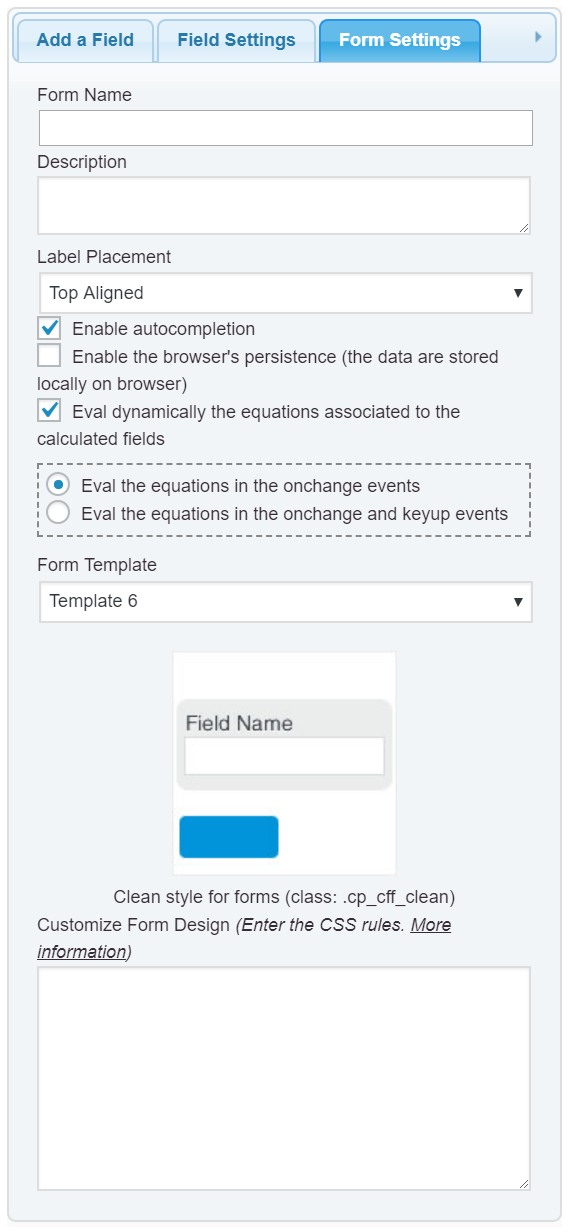
To align everything in the form, you can enter the style definition below through the “Customize Form Design” attribute in the “Form Settings” tab (https://cff.dwbooster.com/images/documentation/form-settings-tab.png):
#fbuilder *{text-align:center !important;}
More information about the form’s design by reading the following post in the plugin’s blog:
https://cff.dwbooster.com/blog/2020/01/12/form-design
Best regards.
Thread Starter
ian00
(@ian00)
thanks a lot! nice plugin