
Description
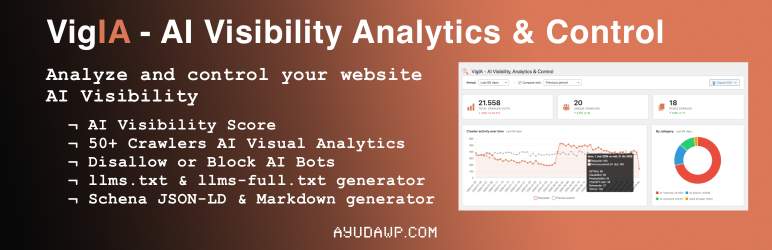
VigIA (Spanish for “lookout” or “watchman”, incorporating “IA” – Spanish for “AI”) is a complete AI visibility toolkit for WordPress. Monitor 55+ AI crawlers, control access to your content, and optimize how AI systems discover and understand your site.
What does VigIA do?
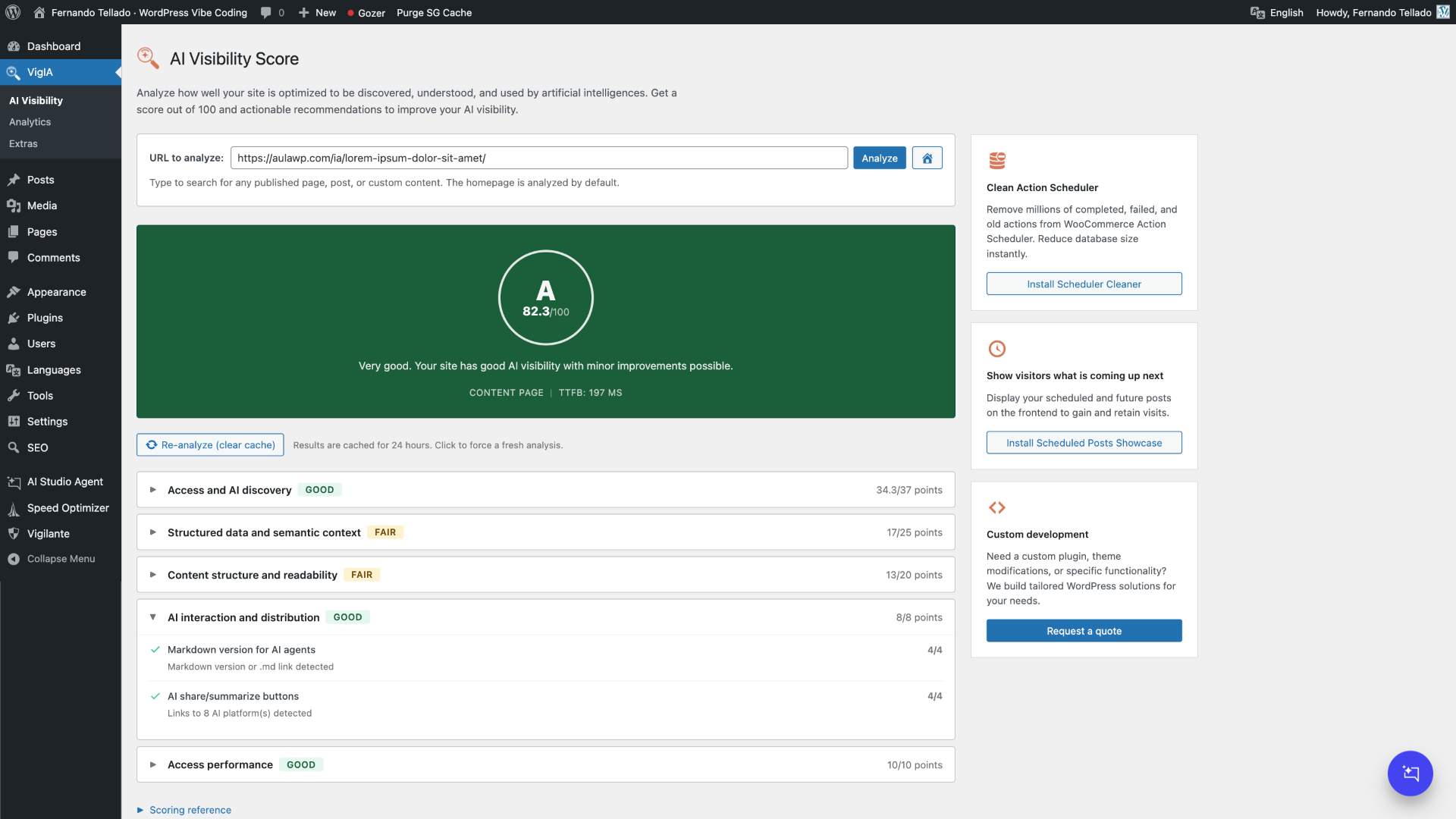
- Scores your AI visibility with a 100-point analyzer covering 20 checks across 5 categories
- Tracks AI crawlers visiting your site (GPTBot, ClaudeBot, PerplexityBot, and 55+ others)
- Provides detailed analytics with advanced filters, server-side pagination, and exportable reports with metadata banner
- Blocks unwanted crawlers via PHP (403 response)
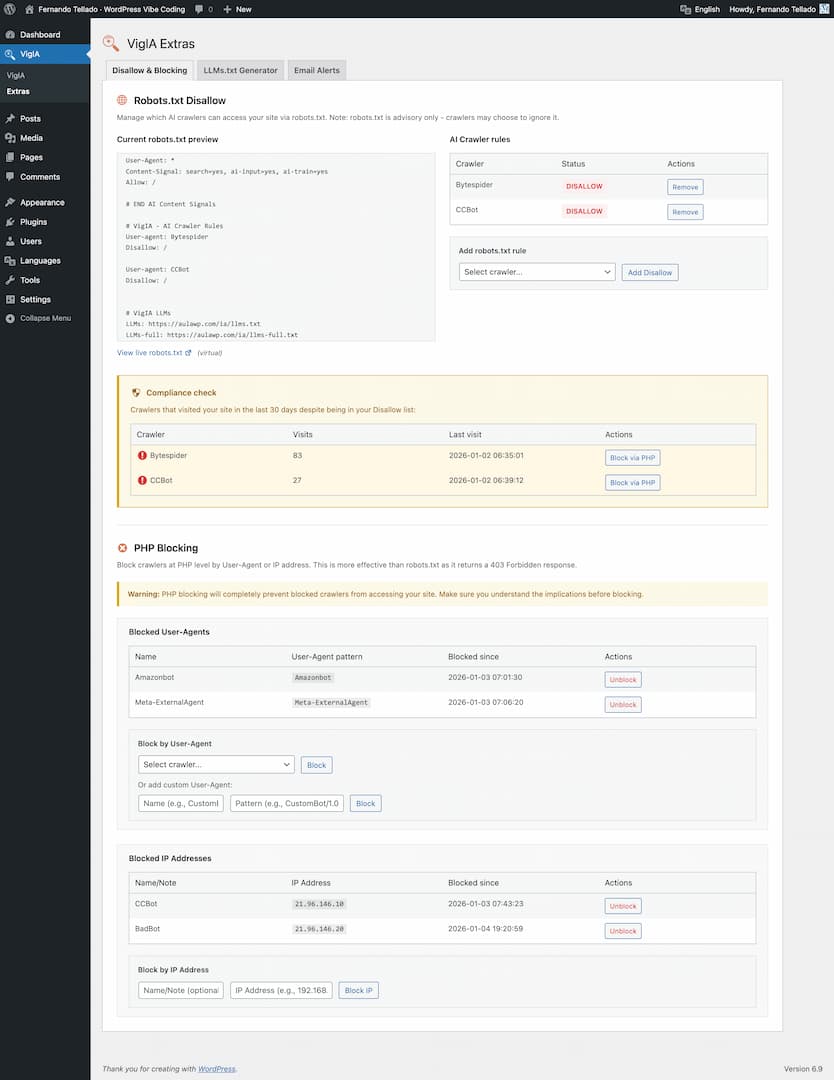
- Manages robots.txt rules for AI crawlers with compliance monitoring
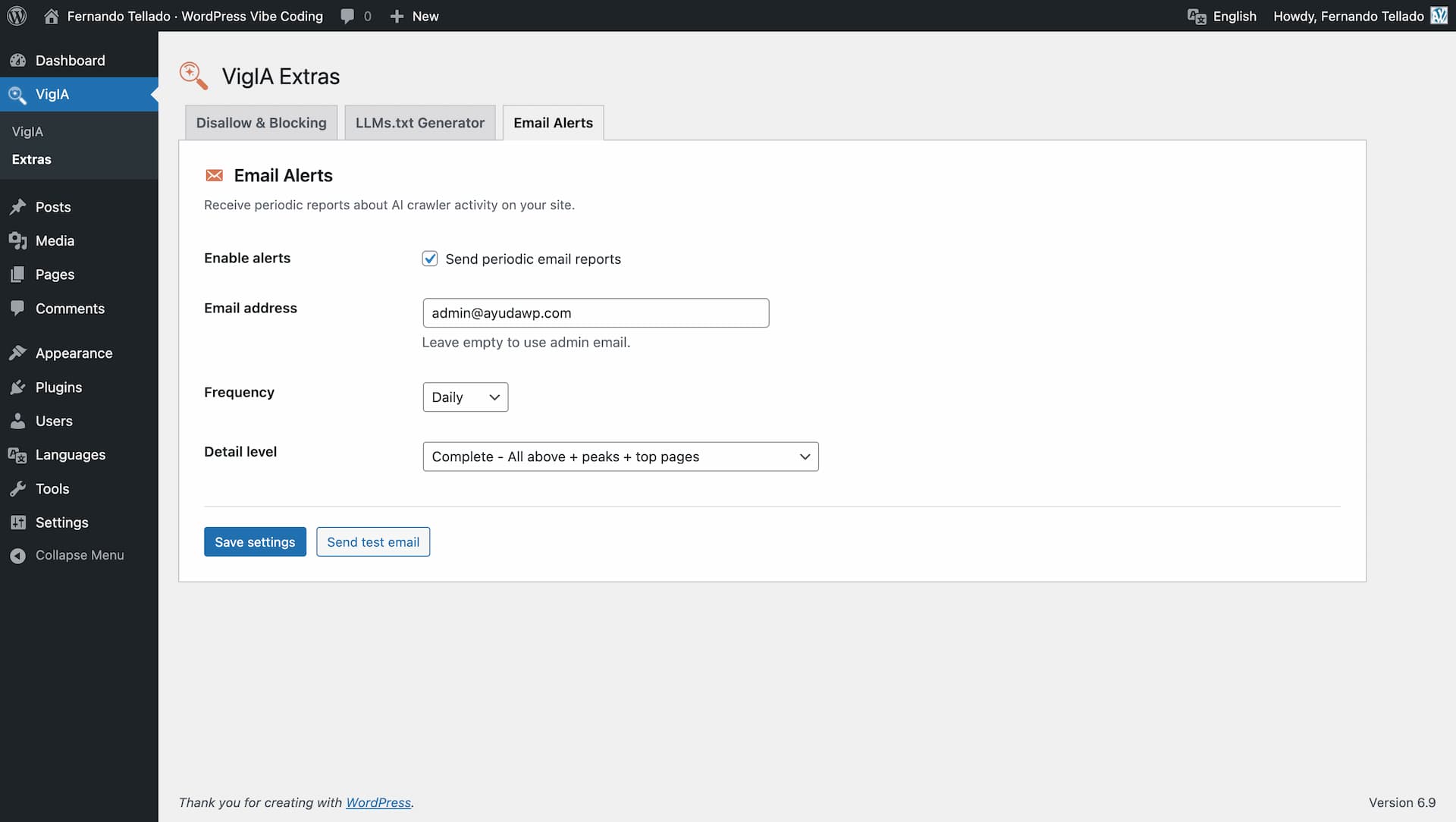
- Sends email alerts about crawler activity (daily, weekly, or monthly)
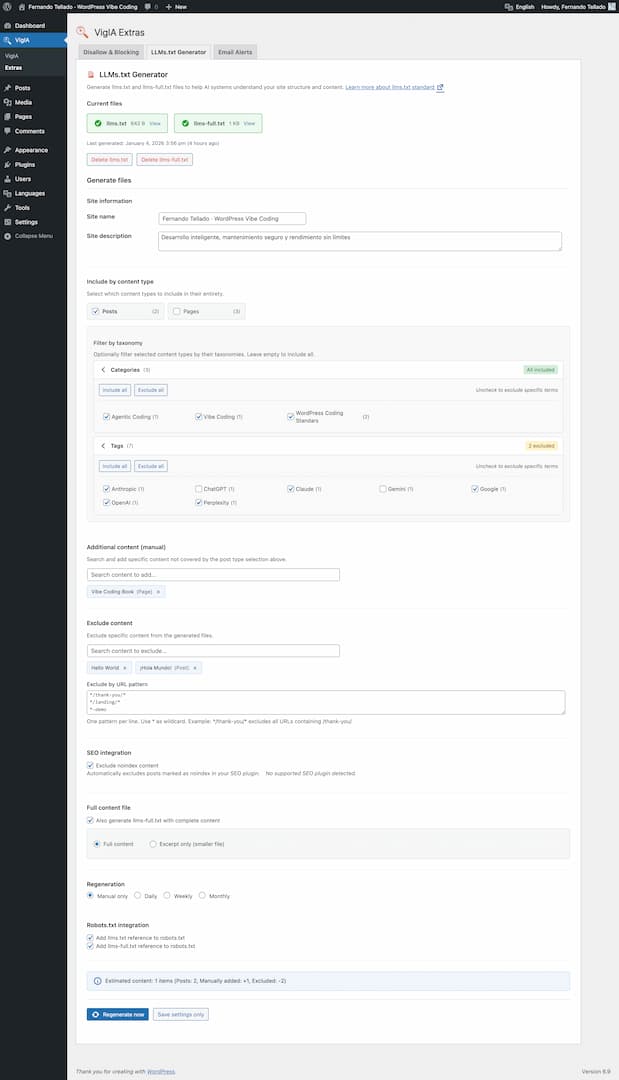
- Generates llms.txt files to help AI systems understand your site
- Serves markdown endpoints for posts, pages, taxonomy archives (categories, tags, WooCommerce product categories, custom taxonomies) and WooCommerce products with schema-like data
- Generates JSON-LD structured data with Site Identity and AI Discovery signals
- Exposes abilities for AI agents and automation tools (WordPress 6.9+)
Key Features
AI Visibility Analyzer
* 100-point scoring system with letter grades (A+ to F)
* 20 individual checks across 5 categories
* Access & AI Discovery (37 pts): robots.txt, AI bot directives, Content Signals, llms.txt, sitemap, RSS feed
* Structured Data & Semantic Context (25 pts): JSON-LD schemas, Open Graph, Twitter Cards, meta description, canonical URL
* Content Structure & Readability (20 pts): heading hierarchy, semantic HTML5, image alt text, content/HTML ratio
* AI Interaction & Distribution (8 pts): markdown delivery, AI share buttons
* Access Performance (10 pts): TTFB measurement
* Smart recommendations with direct links to VigIA features and plugin suggestions
* Analyze any page on your site with URL autocomplete selector
* Results cached for 24 hours with manual re-analyze option
Analytics Dashboard
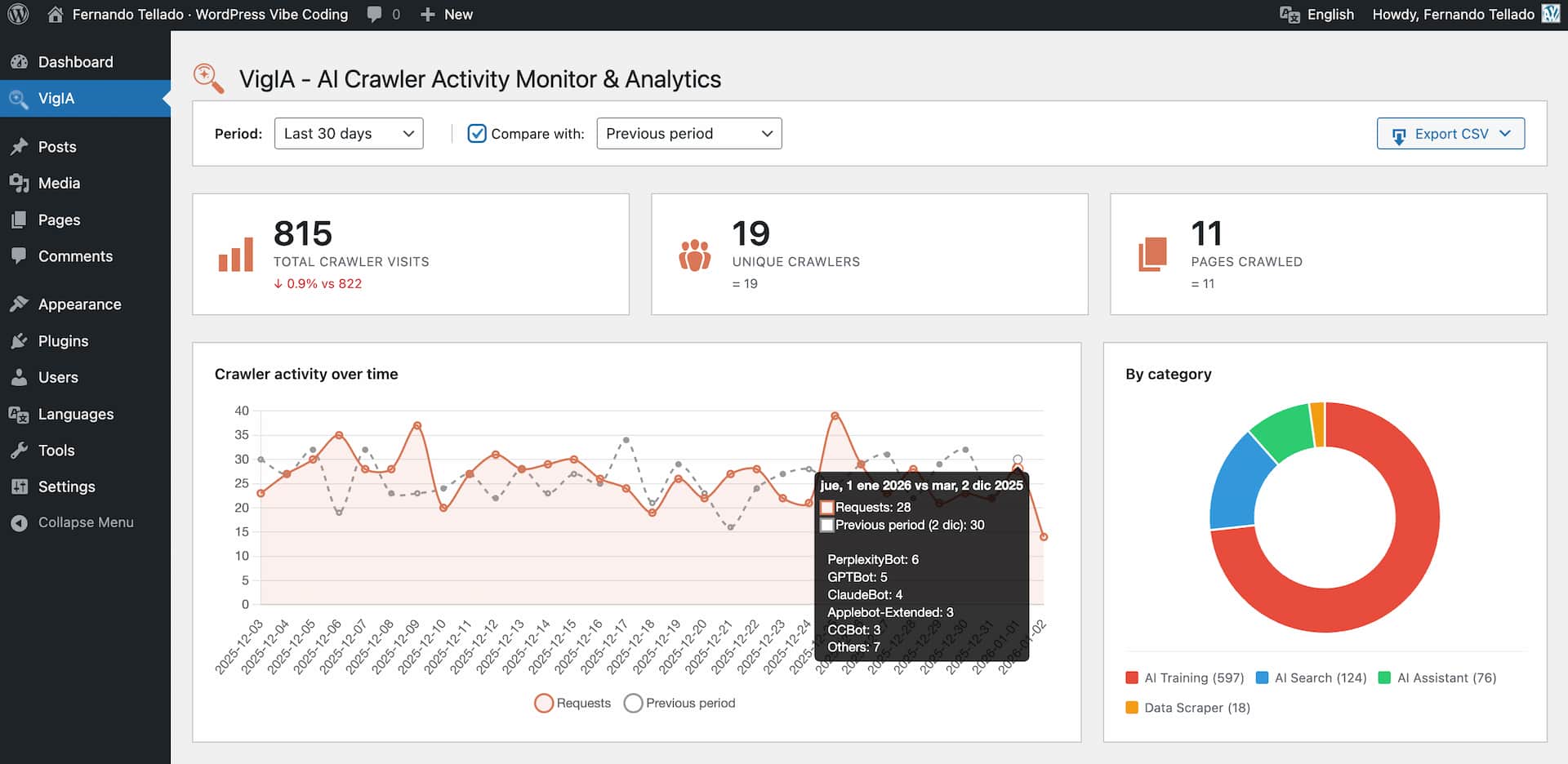
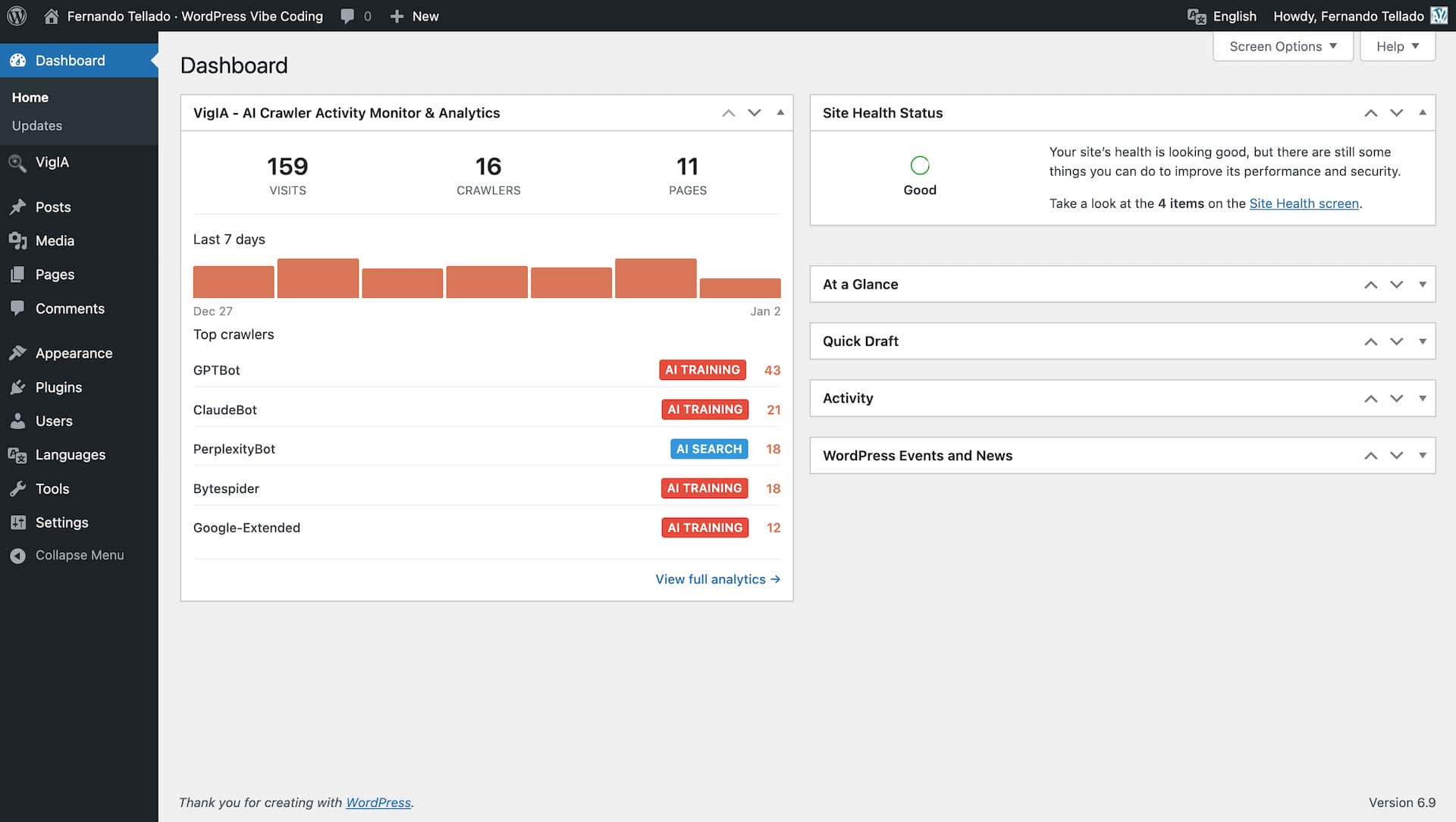
* Total visits, unique crawlers, and pages crawled statistics
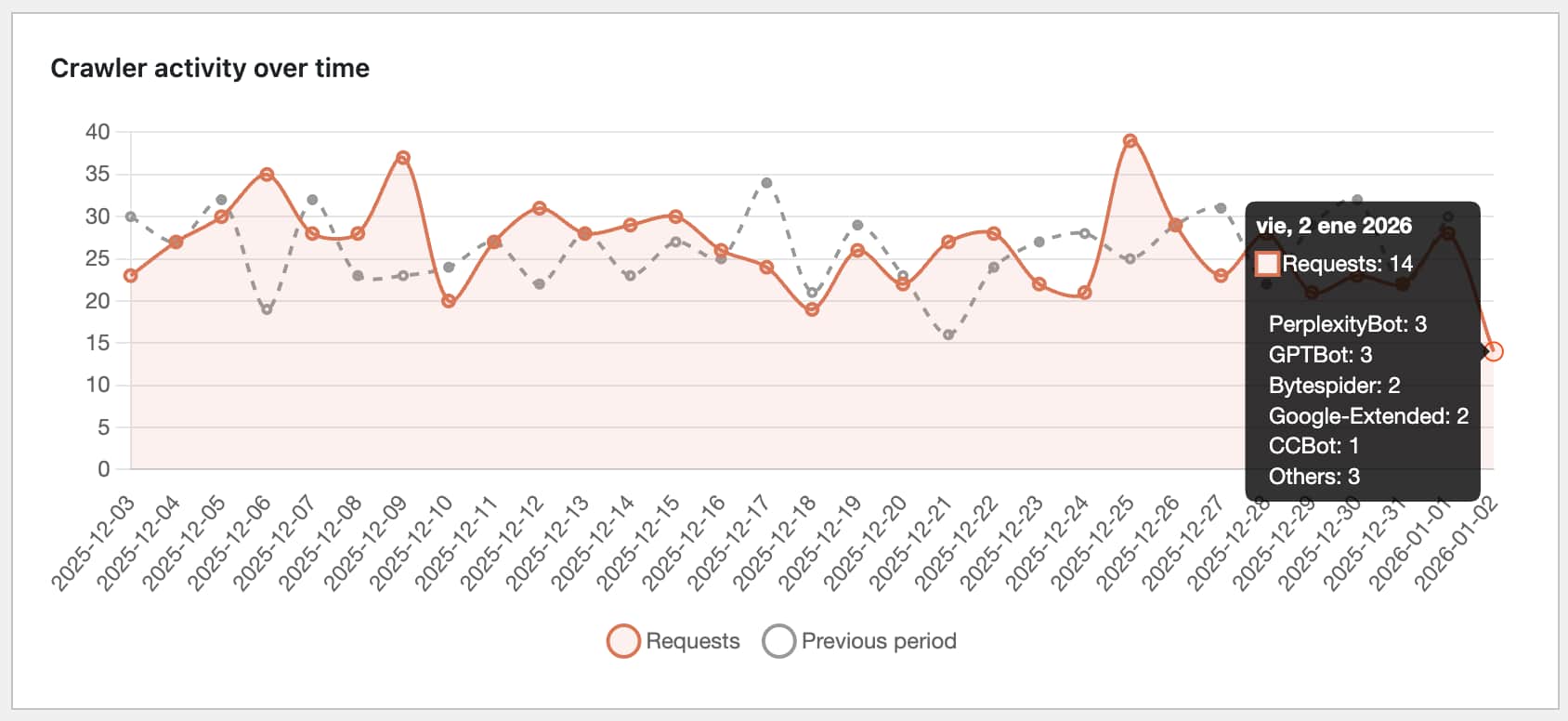
* Timeline chart with daily breakdown
* Category distribution (AI Training, AI Search, AI Assistant, Data Scraper)
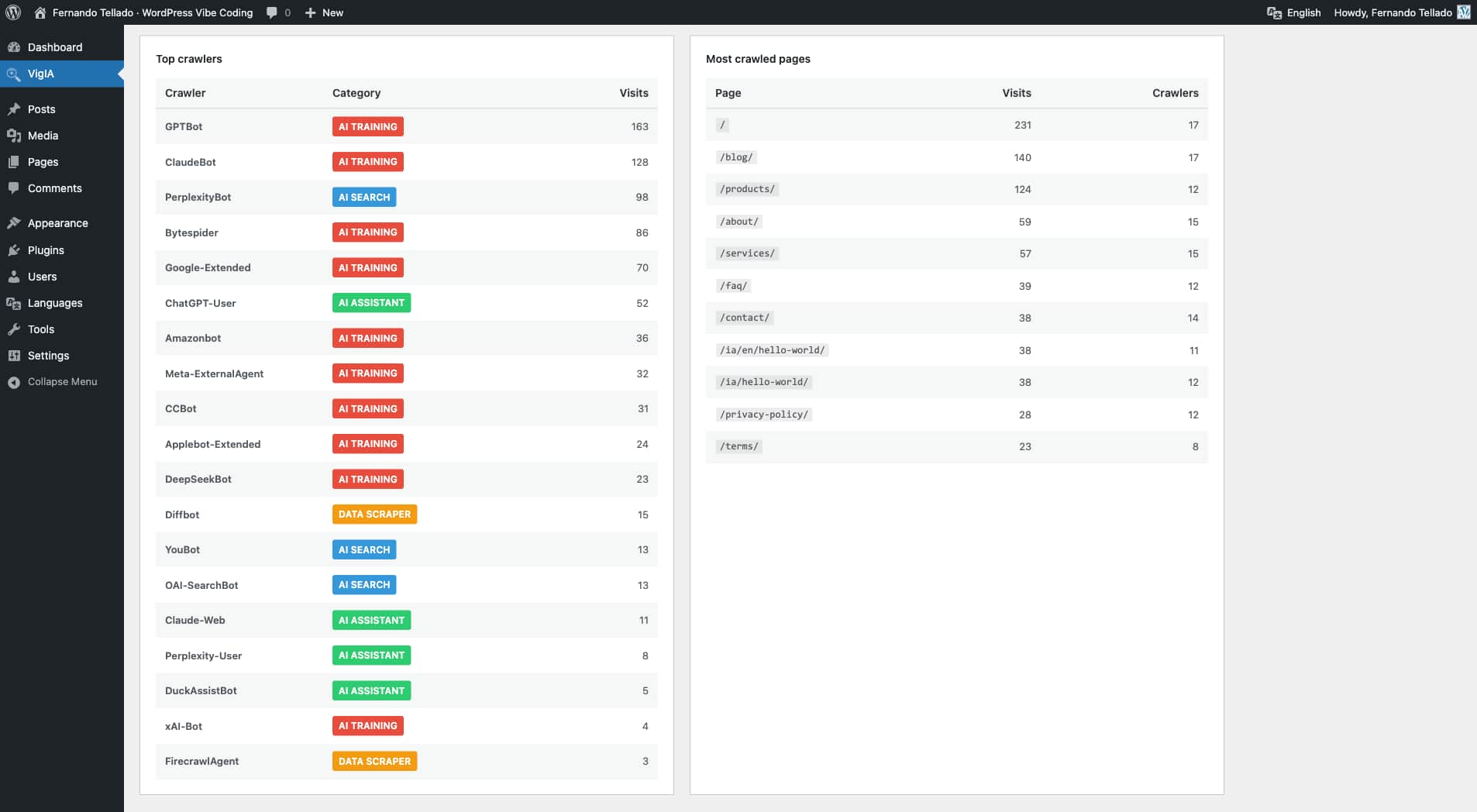
* Top crawlers and most crawled pages tables with paginated navigation
* AI Share & Summarize integration: see share button clicks per page
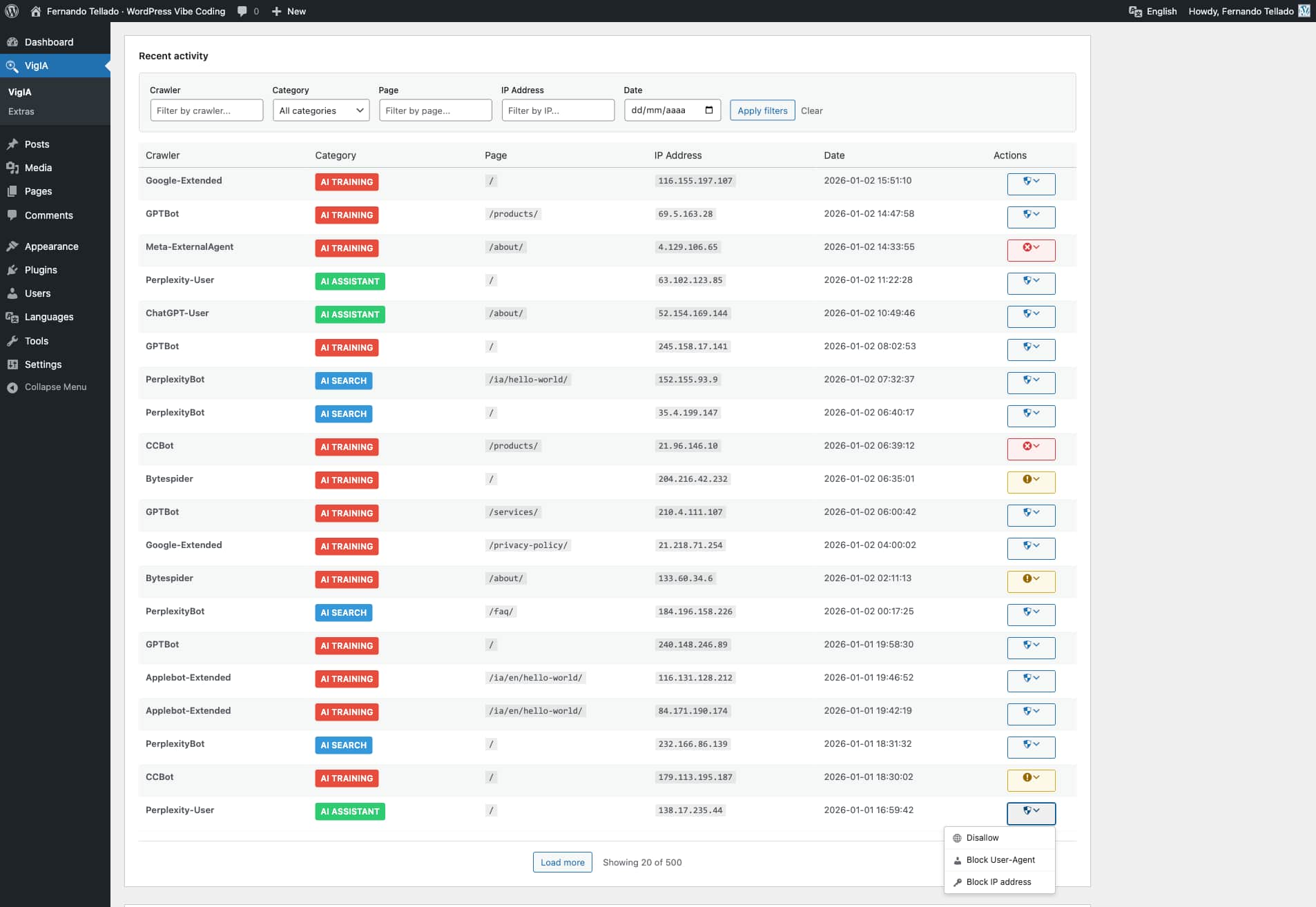
* Recent activity log with content type and HTTP status columns (color coded by status family)
* Advanced filters: multi-select crawler picker, content type, HTTP status code, and configurable date range
* Server-side pagination with four-button pager (first, previous, next, last) — operates over the full database, not just the latest 500 rows
* Period comparison functionality
* CSV export with a metadata banner (site name, site URL, export type, date range, export timestamp, applied filters)
* “Export filtered CSV” button that downloads exactly what the active filters return, with vigia-filtered-YYYY-MM-DD.csv filename
* Content type detection distinguishes Home, Post, Page, Product, custom CPTs, Category archive, Tag archive, Date/Author archive, Feed, Sitemap, REST API, File, Admin / login attempts (/wp-admin, /wp-login.php), WordPress system (admin-ajax, xmlrpc, wp-cron, wp-comments-post), 404 Not found, and Other
Crawler Blocking
* Block crawlers via PHP with 403 Forbidden response
* Quick block dropdown in analytics dashboard
* Manage blocks from Extras page
* Works on any server (Apache, Nginx, LiteSpeed, etc.)
Robots.txt Management
* Add Disallow rules for AI crawlers
* Visual preview of your robots.txt
* Compliance monitoring: see which crawlers ignore your rules
* One-click blocking for non-compliant crawlers
* Works with both physical and virtual robots.txt
Email Alerts
* Daily, weekly, or monthly reports
* Three detail levels: Minimal, Normal, Complete
* Non-compliant crawler warnings
* Activity comparison with previous period
Markdown for Agents
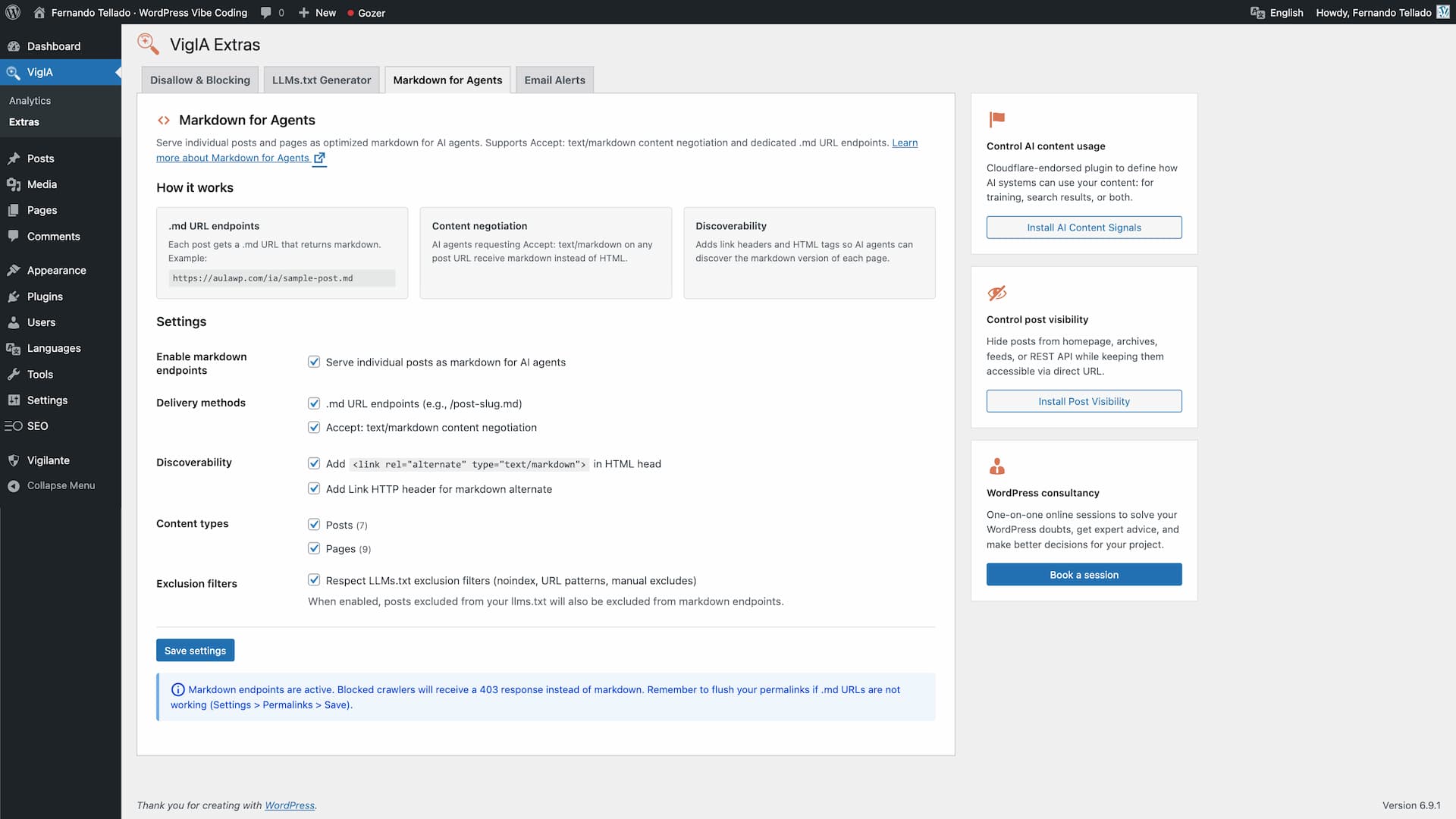
* Serve posts, pages and any public post type as optimized markdown for AI agents
* Serve taxonomy archive pages (categories, tags, WooCommerce product categories, custom taxonomies) as markdown — disabled by default, opt in per taxonomy
* Dedicated .md URL endpoints (e.g., /your-post.md, /category/news.md, /product-category/electronics.md)
* Accept: text/markdown content negotiation on posts and taxonomy archive pages
* Discoverability via Link HTTP headers and <link rel="alternate" type="text/markdown"> HTML tags
* YAML frontmatter for posts: title, date, modified, author, image, categories, tags, post type, lang
* YAML frontmatter for taxonomy terms: title, description, url, type, taxonomy, parent, count, image (term meta), lang
* WooCommerce product frontmatter adds schema-like fields: sku, product_type, price, regular_price, sale_price, currency, availability, stock_quantity, rating, rating_count, review_count
* Taxonomy term body includes the term description (rendered through the_content), the list of direct child terms in hierarchical taxonomies, and an excerpt of the latest posts/products assigned to the term
* Product listings inside product_cat archives include an inline summary with formatted price, “was X” on sale items, star rating and out-of-stock flag
* Respects blocking rules (blocked crawlers get 403) and LLMs.txt exclusion filters
* Per-term noindex detection from Yoast SEO, Rank Math, All in One SEO and SEOPress
* Analytics integration: tracks markdown requests per crawler
* X-Markdown-Tokens response header
* Filters: vigia_markdown_post_eligible, vigia_markdown_term_eligible, vigia_markdown_term_posts_limit
* Follows the Cloudflare Markdown for Agents standard
LLMs.txt Generator
* Select content by post type with one click
* Filter by taxonomies (categories, tags, custom)
* Manual include/exclude with AJAX search
* Exclude by URL patterns (wildcards supported)
* SEO plugin integration (auto-exclude noindex content)
* Auto-regeneration (daily, weekly, monthly)
* Robots.txt integration (add llms.txt and llms-full.txt references)
* Generate llms.txt and llms-full.txt files
* Full content or excerpt mode
* Compatible with Yoast SEO, Rank Math, All in One SEO, SEOPress, The SEO Framework, and Native SEO NoIndexer
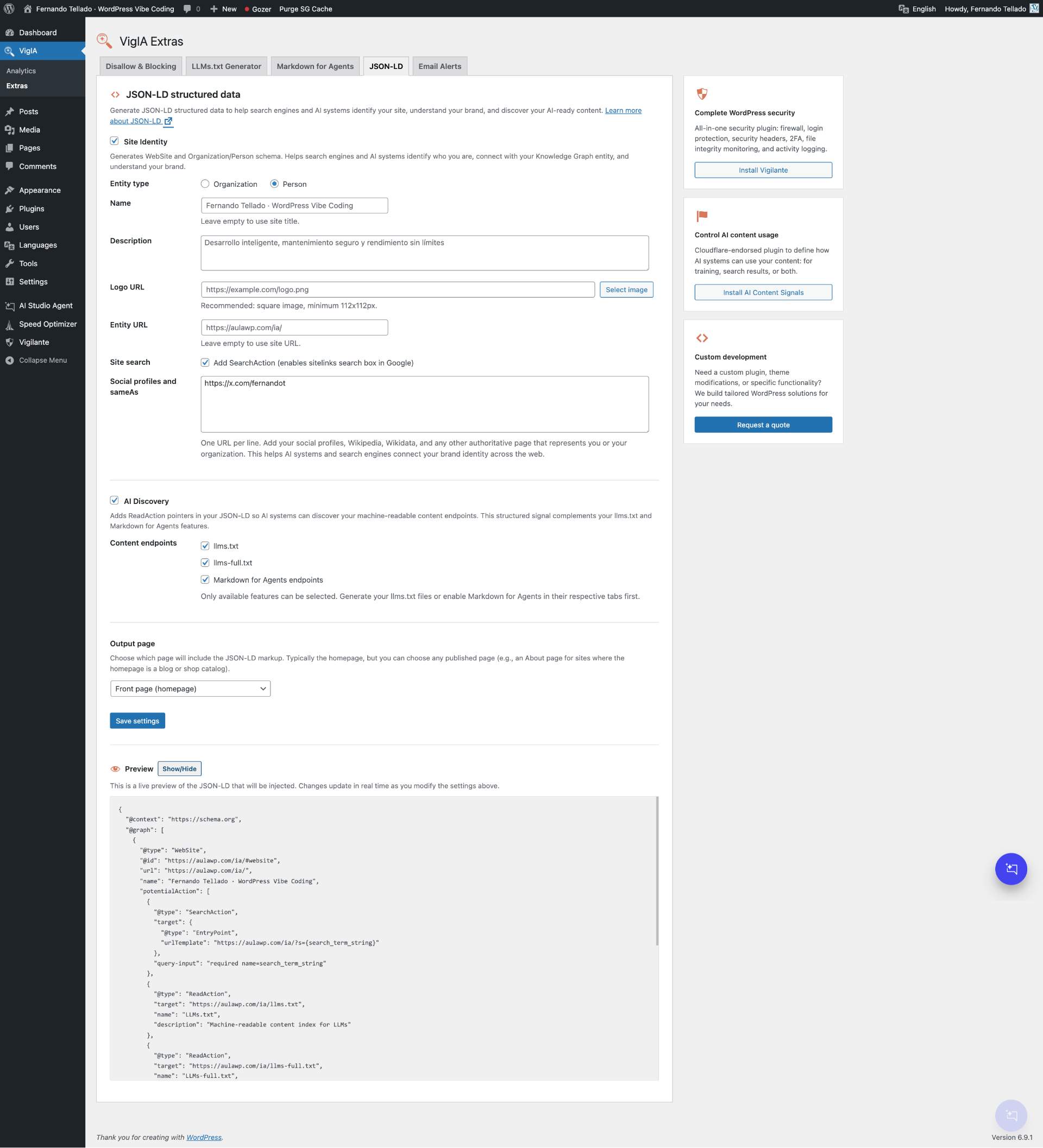
JSON-LD Structured Data
* Generate WebSite and Organization/Person schema for site identity
* AI Discovery: ReadAction pointers to llms.txt, llms-full.txt, and Markdown for Agents endpoints
* Social profiles and sameAs links for brand identity across the web
* SearchAction for Google sitelinks search box
* Media library integration for logo selection
* SEO plugin conflict detection (Yoast, Rank Math, AIOSEO, SEOPress, The SEO Framework)
* Choose output page (front page or any published page)
* Live JSON-LD preview with real-time updates
* Smart integration with LLMs.txt and Markdown for Agents features
Supported AI Crawlers
VigIA monitors 55+ AI crawlers including:
- OpenAI: GPTBot, OAI-SearchBot, ChatGPT-User
- Anthropic: ClaudeBot, Claude-Web, Claude-SearchBot
- Google: Google-Extended, GoogleOther, Gemini-Deep-Research
- Perplexity: PerplexityBot, Perplexity-User
- Meta: Meta-ExternalAgent, FacebookBot
- Microsoft: BingBot
- ByteDance: Bytespider
- Amazon: Amazonbot
- Apple: Applebot-Extended
- And many more…
Privacy Focused
VigIA stores visitor data locally in your WordPress database. No data is sent to external servers.
Abilities API
VigIA is one of the first WordPress plugins to implement the Abilities API introduced in WordPress 6.9. This API allows AI agents, automation tools, and external systems to discover and interact with VigIA’s functionality in a standardized, secure way.
What are Abilities?
Abilities are self-contained units of functionality that VigIA exposes through WordPress’s central registry. Each ability has defined inputs, outputs, and permissions, making it easy for automation tools to understand and use them.
Available Abilities
VigIA registers the following abilities:
Analytics
vigia/get-crawler-stats– Get statistics about AI crawler visits (total visits, unique crawlers, pages crawled)vigia/get-top-crawlers– Get a ranked list of most active AI crawlersvigia/get-top-pages– Get the most crawled pages on your site
Blocking
vigia/get-blocked-items– List all blocked crawlers and IP addressesvigia/block-crawler– Block a crawler by User-Agent patternvigia/unblock-crawler– Remove an existing block
Robots.txt
vigia/get-robots-rules– Get current AI crawler rules in robots.txtvigia/add-robots-disallow– Add a Disallow directive for a crawlervigia/remove-robots-rule– Remove a robots.txt rule
Use Cases
- Automated monitoring: AI agents can query crawler statistics and alert you to anomalies
- Reactive blocking: Automation tools can block crawlers that repeatedly ignore robots.txt
- External dashboards: Aggregate data from multiple WordPress sites with VigIA installed
- WP-CLI integration: Future command-line access through the Abilities API
- n8n / Make workflows: Build custom automation flows using VigIA’s abilities
Requirements
The Abilities API ships with WordPress 6.9 and later. On older WordPress versions, VigIA works normally but abilities and MCP are not available.
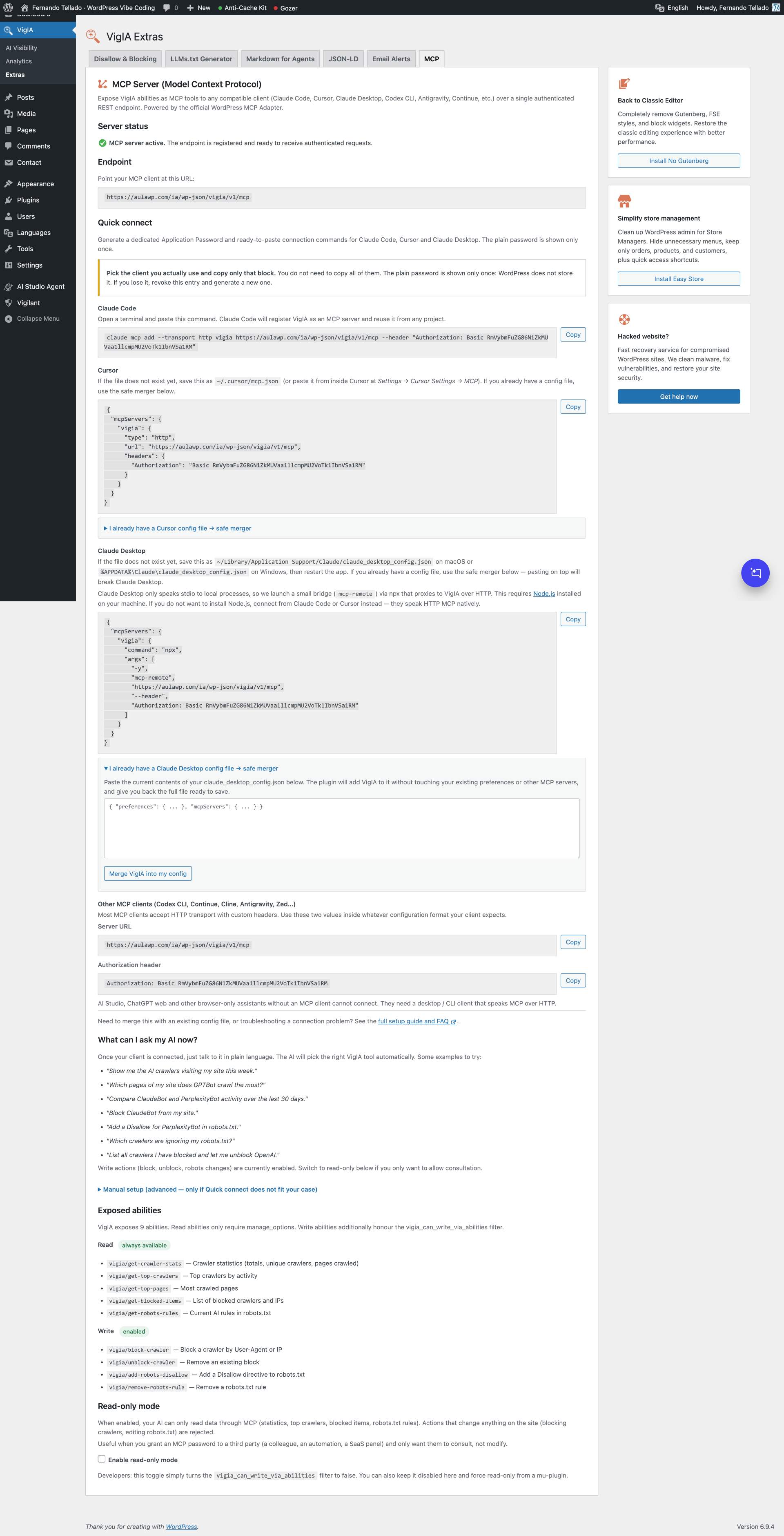
MCP Server (Model Context Protocol)
VigIA exposes its 9 abilities as native MCP tools to any MCP-compatible client (Claude Code, Cursor, Claude Desktop, Codex CLI, Antigravity, Continue, Cline, Zed and similar) using the official WordPress MCP Adapter. The adapter ships bundled with the plugin, so the MCP endpoint is active right after installation — no Composer step or terminal access required.
Requirements
- WordPress 6.9 or later (provides the Abilities API)
Quick connect (recommended)
Open VigIA > Extras > MCP and click “Generate password and connection commands”. The plugin creates a dedicated Application Password named VigIA MCP and renders ready-to-paste commands for Claude Code, Cursor, Claude Desktop and a generic block (URL + Authorization header) for any other MCP client.
The plain password is shown only once. If you lose it, revoke the entry from the same panel and generate a new one.
Endpoint
https://your-site.example/wp-json/vigia/v1/mcp
The endpoint uses HTTP Basic auth with the WordPress Application Password. The user must have the manage_options capability.
Connecting Claude Code
Quick Connect builds the full command for you. The shape is:
claude mcp add --transport http vigia https://your-site.example/wp-json/vigia/v1/mcp --header "Authorization: Basic BASE64_OF_USER_AND_APP_PASSWORD"
Claude Code merges the new entry into its config file automatically — no risk of breaking other servers.
Connecting Cursor
Save the JSON block from Quick Connect as ~/.cursor/mcp.json. You can also reach this file from inside Cursor at Settings Cursor Settings MCP.
If the file already exists with other content, see “Merging into an existing config file” below.
Connecting Claude Desktop
Save the JSON block from Quick Connect as claude_desktop_config.json in your user Library (this is not the system Library at the root of the disk):
- macOS:
~/Library/Application Support/Claude/claude_desktop_config.json - Windows:
%APPDATA%\Claude\claude_desktop_config.json - Linux:
~/.config/Claude/claude_desktop_config.json
On macOS, the easiest way to reach the folder is to open Finder, press ⌘ Shift G, paste ~/Library/Application Support/Claude/ and hit Enter. On Windows, press Win+R and run %APPDATA%\Claude.
Important: Claude Desktop only speaks stdio to local processes, so the snippet does not connect directly to VigIA over HTTP. Instead it launches a small bridge package (mcp-remote) via npx that proxies the connection. This means you need Node.js installed on the machine. The first run downloads mcp-remote automatically; subsequent runs use the npm cache.
If you do not want to install Node.js, connect from Claude Code or Cursor instead — both speak HTTP MCP natively and do not need a bridge.
Restart Claude Desktop after saving the file. If the app boots with default preferences, the JSON is malformed — review the file or restore your backup. If Claude Desktop says the entry is “not a valid MCP server configuration”, npx is not in its PATH; check that Node.js is installed and accessible to GUI apps.
If the file already exists with other content, see “Merging into an existing config file” below.
Merging into an existing config file
If your claude_desktop_config.json or ~/.cursor/mcp.json already exists, do not paste the full Quick Connect block on top of it. Pasting on top discards everything else (preferences, other MCP servers) and the app will start with defaults.
Always make a backup of the file first. Then open it with any text editor that preserves JSON.
There are two scenarios.
Scenario 1 — the file has content but no mcpServers block yet.
This is common when you have used Claude Desktop before but never configured MCP servers. The file might look like this:
{
  "preferences": {
    "menuBarEnabled": false,
    "...": "..."
  }
}
Add mcpServers as a sibling property of preferences, separated by a comma. The result should be:
{
  "preferences": {
    "menuBarEnabled": false,
    "...": "..."
  },
  "mcpServers": {
    "vigia": {
      "command": "npx",
      "args": [
        "-y",
        "mcp-remote",
        "https://your-site.example/wp-json/vigia/v1/mcp",
        "--header",
        "Authorization: Basic BASE64_OF_USER_AND_APP_PASSWORD"
      ]
    }
  }
}
The order of preferences and mcpServers is not important, but the comma between them is required. Forgetting the comma makes the JSON invalid and Claude Desktop will start with default preferences.
Scenario 2 — the file already has mcpServers with other servers.
Add the vigia entry inside the existing mcpServers object, separated from other entries by a comma:
"mcpServers": {
  "other-server": {
    "...": "..."
  },
  "vigia": {
    "command": "npx",
    "args": [
      "-y",
      "mcp-remote",
      "https://your-site.example/wp-json/vigia/v1/mcp",
      "--header",
      "Authorization: Basic BASE64_OF_USER_AND_APP_PASSWORD"
    ]
  }
}
For Cursor the entry is different — Cursor speaks HTTP MCP natively, so its block uses type, url and headers directly inside the server entry instead of the bridge command. The Quick Connect panel renders the right format for each client.
Other MCP clients (Codex CLI, Continue, Cline, Antigravity, Zed, custom)
Most MCP clients accept HTTP transport with a custom Authorization header. The Quick Connect panel exposes the two raw values you need — the server URL and the Authorization header — so you can drop them into whatever configuration format your client expects.
Browser-only assistants without an MCP client (AI Studio, ChatGPT web) cannot connect. They need a desktop or CLI client that speaks MCP over HTTP.
Read-only mode
If you only want your AI to consult VigIA (not change anything), enable “Read-only mode” in the MCP tab. While on, write actions (block, unblock, robots changes) return a permission denied error. Read actions (statistics, top crawlers, blocked items, robots rules) keep working.
The toggle stores a vigia_mcp_read_only option that hooks into the vigia_can_write_via_abilities filter. Developers can still force read-only from a mu-plugin:
add_filter( 'vigia_can_write_via_abilities', '__return_false' );
The mu-plugin filter at the default priority takes precedence over the toggle.
After connecting
Restart your MCP client after adding the server so it picks up the new tools. Then try a few prompts to confirm everything is wired up:
- “Show me VigIA crawler stats for the last 7 days.”
- “List the top 5 most crawled pages on this site.”
- “Add a robots.txt Disallow rule for TestBot and then list the current AI crawler rules.”
The third example exercises a read + write + read round-trip, which is the most complete sanity check.
Support
Need help or have suggestions?
Love the plugin? Please leave us a 5-star review and help spread the word!
About AyudaWP
We are specialists in WordPress security, SEO, AI and performance optimization plugins. We create tools that solve real problems for WordPress site owners while maintaining the highest coding standards and accessibility requirements.
Screenshots
Installation
- Upload the plugin files to
/wp-content/plugins/vigia/or install through the WordPress plugins screen - Activate the plugin through the ‘Plugins’ screen in WordPress
- Navigate to VigIA > AI Score to check your AI Visibility Score
- View crawler analytics in VigIA > Analytics
- Configure blocking rules, llms.txt, markdown, and JSON-LD in VigIA > Extras
FAQ
-
What is the AI Visibility Score?
-
The AI Visibility Score is a 100-point rating system that measures how well your site is prepared for AI crawlers and AI-powered search. It checks 20 signals across 5 categories: access and discovery, structured data, content structure, AI interaction, and performance. You get a letter grade (A+ to F) and specific recommendations to improve.
-
Does this plugin slow down my site?
-
No. VigIA adds minimal overhead by checking the User-Agent string on each request. The check is very fast and only writes to the database when an AI crawler is detected.
-
What’s the difference between robots.txt blocking and PHP blocking?
-
Robots.txt is advisory – crawlers should respect it but may choose to ignore it. PHP blocking returns a 403 Forbidden response, effectively preventing access regardless of whether the crawler respects robots.txt.
-
Will blocking crawlers affect my SEO?
-
Blocking AI training crawlers (like GPTBot or ClaudeBot) will not affect traditional search engine rankings. However, blocking AI search crawlers might affect how your content appears in AI-powered search results.
-
What is Markdown for Agents?
-
Markdown for Agents is a standard for serving web content as clean markdown to AI agents. Instead of processing full HTML, agents receive lightweight markdown with structured metadata. VigIA supports both dedicated .md URLs and Accept: text/markdown content negotiation. Enable it in VigIA > Extras > Markdown for Agents.
Since VigIA 2.0.0 the feature also covers taxonomy archives (categories, tags, WooCommerce product categories, custom taxonomies) and WooCommerce products. Term archives include the term description, the list of child terms in hierarchical taxonomies and an excerpt of the latest entries; product
.mdendpoints embed schema-like data (price, sale price, SKU, stock status, rating) directly in the YAML frontmatter. -
Which content types does the activity table classify?
-
VigIA 2.0.0 classifies each crawler hit into one of these buckets, indexed in the database so filters and CSV exports are instant: Home (the
/path), Post, Page, Product, any other public custom post type, Category archive, Tag archive, Date/Author archive, Feed, Sitemap, REST API, File (PDFs, images, downloads), Admin/login attempt (/wp-admin,wp-login.php— useful to spot bots probing the admin), WordPress system (admin-ajax, xmlrpc, wp-cron, wp-comments-post), 404 Not found, and Other. -
Can I add custom crawlers to monitor?
-
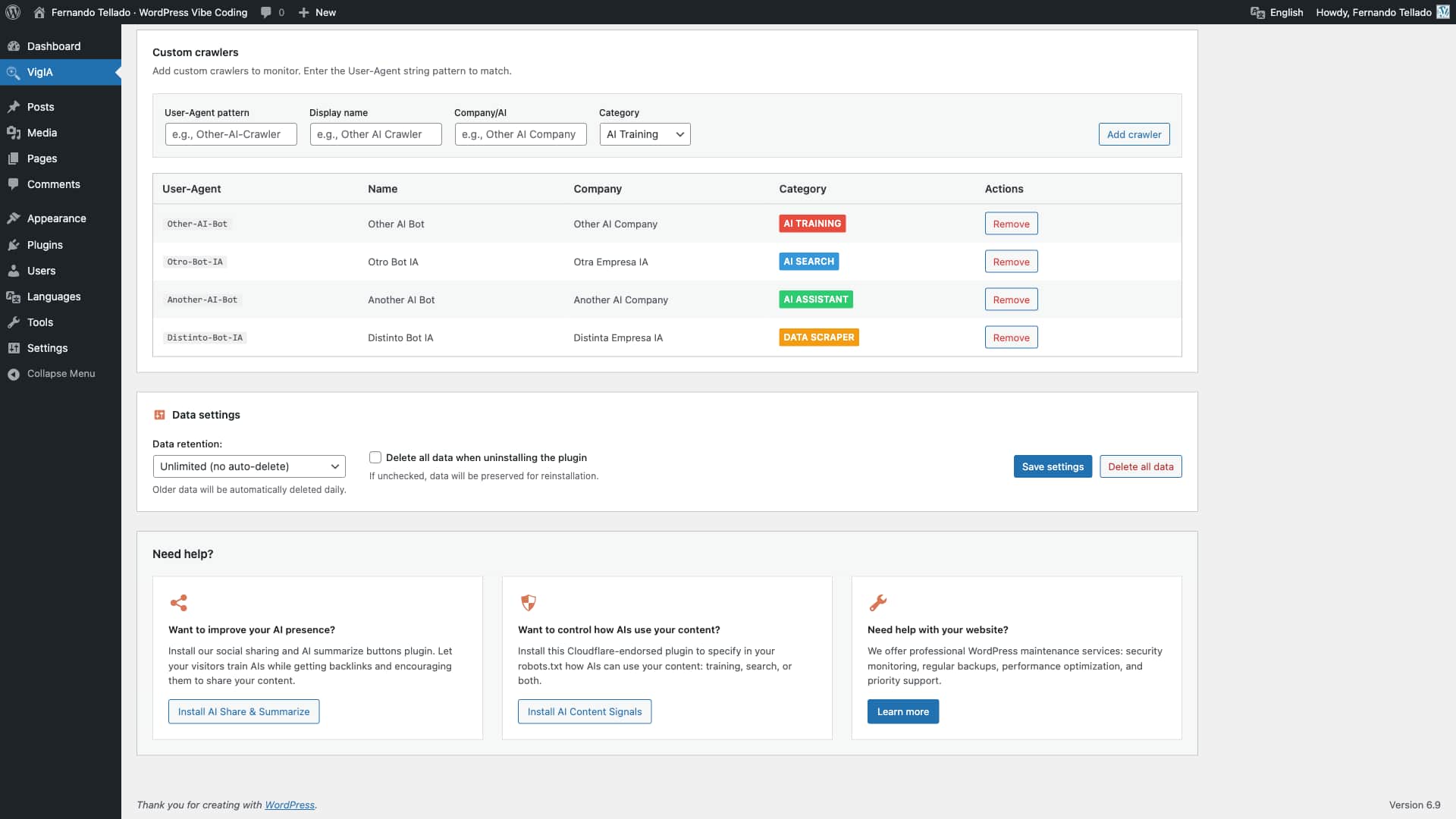
Yes! In the main analytics page, scroll down to “Custom crawlers” and add your own User-Agent patterns to track.
-
Where is the data stored?
-
All data is stored in your WordPress database in a custom table (
wp_vigia_visits). No data leaves your server. -
What is llms.txt?
-
The llms.txt file is a standard for helping AI systems understand your website’s content and structure. It provides a machine-readable overview of your site that AI can use to better represent your content. Learn more at llmstxt.org.
-
Which SEO plugins are supported for noindex detection?
-
VigIA supports automatic noindex detection from: Yoast SEO, Rank Math, All in One SEO, SEOPress, The SEO Framework, and Native SEO NoIndexer.
-
What is the Abilities API?
-
The Abilities API is a new feature in WordPress 6.9 that allows plugins to expose their functionality in a standardized way. This enables AI agents, automation tools, and external systems to discover and use plugin features programmatically. VigIA implements 9 abilities for analytics, blocking, and robots.txt management.
-
What does JSON-LD do?
-
JSON-LD (JavaScript Object Notation for Linked Data) is structured data that helps search engines and AI systems understand your site identity and content. VigIA generates two types of JSON-LD: Site Identity (WebSite + Organization/Person schema with social profiles) and AI Discovery (ReadAction pointers to your llms.txt and Markdown for Agents endpoints). This makes your AI-ready content discoverable through structured signals. Enable it in VigIA > Extras > JSON-LD.
Reviews


Contributors & Developers
“VigIA – AI Visibility, Analytics & Control” is open source software. The following people have contributed to this plugin.
Contributors

“VigIA – AI Visibility, Analytics & Control” has been translated into 2 locales. Thank you to the translators for their contributions.
Translate “VigIA – AI Visibility, Analytics & Control” into your language.
Interested in development?
Browse the code, check out the SVN repository, or subscribe to the development log by RSS.
Changelog
2.0.2
- Fix: The recent activity table now records the real HTTP status (200, 404, 301, 410…) for each AI crawler hit. Visits were always stored as 200 because the status was read on the
inithook, before WordPress resolved the request, so 404s and redirects looked like 200s — and not-found hits were mistyped in the Content type column. The status is now captured onshutdown, when WordPress has sent the final response. Existing rows keep their stored value; only visits logged from 2.0.2 on carry the corrected status - Fix: A crawler request served by a Markdown for Agents
.mdendpoint is no longer recorded twice in the activity table
2.0.1
- Fix: Markdown for Agents and llms.txt no longer expose password-protected content. The
.mdendpoints (andAccept: text/markdownnegotiation) now return 404 for password-protected posts and pages, such posts are dropped from taxonomy term.mdlistings, and they are excluded from llms.txt and llms-full.txt - Fix: Hardened deserialization of plugin options and post meta (
unserializenow runs withallowed_classes => false) to guard against PHP object injection
2.0.0
- NEW: Markdown for Agents now serves taxonomy archive pages (categories, tags, WooCommerce product categories, custom taxonomies). Frontmatter includes title, description, taxonomy, parent, count, image and lang. Body includes the term description, the list of child terms in hierarchical taxonomies, and an excerpt of the latest posts/products assigned to the term. Disabled by default — opt in per taxonomy in VigIA > Extras > Markdown for Agents
- NEW: WooCommerce product
.mdendpoints embed schema-like fields in the YAML frontmatter (sku, product_type, price, regular_price, sale_price, currency, availability, stock_quantity, rating, rating_count, review_count). Product listings insideproduct_catterm archives also gain an inline summary with formatted price, “was X” on sale items, star rating and out-of-stock flag - NEW: Advanced filters on the recent activity table — multi-select crawler picker, content type filter (post, page, product, category archive, tag archive, date/author archive, feed, sitemap, REST API, file, other), HTTP status filter, configurable date range, and an “Export filtered CSV” button that downloads exactly what the filters return
- NEW: Two new visible columns on the recent activity table — Content type and HTTP status (color coded by status family). Content type detection distinguishes Home, Post, Page, Product, CPTs, taxonomy archives, Feed, Sitemap, REST API, File, Admin / login attempt (/wp-admin, wp-login.php — useful to spot bots probing the admin), WordPress system (admin-ajax, xmlrpc, wp-cron, wp-comments-post), 404 Not found, and Other
- NEW: Server-side pagination on the recent activity table with a four-button pager (first, previous, next, last) consistent with the rest of the dashboard tables. The count, navigation and CSV export operate over the full database instead of the last 500 rows
- NEW: Every CSV export now opens with a metadata banner (site name, site URL, export type, date range, export timestamp, generator string, applied filters). The activity export uses the
vigia-filtered-YYYY-MM-DD.csvfilename when any filter is in effect - NEW:
/vigia/v1/recentand/vigia/v1/exportaccept new query params (crawlers[], category, content_type, http_status, date_from, date_to, page, per_page) andVigIA_Database::query_visits()is now public for site builders. The legacy contract — no parameters returns the latest 500 visits as a flat array — is preserved - NEW: Filters
vigia_markdown_term_eligibleandvigia_markdown_term_posts_limitfor site builders to control term markdown output programmatically - DB: New
content_typecolumn onwp_vigia_visits(DB version 1.1.0) populated at insert time. Pre-2.0.0 rows are backfilled hourly by thevigia_backfill_content_typecron, plus eagerly when the user filters by content_type in the dashboard - Changed: Admin menu order restored. Analytics is the default landing page again when clicking the VigIA top-level menu, with AI Visibility in second position
- Changed: Per-term noindex settings from Yoast SEO, Rank Math, All in One SEO and SEOPress are honored when “Respect LLMs.txt exclusion filters” is on. Native SEO NoIndexer (AyudaWP) is also recognised for single posts when its
Noindexer_Frontend::is_noindex()helper is available - i18n: CSV export headers, CSV metadata banner labels and every new UI string ship translation-ready
For older changelog entries, please check the changelog.txt file