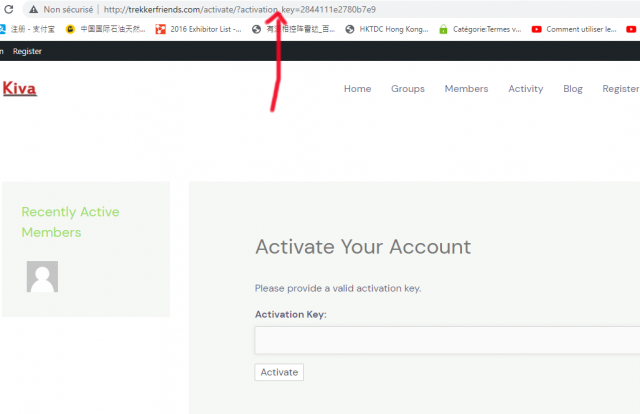
Hi @ditout,
1. Please allow me to explain how the Email Confirmation functionality works:
step 1: The user registers on your website.
step 2: The user receives an email with an activation link in it, he must access that link to confirm the email.
step 3: After which the user can log in to your website.
If you don’t want to use the Email Confirmation functionality, you can deactivate it from PB-> Settings-> General-> and choose no at the “Email Confirmation” Activated setting.
2. Yes, you can set 4 for example, or any number you want.
You can also set how weak a password should be with the Minimum Password Strength setting, documentation here: https://www.cozmoslabs.com/docs/profile-builder-2/general-settings#Minimum_Password_Strength
Thread Starter
 ditout
(@ditout)
Hi @madalinaruzsa
Thank for your reply, after having clicked the activation link,
the page is: https://si3.photorapide.com/invites/photos/2022/10/24qiby.png
it need to put the activate key which is on the navigator,
can the user open directly my website not through this activate key( the activate key page will not be opened ) ?
because I think some users could not find out this key from the navigator.
Thank you so much !
Hi @ditout,
Please take a look at the following screenshot: https://snipboard.io/GAYDRh.jpg
The Activation Key section is not created with Profile Builder.
Now, if you go to PB-> Settings-> General-> After you will enable the “Email Confirmation” functionality you will see an option “Email Confirmation” Landing Page”. With this option, you can set to which page the user will be redirected after confirming his email. So the workflow will be:
step 1: The user registers on your website.
step 2: The user receives an email with an activation link in it. He clicks on the link.
step 3: The user will be redirected to the page set at “Email Confirmation” Landing Page”