Hello @dvirhamami,
It is a pleasure to help you.
The classes and styles assigned to the forms’ fields are available in the following link:
https://cff.dwbooster.com/faq#q82
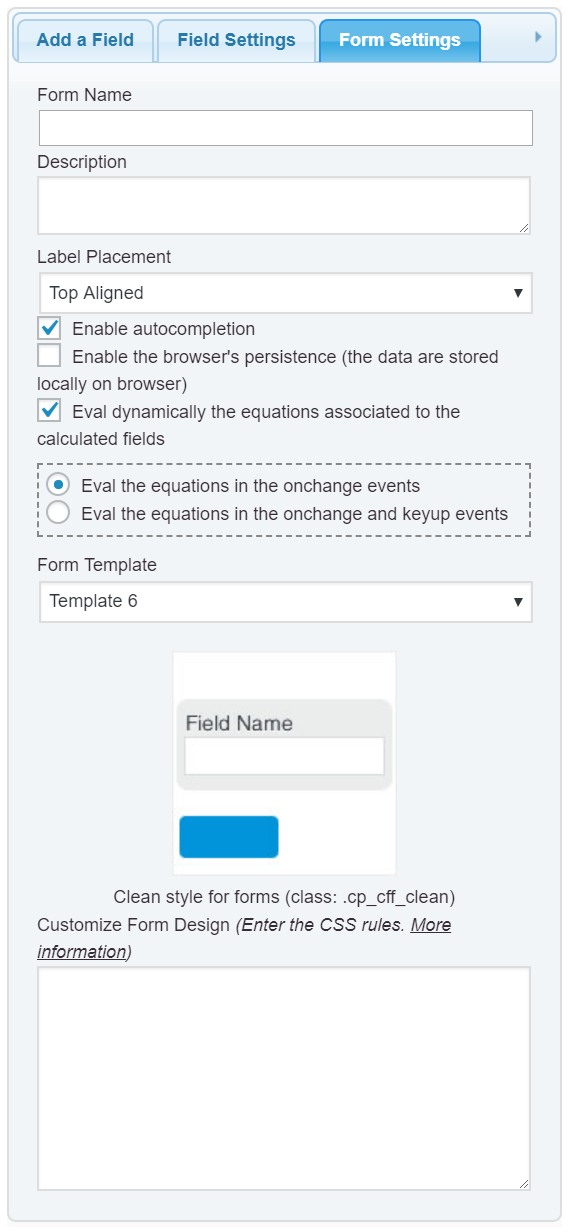
So, assuming you want to assign the color red to the input box of the calculated field and texts in white color, enter the following style definition into the “Customize Form Design” attribute in the “Form Settings” tab (https://cff.dwbooster.com/images/documentation/form-settings-tab.png)
#fbuilder .cff-calculated-field input{background:red; color:white;}
Of course, using the CSS rules and colors code you want.
Best regards.
I having a problem with this action.
I entered the style definition:
#fbuilder .cff-calculated-field input{background:#83b735; color:ffffff;}
Nothing was changing.
What I’m doing wrong?
Greetings,
Hello @dvirhamami,
Please, send me the URL to the webpage where the form is inserted for checking it in detail.
Best regards.
Hello, any answer, please?
Hello @dvirhamami,
My apologies, WordPress has not sent me the notification email of your previous ticket.
The issue is simple, there is another style that is overwriting your CSS rules.
Please, enter the CSS rules with the !important; modifier into the “Customize Form Design” attribute as follows:
#fbuilder .cff-calculated-field input {
    background-color: #83b735 !important;
    color: #ffffff !important;
}
By the way, in your form you have entered the color rule without the sign # in the color’s code.
Best regards.
Hi,
Thank you for its helped a lot!
If I can one more question please:
What I should type in for Bold text in all the fields?
Greeting,
Hello @dvirhamami,
In this case would be:
#fbuilder input,
#fbuilder select,
#fbuilder textarea{font-weight:bold !important;}
Best regards.