Block-based checkout – “Additional order information” section
-
Hi,
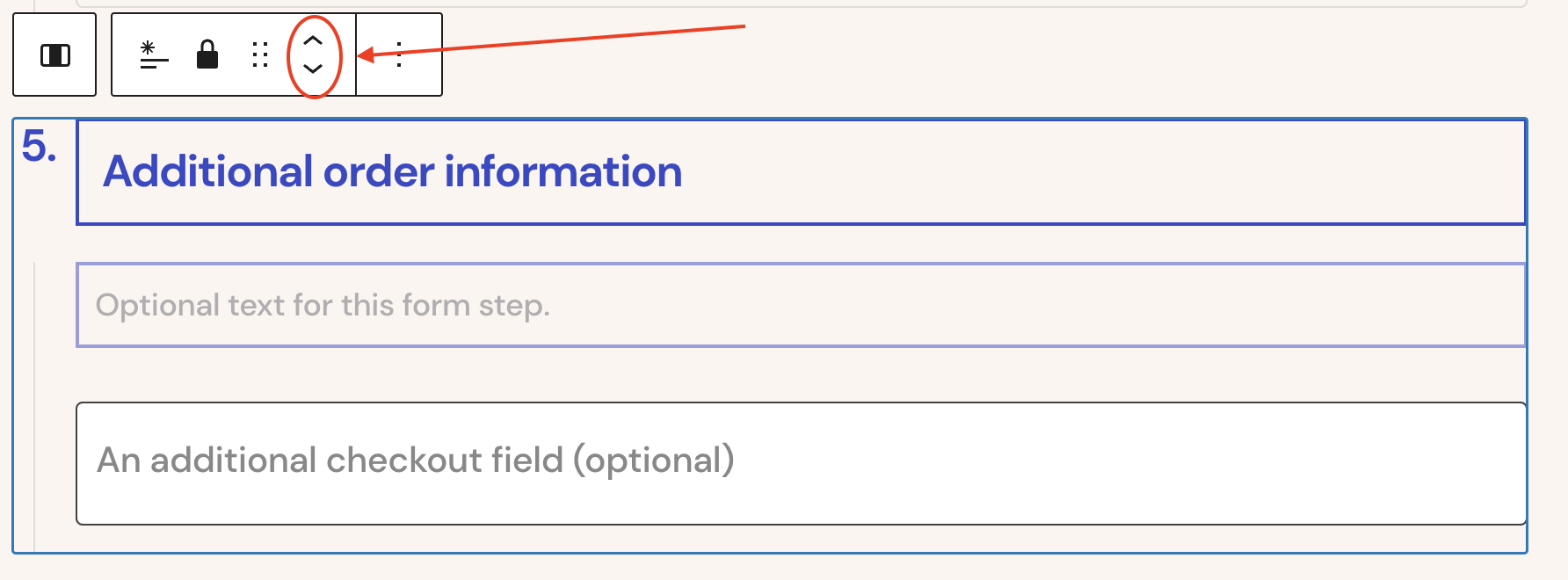
I am experimenting with the block-based checkout. If I create a checkout page with the relevant block, in the editor I can see the “Additional order information” section. When I view the page it is not showing – https://prnt.sc/5x4MJRJuonrW (all other plugins disabled), swapped to the Twenty Twenty-Five Theme)
I have also re-installed a fresh version of the WooCommerce plugin. I do not have a cache on my staging site. I have cleared my browser cache. I have deleted the block and re-added it.
Any ideas please?
Thanks,
James
The page I need help with: [log in to see the link]

-
Hi there!
Thanks for the detailed troubleshooting steps!
The Additional Order Information block is a rendering container it stays invisible on the frontend until at least one custom field is registered to the
orderlocation via PHP code. With no fields registered, there is nothing to render, so the block intentionally hides itself from visitors.A couple of quick questions:
- Have you registered any custom fields via PHP using
woocommerce_register_additional_checkout_field()with'location' => 'order'? - In the editor, are you seeing the block as a labeled placeholder, or is it completely missing from the block list?
For more details you can use this guide: https://developer.woocommerce.com/docs/block-development/extensible-blocks/cart-and-checkout-blocks/additional-checkout-fields/#order-information
I hope this helps.
Hi @shahzeenfarooq,
Thanks for the reply. Answering your questions:
- I personally haven’t but it should contain an email signup for the Plugin: MC4WP: Mailchimp for WordPress.
- See https://prnt.sc/KSTKXeZXwpIv
While you are here (sorry) – in the guide you provide a link to, do new fields have to be the last one in each of the three different places: <code style=””><b>contact</b>
addressororderor can you have them in other positions in the place e.g. before the standard fields?Thanks,
Hi @james-feaver,
I can see what you’re experiencing here, the “Additional order information” section is visible in the editor and even showing your Mailchimp checkbox there, but not appearing on the frontend. Let’s get this properly clarified and moving in the right direction.
From what you’ve shared and the screenshot, the key detail is how the block works in the Checkout block system. The Additional Order Information block only renders on the frontend when fields are registered via the Checkout block extensibility API, not just when a plugin outputs fields in a traditional way.
In this case, plugins like MC4WP: Mailchimp for WordPress typically hook into the classic checkout, and may not yet register their fields using the block-based method. That means even though you see something in the editor preview, it will not render live unless the field is registered using:
woocommerce_register_additional_checkout_field()with the correct location.You can read more about that here: https://developer.woocommerce.com/docs/block-development/extensible-blocks/cart-and-checkout-blocks/additional-checkout-fields/#order-information
Regarding your follow-up question, fields are not restricted to being last. You can control their position using the
priorityargument when registering the field, which allows you to place them before or after other fields within the same section.At this point, I’d recommend confirming if the Mailchimp plugin supports the Checkout block. If it does not, that would explain why the field is not rendering on the frontend. You may need either a plugin update that supports blocks or a custom implementation using the extensibility API above
Let me know what you find on that, and we can guide you further based on your setup.
Hi,
Thank you for the extensive reply. The MC4WP: Mailchimp for WordPress plugin DOES support the block-based checkout – docs and their support . I’ll share your information with theme and see what they say.
Thanks too for the additional information I will share with someone else.
I am very keen to move the block-based checkout, but it does seem that the “road” is far from “smooth” at the moment, with me having to work with about 5 plugin providers.
James
Hi there!
Thank you for the update and I completely understand your point about the transition not being entirely smooth yet.
Since the Mailchimp plugin does support the block-based checkout, the best next step would be to reach out to their support team and ask them to help ensure the Mailchimp field is properly displayed on the frontend. They would have the best insight into how their field is registered and if anything specific is required for it to appear in the “Additional order information” section.
Let us know what they suggest.
Hi,
In one of your support’s responses above, they said referring to the block-based checkout:
Regarding your follow-up question, fields are not restricted to being last. You can control their position using the
priorityargument when registering the field, which allows you to place them before or after other fields within the same sectionI believe priority only applies to the classic checkout. I experimented with your Government ID text field in your documentation – https://developer.woocommerce.com/docs/block-development/extensible-blocks/cart-and-checkout-blocks/additional-checkout-fields/#order-information. My experiments with priority showed it made no difference. So, I ask again, can you change their order within the same section e.g. make one first in the address section before the “Country/Region” field?
Thanks.
Hi there!
Thank you for the update. Yes, you can change the position of the additional field using the Gutenberg block controls in the editor, as shown in the screenshot.
For more information, please refer to this guide:
https://developer.woocommerce.com/docs/block-development/extensible-blocks/cart-and-checkout-blocks/additional-checkout-fields/#order-informationI hope this helps.
Hi,
Sorry, I find the block locked. If I unlock it I cannot move individual fields – https://prnt.sc/r0kW4THU6DQq. This control moves the whole Additional order information block and doesn’t allow you to reorder the individual fields.
For others reading along, there was a plugin in use that can selectively turn on/off plugins on each page, and trough that plugin MC4WP was disabled on the checkout page. If you have a similar issue please open a new thread on this forum, thanks!
Hi there!
Thank you for update, and sorry for the confusion earlier.You’re absolutely right by default, there isn’t an option to move individual fields within the Additional order information block. The editor only allows you to move the entire block, not rearrange the fields inside it.
If this is something you’d like to see supported, I’d recommend submitting a feature request here so the development team can consider it:
https://woocommerce.com/feature-requests/woocommerce/In the meantime, the only way to change the position of individual fields would be through custom code (for example, using hooks/filters). This would require some development work, as it’s not currently supported via built-in settings.
If you need more in-depth support or want to consider professional assistance for customization, I can recommend WooExperts and Codeable.io as options for getting professional help. Alternatively, you can also ask your development questions in the WooCommerce Community Slack as custom code falls outside our usual scope of support
- Have you registered any custom fields via PHP using


You must be logged in to reply to this topic.