Bulk optimizer
-
Hello bulk optimizer stops after 50 images? Am i missing something? and is this plugin automaticly change the webp after optimizing?
The page I need help with: [log in to see the link]

-
The Bulk Optimizer shouldn’t stop until it’s optimized everything, though it does have the option to only do select images from the Media Library’s list mode–then it would only do whatever images you chose.
What’s it say when it stops?And yes, if you enable WebP Conversion, it’ll do that during the bulk optimizer.
it was like in under the loading bur
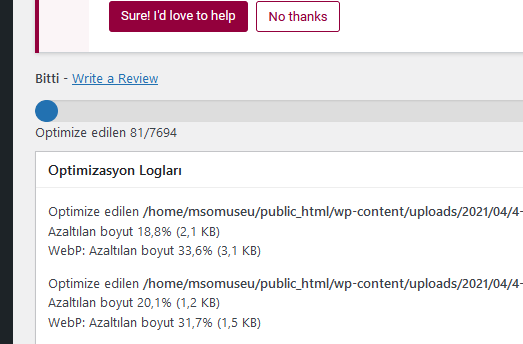
optimizin 75 / 7899 and then in like 80 it says just finish no error
it happened like 2 times and i started again,
if it happens again i can take a screenshothttps://msomuseum.com/wp-content/uploads/2021/07/ewwww-image.png
it stopped while i was relpying the link is the screenshot
And you’re not doing anything else with the plugin while it’s doing that? No scheduled optimize, WP-CLI commands, or even loading the bulk optimizer in another tab?
Nope mothing i just downloaded the plugin i dont even know how to schedule an optimize event… Just one tab open and thats the bulk optimizer
it sure works because i can see some of my pics change to webp but do i need to control and restart it like 30 min intervals? its 4 am in here and i thought it will done till morning by itself
Well, you shouldn’t have to do that, and this is literally something I’ve never seen before–and I’ve seen a lot in 9 years 🙂 So let’s do some digging (unless you really want to babysit it the whole time).
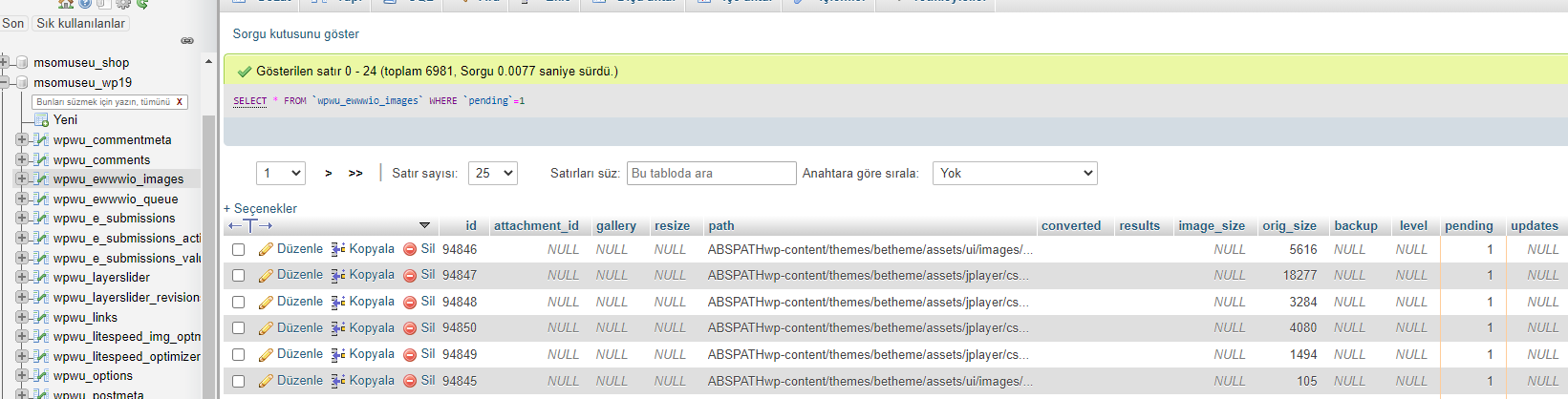
Before you start the bulk optimizer, open up your database using something like phpmyadmin. Browse over to the wp_ewwwio_images table, and run a search for records where pending = 1.
That should give you no results, so then in a separate tab, start the bulk optimizer.
Once it’s done with the scanning, run that search in phpmyadmin again, or hit refresh. You should have lots of results now.
Go ahead and start the optimization now, and then go back to the phpmyadmin tab, and hit refresh.
As it goes through every few images on the bulk, check phpmyadmin again (hit refresh), and see if the numbers are counting down normally.Of course, if it keeps up what it’s been doing, at some point, it will say it’s done. Refresh one last time, and see how many pending images are there (if any).
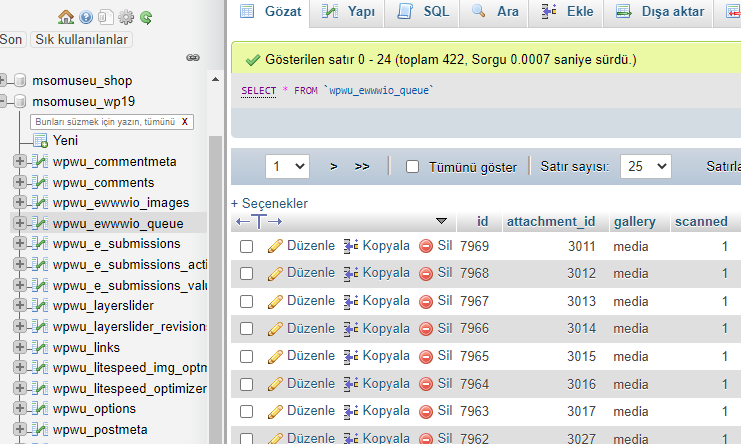
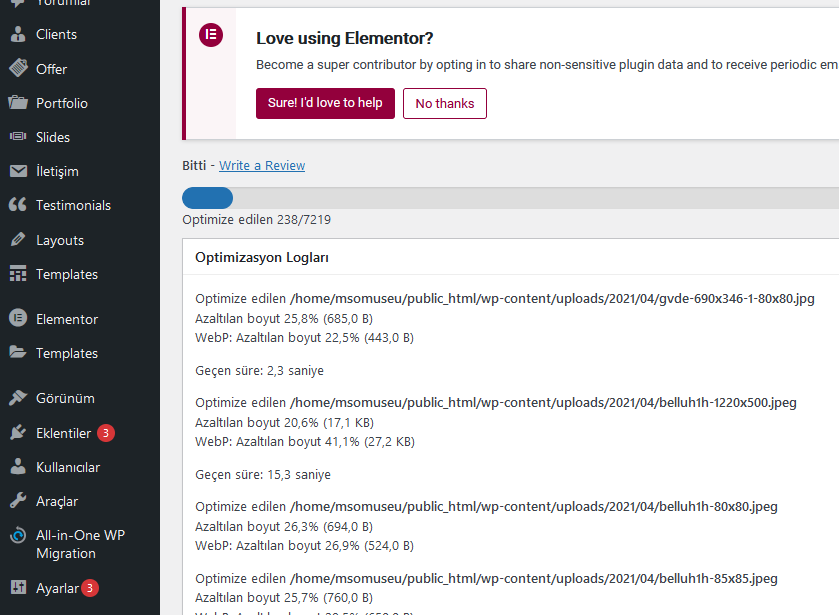
Then, also check the wp_ewwwio_queue table, and see if there are any records in there.So it stopped in 238/7219 and the were some data on the tables
i took that screenshot after the finish, and while the execution the numbers were counting down normallythis is the _images table
https://msomuseum.com/wp-content/uploads/2021/07/db-img.png
and que table
https://msomuseum.com/wp-content/uploads/2021/07/db-que-img.png
and the done
https://msomuseum.com/wp-content/uploads/2021/07/done-img.png-
This reply was modified 4 years, 11 months ago by
tibet51.
By the way i am using cloudflare, do i need to set cache to development mode or is it irrelevant?
I don’t think Cloudflare should affect anything. Interesting that it seemed to get further along though…
But really strange that it thinks it finished when there are still images pending/queued. Am I understanding right that you took all those screenshots after it finished?Yes. I know its hard to believe because it makes no sense…
whhen i refresh the page after the finish it says the usual stuf that i have like 590 images that i can optimaze and i do the scan after that the same cycle again
-
This reply was modified 4 years, 11 months ago by
Alright, sorry for the delay, had a release to get done before the weekend is upon us 🙂
If you haven’t already finished the process, the next thing we should check is to see what response comes from admin-ajax.php on that last request.
I have a video here that shows the process on Firefox, but it’s similar on Chrome: https://www.youtube.com/watch?v=vAC1SVlh7o0&t=1sThe responses should be JSON, but whatever it is, that could help to shine some light on things.
Additionally, let’s try a full debugging run during that process:
1. Enable Debugging on the EWWW IO Support tab.
2. Look for the link that says something like “Remove Debug Log”, and click that so we have a fresh start–the log will be very long from a bulk process anyway, so we don’t want it any longer than necessary.
3. Run the Bulk Optimizer until it stops again.
4. Go back to the support tab, and look for the link that lets you view the debug log. Note this is different than the “debug information” that is displayed right on the support tab there.
Word of caution, the log is going to be very large, so if you can’t load it in your browser and download/save it from that link, login with FTP or a file manager on your site so that you can download it from wp-content/ewww/debug.logPlease post that log via dropbox or something suitable. Alternatively, you can send the link to us via our contact form at https://ewww.io/contact-us/
*it might let you attach the log directly, not sure what the size limit is there. Usually, if you put it in a .zip file, it’ll shrink the size considerably. -
This reply was modified 4 years, 11 months ago by

The topic ‘Bulk optimizer’ is closed to new replies.