Hello @tilou,
If you want customize the appearance of all dropdown fields, the selector would be:
#fbuilder .cff-dropdown-field select{}
But if you want customize the appearance of only one dropdown field, assign to it a custom class name, for example: my-field (the class names are assigned to the fields through the “Add CSS Layout Keywords” attribute in their properties), and the selector in this case would be:
#fbuilder .my-field select{}
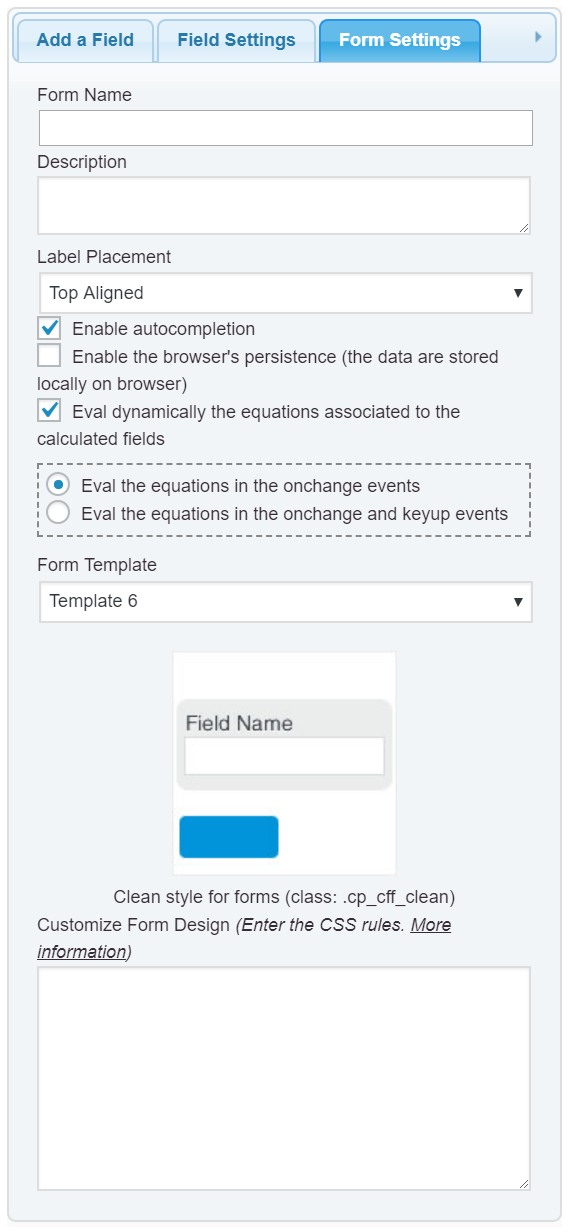
The styles definitions are entered into the “Customize Form Design” attribute in the “Form Settings” tab (https://cff.dwbooster.com/images/documentation/form-settings-tab.png)
For example, assuming you want change the background color of the field to yellow, the style definition would be:
#fbuilder .my-field select{background-color: yellow;}
If you need a custom coding service to customize the appearance of your form, do not hesitate in contact me through my private website:
https://cff.dwbooster.com/customization
Best regards.
Thread Starter
 tilou
tilou
(@tilou)
It’s not enough, my form setting uses the default template.
and cannot change the border radius of the dropdown for example
and color of arrows etc.
I agree it doesn’t work…even if you aren’t using the default template.
I tried assigning a class to the field called ldisclaimer and in the form css I tried
.ldisclaimer select {background-color: red;} (it doesn’t work)
#fbuilder .ldisclaimer select {background-color: red;} (it doesn’t work)
there is something wrong with customizing the css … I am not sure what is going on.
Thread Starter
tilou
(@tilou)
Got it!
Important remove the default style
#fbuilder .my-field select{
 border: 0 !important;.  /*Removes border*/
     -webkit-appearance: none;  /*Removes default chrome and safari style*/
     -moz-appearance: none;  /*Removes default style Firefox*/
}
-
This reply was modified 8 years, 3 months ago by
 tilou.
Hello @tilou,
Thank you very much for sharing your solution.
Best regards.