IPTC/EXIF: Execute all rules –> parsererror
-
Hi
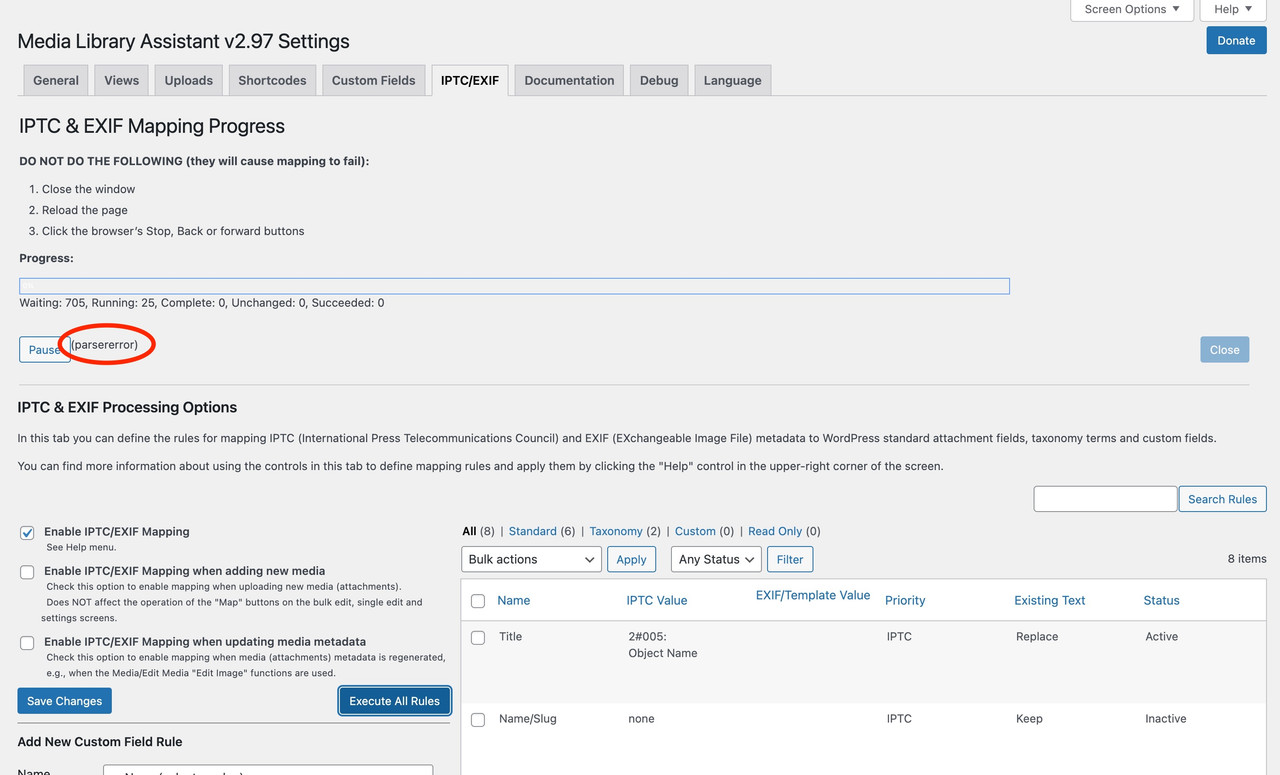
from theSettings > Media Library Assistant > tab IPTC/EXIFwhen I click “Execute All Rules” it starts but it processes nothingWaiting: 705, Running: 25, Complete: 0, Unchanged: 0, Succeeded: 0and it shows this message:
(parsererror)as you can see in this screen:https://i.postimg.cc/yY3c41nS/Schermata-2021-09-06-alle-18-27-34.jpg
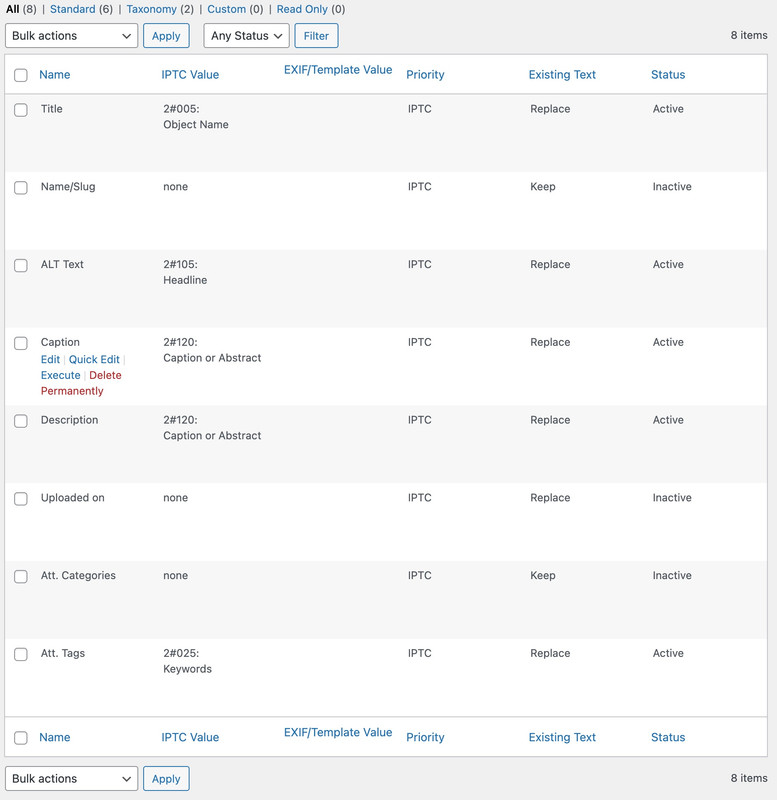
Here are my fields:
https://i.postimg.cc/PJwxcxhX/6.jpgI searched all the day without finding a solution 🙁
Any help?Thanks

-
Thanks for your report. I regret the trouble you are having with the IPTC/EXIF mapping. Thanks as well for posting the content of your rules, which look quite normal.
I have been unable to reproduce your issue on my system using the five active rules you listed. It’s quite possible that the problem is specific to one or more of the image files on your system.
Have you tried using the “Map IPTC/EXIF Metadata” links on the Media/Edit Media full screen editor or the Bulk Edit area on the Media/Assistant screen? The Bulk Edit area in particular is close to the “Execute All Rules” logic, but for a selection of items.
Since “Execute All Rules” fails on the first batch of items, testing the oldest items in your Media Library first would be prudent.
There are two other sources of information that would be helpful. First, if you have access to your site error log, perhaps through the Settings/Media Library Assistant Debug tab you might see one or more log entries with more information. Second, using the browser Developer Tools to capture the network traffic would show you the actual content of the reply MLA is sending back and causing the “(parsererror)” result.
Any additional information you can provide will be helpful. Thanks for your help.
Hi David
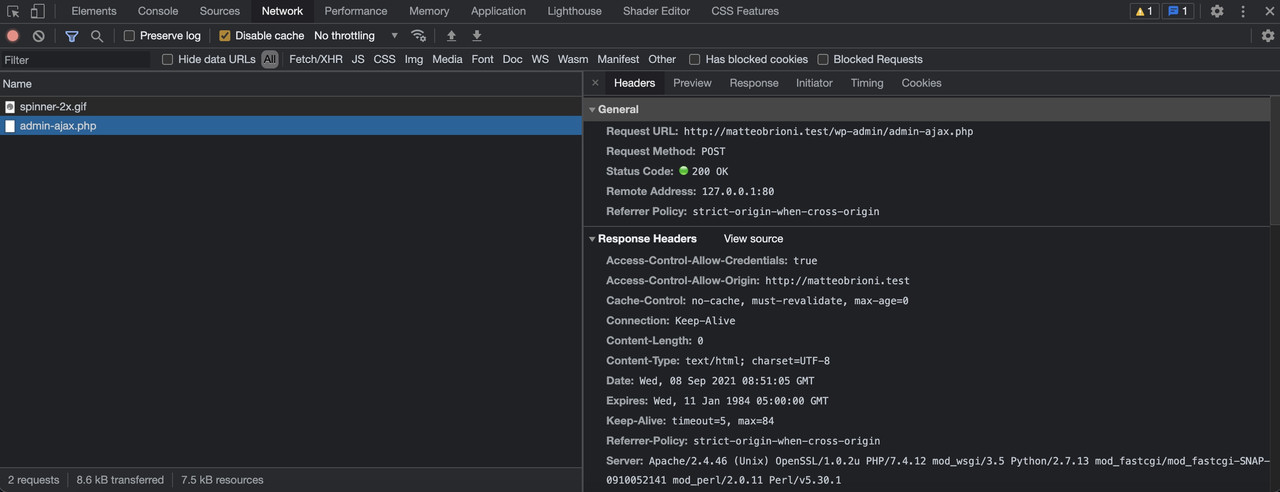
in Debug > Error Log I have no errors, nothing at all.After launching “Execute All Rules”, from Inspector > Network tab there are only these:
https://i.postimg.cc/Zq2xxFLw/net2.jpgHere the admin-ajax.php fully Headers (Preview and Response are void):
Request URL: http://my-project.test/wp-admin/admin-ajax.php Request Method: POST Status Code: 200 OK Remote Address: 127.0.0.1:80 Referrer Policy: strict-origin-when-cross-origin Access-Control-Allow-Credentials: true Access-Control-Allow-Origin: http://my-project.test Cache-Control: no-cache, must-revalidate, max-age=0 Connection: Keep-Alive Content-Length: 0 Content-Type: text/html; charset=UTF-8 Date: Wed, 08 Sep 2021 08:45:50 GMT Expires: Wed, 11 Jan 1984 05:00:00 GMT Keep-Alive: timeout=5, max=99 Referrer-Policy: strict-origin-when-cross-origin Server: Apache/2.4.46 (Unix) OpenSSL/1.0.2u PHP/7.4.12 mod_wsgi/3.5 Python/2.7.13 mod_fastcgi/mod_fastcgi-SNAP-0910052141 mod_perl/2.0.11 Perl/v5.30.1 X-Content-Type-Options: nosniff X-Frame-Options: SAMEORIGIN X-Powered-By: PHP/7.4.12 X-Robots-Tag: noindex Accept: application/json, text/javascript, */*; q=0.01 Accept-Encoding: gzip, deflate Accept-Language: it-IT,it;q=0.9,en-US;q=0.8,en;q=0.7 Cache-Control: no-cache Connection: keep-alive Content-Length: 577 Content-Type: application/x-www-form-urlencoded; charset=UTF-8 Cookie: wordpress_12f9ae0c112d4acedf44eb2668f3b5fb=admin%7C1631262962%7C9iKfs90MWwUc4Q3oYSJo6JLRqsvqnqOOn6oKgmfwbXc%7C49809e2665a0090d4bb63a13f5fe5313a4aace6f3c31d197c08177b63a83afc8; wordpress_test_cookie=WP%20Cookie%20check; wp-settings-3=libraryContent%3Dbrowse; wp-settings-time-3=1630588341; cookie_consent=true; wpml_browser_redirect_test=0; wp-wpml_current_language=it; wordpress_logged_in_12f9ae0c112d4acedf44eb2668f3b5fb=admin%7C1631262962%7C9iKfs90MWwUc4Q3oYSJo6JLRqsvqnqOOn6oKgmfwbXc%7C210282e02d3b35666b02fa77aa90d7e169b21c31825313062bb9b3f51295426f; wp-wpml_current_admin_language_d41d8cd98f00b204e9800998ecf8427e=en Host: my-project.test Origin: http://my-project.test Pragma: no-cache Referer: http://my-project.test/wp-admin/options-general.php?page=mla-settings-menu-iptc_exif&mla_tab=iptc_exif User-Agent: Mozilla/5.0 (Macintosh; Intel Mac OS X 10_15_7) AppleWebKit/537.36 (KHTML, like Gecko) Chrome/92.0.4515.159 Safari/537.36 X-Requested-With: XMLHttpRequest page: mla-settings-menu-iptc_exif mla_tab: iptc_exif screen: settings_page_mla-settings-menu-iptc_exif action: mla-inline-mapping-iptc-exif-scripts mla_admin_nonce: 89f9dfd599 bulk_action: iptc-exif-options-map offset: 0 length: 25 mla_allow_iptc_exif_mapping: Enable IPTC/EXIF Mapping mla_enable_iptc_exif_mapping: Enable IPTC/EXIF Mapping when adding new media mla_enable_iptc_exif_update: Enable IPTC/EXIF Mapping when updating media metadata mla_admin_nonce: 89f9dfd599 _wp_http_referer: /wp-admin/options-general.php?page=mla-settings-menu-iptc_exif&mla_tab=iptc_exifThanks for your update with the log and network information. I’d like to gather more information as I investigate further. It would be very helpful if you could activate some MLA debug logging, run a test and send me the results.
To activate MLA’s debug logging:
- Navigate to the Settings/Media Library Assistant Debug tab.
- Scroll down to the “MLA Reporting” text box and enter “0x13”. This will turn on MLA debug logging for AJAX operations and the IPTC/EXIF metadata mapping rules.
- Click the Save Changes button to record your new setting.
- Optionally, scroll to the bottom of the screen and click “Reset” to clear the error log. You may not want to do this depending on how you manage your error log.
Once that’s done you can run the test. The debug log will be very detailed, so restricting the test as best you can will be very helpful. When you’ve finished testing, go back to the Debug screen and:
- Enter “0” in the MLA Reporting text box to turn debug logic off.
- Click the Save Changes button to record your new setting.
- Scroll to the bottom and click “Download” to get the log content in a text file.
There should be a lot of messages written to the log, so limit the amount of activity during the logging period. You should see messages in the log like these:
[27-Jun-2020 23:09:30 UTC] 610 MLACore::mla_plugins_loaded_action() MLA 2.83 (20200621) mla_debug_level 0x13
[27-Jun-2020 23:09:30 UTC] 37 MLA_Ajax::initialize( false ) $_REQUEST = array (
‘action’ => ‘mla-inline-mapping-iptc-exif-scripts’,
‘mla_admin_nonce’ => ‘b09f9d91ed’,
‘bulk_action’ => ‘iptc-exif-options-map’,
)Of course, the details will be different.
Let me know how that goes. You can contact me at my web site for instructions on where to send the file. Good luck.
Done, Davide. Sent the email.
Let me know, thanksThank you for working with me by email to investigate and resolve the problems you reported. I have released MLA v2.98, which includes two fixes resulting from our work together. First, an improvement in parsing the XMP metadata embedded in one of your image files avoids the “parse error” problem. Second, an improvement in calculating the number of items eligible for the “Execute All Rules” process allows that process to run to completion and report accurate results.
I am marking this topic resolved, but please update it or contact me if you have any problems or further questions regarding the “Execute All Rules” processing. Thanks for working with me to find and fix these problems.

The topic ‘IPTC/EXIF: Execute all rules –> parsererror’ is closed to new replies.