Hi there! I am new to MailPoet and would like to use it for Post Notifications with my existing Brevo transactional service and WP Mail SMTP that we are already using on our site since PHP Mail was disabled at webhosting company.
So, I found your plugin, enabled it and now I am trying to setup MailPoet “Send With…” section and I chose “Your web host / web server” Method. Then I tested email sending and it worked fine (test email was delivered), but the problem is when I click button Activate on the bottom of that screen, it does not save. 🙁 Instead, it opens the same screen with two options again: MailPoet Sending Service or Other (with Configure option) … and then I am back at the “Send with …” screen.
So, do you know how to SAVE the basic option to be able to use WP Mail SMTP for sending newsletters with MailPoet?
Please let me know. Thanks! Danijel
The page I need help with: [log in to see the link]
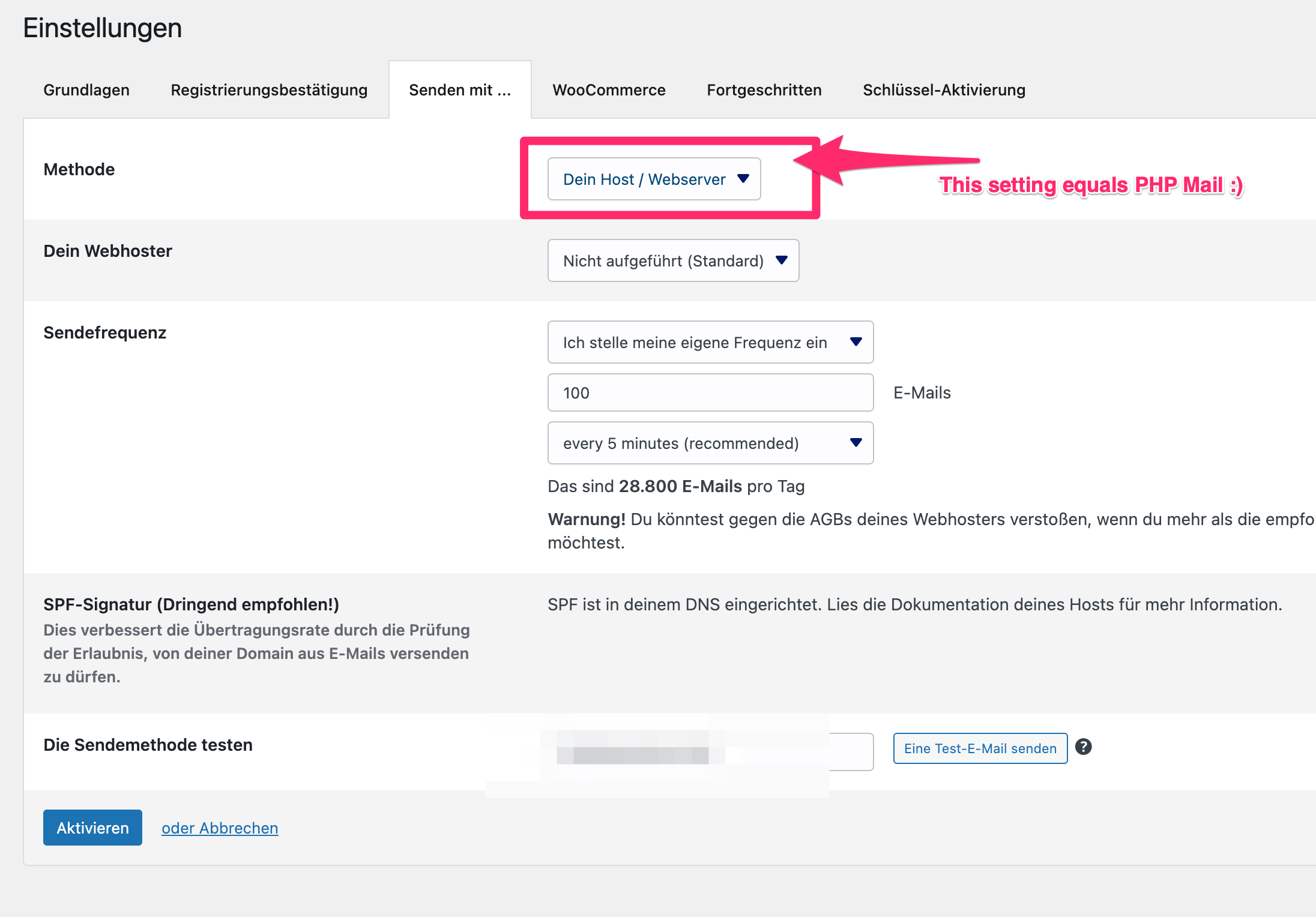
Your MailPoet plugin settings should look like this (selected “Other”-option, after clicking the configure link below it.):
What you describe, seems to be an issue with MailPoet’s settings interface, not with my plugin. Here’s how you should be able to fix it:
Go to MailPoet > Settings > Send With…
Select “Your web host / web server” (which you already did)
Instead of clicking “Activate”, click “Configure” (even though it says “Other”)
In the configuration screen, leave everything as default and click “Save”
Now go back to the main “Send With…” screen
Alternative Method (if above doesn’t work):
Go to MailPoet > Settings > Send With…
Select “Other”
Click “Configure”
In the configuration screen: Mailer: Select “PHPMail” or “PHP Mail” Leave all other fields empty/default
Click “Save”
Go back and click “Activate”
Verification: After saving, you should see:
“Your web host / web server” is now active
Test emails work (which you confirmed)
Newsletters will be sent via your WP Mail SMTP + Brevo setup
Why This Happens:
This is a MailPoet interface bug where the “Activate” button doesn’t properly save the “web host” option. The workaround above forces MailPoet to save the configuration properly.
Your Setup Should Work Perfectly
Since your test email worked, your configuration is correct:
✅ SMTP Mail Control for MailPoet is active
✅ WP Mail SMTP is configured with Brevo
✅ MailPoet will now send via wp_mail() → WP Mail SMTP → Brevo
Let me know if you need any help with the configuration steps!
Hi Saskia @jyria , yes, I am aware that this is MailPoet glitch and I might have to write to them because I did exactly as you wrote, but still am not able to save/activate the simple “Your web host / web server” setting. You see I don’t have the Mailer: Select “PHPMail” or “PHP Mail” option, I only have “Method” and “Your Webhost” dropdowns and when I leave it as default when I click Activate button on the bottom left it takes me back to select MailPoet or Other for Send with … 🙁
Thanks for clearifying! What I understand is that you see the option “Your host / Webserver” option. This one actually equals “PHP Mail”. Simply select it and hit Activate. There is nothing more to do here really 😀
It should now work just fine. If you set it to this setting and you are using my plugin, MailPoet will use your WPMail SMTP setup to send its emails. This is exactly where my plugin jumps in and connects the two: MailPoet and your WP Mail SMTP settings.
Saskia @jyria , that’s what I am trying to do, but every time I try to click Activate the standard settings (same as in your screenshot) it takes me back to choose between MailPoet Sending Service and Other (Configure). So, I guess I will have to write to MailPoet, because it is obviously their problem.
I understand – could you confirm that the “Other”-Option is NOT checked in once the process takes you back to “Send with..”-Screen? IF that is in fact the case, there seems to be a problem in MailPoet, I agree.
Please feel free to refer to this thread, so you won’t have to lay out the problem in full detail all over again.
Well, I realized that delivery of newsletter via WP Mail SMTP works just fine with your plugin … it’s just confusing that after setting it up it takes you back to that “Send with …” screen and keeps asking me to “Connect your website with MailPoet.” I hope that MailPoet will eventually remove that nag screen if it’s connected via “Other” service (WP Mail SMTP).
Thanks for the wonderful plugin and the function it offers!!
Regards, Danijel
Viewing 6 replies - 1 through 6 (of 6 total)
The topic ‘MailPoet Send With …’ is closed to new replies.