Sorry, this is not possible yet.
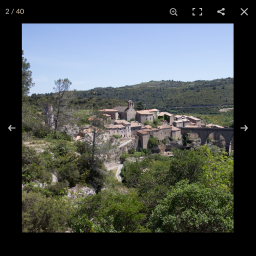
1) PhotoSwipe will always display the UI on top of the image in mobile view – this is by design as images may become too small if they need to be small enough to leave room for the UI elements and captions.
2) PhotoSwipe will always hide the UI elements after a given timeout.
Also see for reference: https://photoswipe.com/
I created a Github issue for this, so maybe this will be changed in future updates:
https://github.com/arnowelzel/lightbox-photoswipe/issues/73
Edit:
In Desktop view it depends wether you enabled the option “Full picture size in Desktop view” – with this option enabled, the image will always be as large as possible and UI elements may overlap. If you disable this option, the UI elements will not overlap.
-
This reply was modified 5 years, 3 months ago by
 Arno Welzel.
Thanks for the speedy response.
I was able to resolve it with CSS:
/* persistent ui */
.pswp__ui–idle .pswp__top-bar,
.pswp__button–arrow–right {
opacity:1
}
It would cool if you had a pinned support topic and page on your website with such CSS snippets 😉 just a thought
I just pinned this topic so others can find it more easily ;-).
About collecting CSS snippets: yes, that’s a good idea. I’ll see what I can do. In any case this should be linked in the backend as well, so people know where to find it.
Edit: don’t forget the other arrow to the left – this will hide as well and I believe .pswp__ui–idle has to be added to the arrows as well as this is the class which is added by PhotoSwipe to hide the elements:
/* persistent ui */
.pswp__ui–idle .pswp__top-bar,
.pswp__ui–idle .pswp__button–arrow–left,
.pswp__ui–idle .pswp__button–arrow–right {
opacity:1
}
-
This reply was modified 5 years, 3 months ago by Arno Welzel.
Thank you – I updated my CSS.
And yes – offering a backend link to CSS Code Snippets would be awesome 😀
Note: the double dashes in your CSS have been changed to em dashes