Hello @nichere,
Thank you for reaching out,
It depends on the website’s design, Please navigate to WP Dashboard > Appearance > Customize > General Options > General Settings > Layout(for page).
If you set “full-screen”, it will show content stretched and without margin.
If you set “full-width”, it will show content with a margin. You can select the “Main Container Width” option in this case. Also, enabling this option will show 90% of the width on responsive sizes. To change it, you can use the custom CSS for responsive sizes:
@media only screen and (max-width: 959px) {
    .container,
    body.content-full-screen .elementor-section-wrap>.elementor-section.elementor-section-boxed>.elementor-container {
        max-width: 50% !important;
    }
}
Please check the attached screenshots at this link: https://postimg.cc/gallery/4c1JJmY.
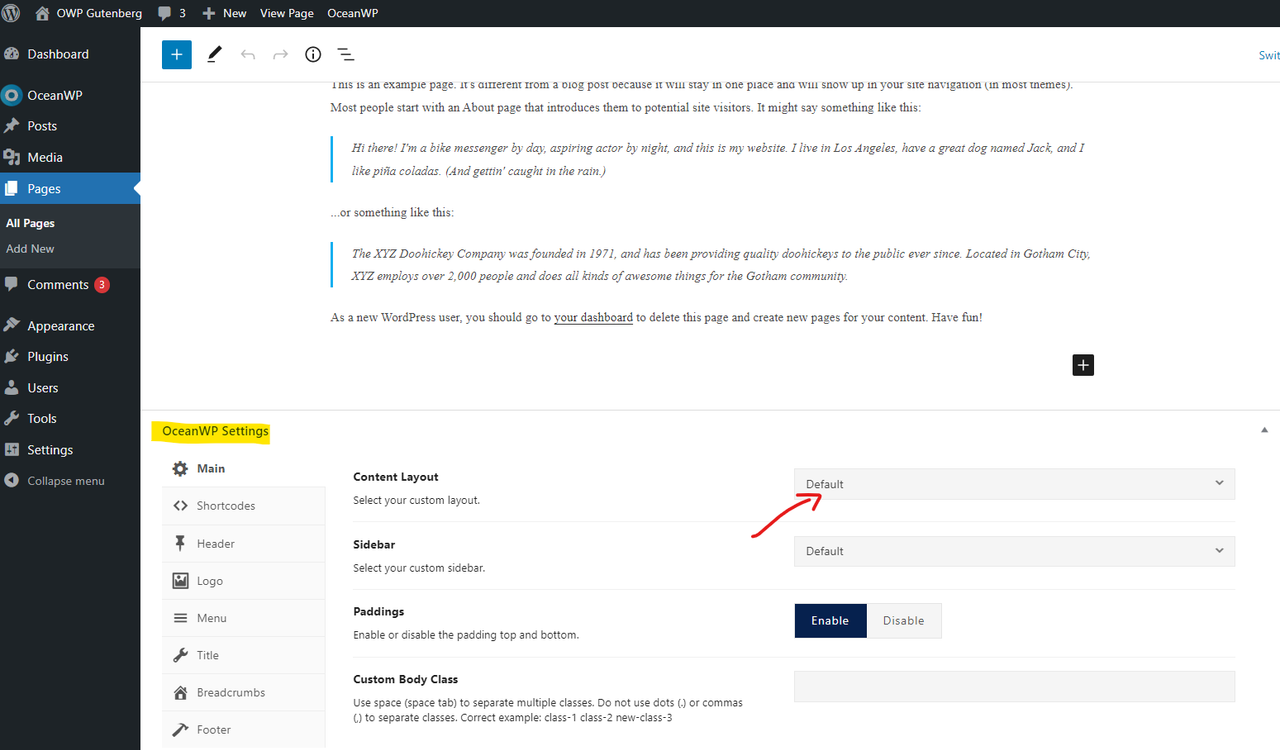
Note 1: The “Content Layout” option can be set on each page: https://i.postimg.cc/t4DNXVs3/image.png.
Note 2: If you want to use full-screen content, but on some sections, you want to use other container sizes, you can use a columns block.
It is about the container and layout on OceanWP, so you can choose your desired settings.
I hope it helps.
Best Regards
thanks, i figured out the issue. The page i was editing was set to a different width than the default. Is was overiding the default. lesson learnt. I really could not find any info about this online or youtube. I cant even find a tutorial on how to create a basic page.
Hi @nichere,
Thank you for reaching out,
I’m glad we could help.
Regarding documentation, actually creating pages in WordPress needs basic knowledge. You can learn about block editor via this link: https://ww.wp.xz.cn/support/article/blocks/.
Support Forums
For some basic WordPress and OceanWP tutorials, we have these videos:
Playlist 1
Playlist 2
Playlist 3
However, we’ll create some videos for basic WordPress + Gutenberg.
Thank you for your feedback.
Best Regards
-
This reply was modified 3 years, 7 months ago by
 Shahin.