Hello,
Thanks for contacting us.
Please restrict your API key from the Google Cloud Platform, after key restriction, your key will not be visible once you view the source.
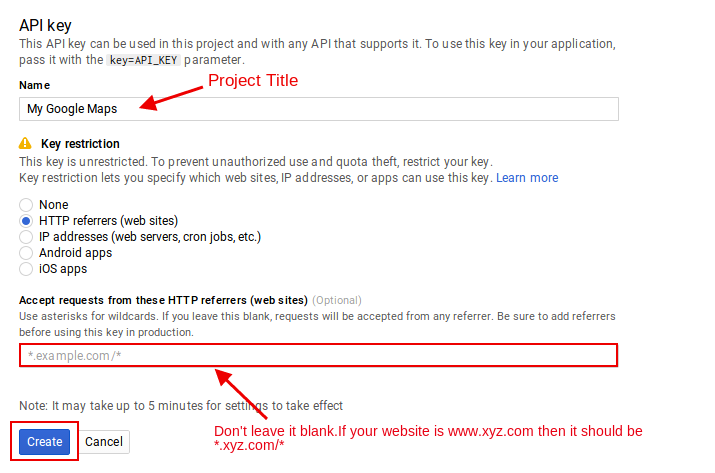
The steps to create a API key is to enter your project name and HTTP referrer on the page displayed. Leaving this field empty can cause other users to use your key in other domains, so you’ll need to restrict your API key by doing the following:
- Click the Google Maps API Key you want to restrict and open the property page. Here, place yourself on the Key restrictions and apply these reductions:
- For restrictions within Google Maps API Key. To allow requests from websites you supplied, you’ll need to select HTTP referrers (web sites) in the Application restrictions list. One of the more referred websites can be selected if you need to.
- API key specific restrictions. To restrict an API key for Google Maps, select Restrict key and then click Maps Embed API, which can be found in the Select APIs list. Save your preferences and you’re done.
Attached image for reference – https://res.cloudinary.com/flippercode/image/upload/v1478596117/api-key-title_wwjiu8.png
You can check this tutorial on How To Create A Google Maps API Key – https://www.wpmapspro.com/docs/how-to-create-an-api-key/
Please let us know if you have any questions, we will be very happy to help you.
Thanks & Regards
Hello @jcurtis-lbc & @flippercode0505
I want to correct one thing here.
Please restrict your API key from the Google Cloud Platform, after key restriction, your key will not be visible once you view the source.
This statement is incorrect. The Maps API key is always visible in any google maps application. e.g https://www.wpmapspro.com/example/real-estate-listings/ – This is our real estate example page and you can see the maps api key here as well in the view source.
The reason no one can use this map API key is we have enabled the Key Restrictions. In the key restrictions, we have added the list of websites that can use this API key.
So if someone copy our maps api key and use it, it won’t work!
@jcurtis-lbc – Please make sure you have enabled the key restrictions. Login to console.cloud.google.com and go to APIs & Services > Credentials and enable the Key Restrictions.
If you have already enabled the key restrictions, you don’t have to worry about visibility of maps API key in the view source.
Hello,
I hope your issue has been resolved. If you still having any issues, please let us know.
Thanks
Hello,
Yes the api key will be exposed in the view source of webpage but its totally ok. You just need to apply referrer restrictions to the api key while creating them in the google cloud console. In that case, keys will work for your website only. I hope we answered your question properly and addressed your concern.
Thank You