If you’re trying to send your customers a preview of an email, you can still do this by opening the preview page popup and then choosing to open the preview “in a new tab.” Screenshot below for reference.
Once you’ve opened up the preview in a new tab, you should be able to copy that link from your browser and then share it manually with the customers as you are mentioning.
I hope this helps, but let us know if you’re still having issues! 🙂
If the emails are displayed on the MailPoet > Emails page, you should be able to right-click on the Preview link and press the Copy Link Address button, the working preview link that you can send to your customers will be copied to your clipboard – which should take just a couple of clicks.
If the process described above doesn’t work for your specific use case, can you let us know exactly what procedure you’re going through? Any screenshots you could share would also be super useful!
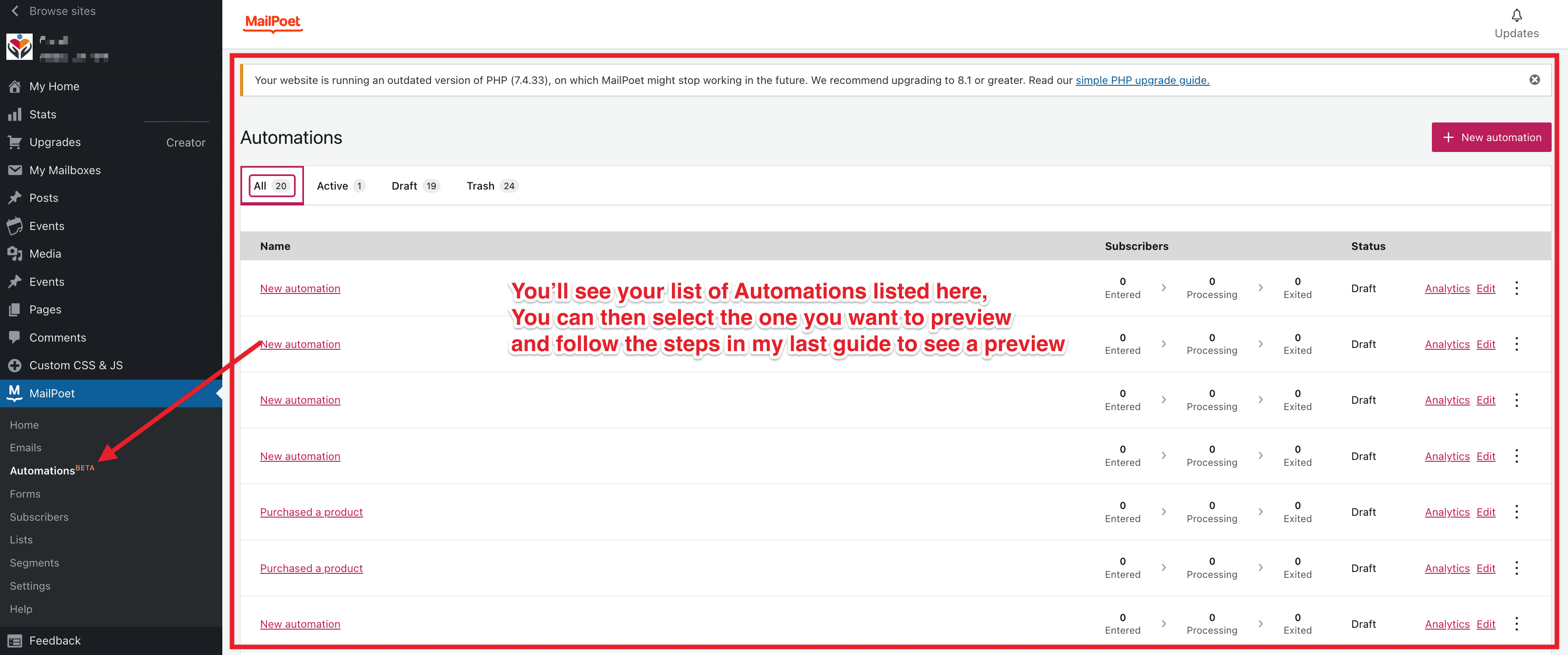
i dont have that screen. In emails it now tells me all my emails are now in automations. They used to be in emails, but no longer. I am unsure how to add a screenshot.
Ah, I should have provided you with some instructions for sending us a screenshot – my apologies!
You can use a service like snipboard.io to easily upload a screenshot and then share it with us. They have instructions for how to create the screenshot on their site, and once it’s uploaded you can just send us the URL to the screenshot that snipboard.io will generate for you.
Please also make sure to redact any personally identifying information in these screenshots if there are any!
Thank you for getting back to us. We are sorry it’s taken a long time to respond to your email request.
You can preview and send the emails created in automations without deactivating the automation. Here’s a video recording on how you could do this: https://d.pr/v/XlFKIZ
I hope this helps.
Of course, feel free to reach out to us if you need any more help or have other questions and we’d be happy to help.