Hello, I saw your link, website looks pretty nice.
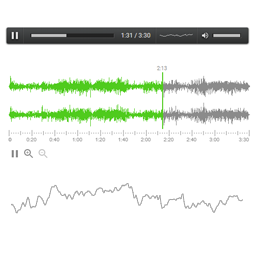
Technically to generate the picture of waveprint for wavesurfer it needs to load the whole audio file into memory. And if you file is 2 GB, then it will need 2 GB of RAM which is not good for big audio files.
You asked about caching…. As I remember there was some caching ability for wavesurfer in past, theoretically what you asking should be possible I think, need to look into the code…
Currently I’ve updated player version to 1.39 and added the functionality that you need (hope it works fine). List of steps that you need to do:
1. You can use the “cached” attribute in your shortcode attribute, here is an example:
[UIWaveSurfer file=”/demo.mp3″ cached=”1″]
2. You need to generate the cached file, so you need call the following command in console of your web browser:
mediaUI.generateWaveSurferCacheForAudioFile()
It will opens the dialog where you need to select your audio file, and after that you will receive the same file name with the .surf extension
3. You need to move this “.surf” file to the same folder with your audio file. So in the same folder you have 2 files, here is an example of the names of these files:
– demo.mp3
– demo.mp3.surf
4. You running the player and everything should work.
Also I’ve updated description of the “cached” attribute on the player page. Let me know if it works or you have any troubles with it.
I can’t thank you enough! This is exactly what I needed. The waveform is displayed instantly, and the browser tab doesn’t use up so much RAM anymore.
Plus, the page doesn’t crash on mobile browsers like it did before.
Thank you so much for this quick solution!
Possibly it will be a good feature, and I think that it is necessary and not hard to implement.
You welcome)