aabdelrhman

Forum Replies Created
-
Hi @phasar40 ,
Yes, square images are possible in email notifications. Notification Master uses the standard WordPress Classic Editor, which supports HTML formatting.
You can control the image dimensions manually using HTML, for example:
<img src="{{post.featured_image_url}}" width="300" height="300" />This will display the image in a square format.
If you’re still seeing a different layout, please send us a screenshot of the email result and we’ll be happy to help further.
Thank you so much for the kind feedback!
We’re really glad to hear that Notification Master is working great for you.Hi @boabo ,
Thank you so much for using Notification Master and for your great suggestion!
We really appreciate your feedback — adding an option to upload a custom icon for the floating button is indeed a great idea.Our development team will work on including this feature in an upcoming update soon.
Best regards
Hi @phasar40,
Yes, you can absolutely include the featured image in email notifications — but unlike Web Push, you need to add it manually using HTML in the Code view, not the Visual editor.
Try adding the following snippet in the email body (make sure you’re in the Code tab):
<img src="{{post.featured_image_url}}" alt="" width="300" height="152" />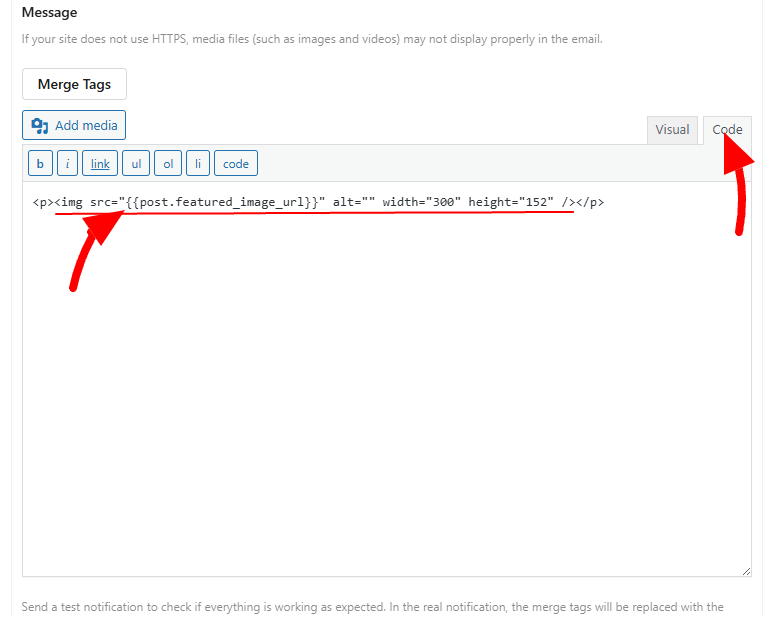
This should display the featured image properly.
Best regards
- This reply was modified 10 months, 3 weeks ago by aabdelrhman.
Hi @trutherone,
Thanks for your kind words about the plugin!
To clarify, Webhooks and WP Hooks are different. Webhooks send data to external services, while WP Hooks (
do_action,add_action) are used inside WordPress to trigger or modify functionality.The triggers in our plugin are actually based on WP Hooks—they just provide an easier way to use them without writing code. We cover over 80 triggers, so you’ll likely find what you need already available.
Best regards
Hi @phasar40,
When you click on the bell icon, the popup will appear. Additionally, if you want the prompt to show automatically without the floating button, you can enable the “Auto Display Web Push Prompt” option in the web push settings.
This will trigger the web push notification prompt when the user interacts with the site (e.g., clicking anywhere on the page).