CodePeople2

Forum Replies Created
-
Forum: Plugins
In reply to: [Calculated Fields Form] Change Field HeightHello @winutils
You can simply select the field, click on the “Advanced Settings” tab in its settings, and in the section for the field container, you can select the margin option for the CSS rule, and enter the value: 30px 0 30px 0
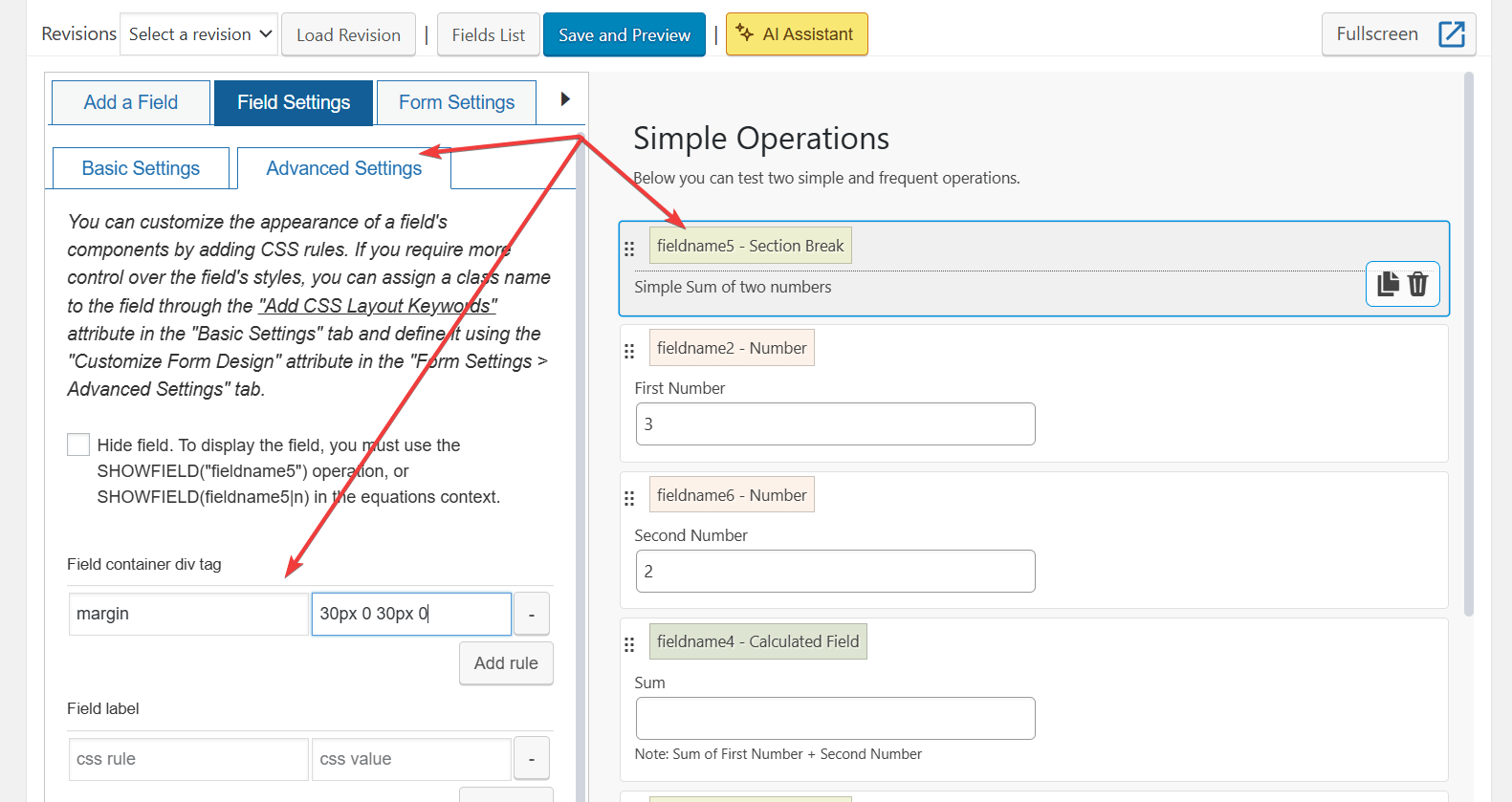
Best regards.
Forum: Plugins
In reply to: [Calculated Fields Form] Change Field HeightHello @winutils
Thank you for choosing our plugin. I visited your URL, but the website is currently in a “coming soon” state.
In websites, the styles loaded by the WordPress theme affect every tag on the page, and the spaces between fields could be caused by margins or paddings assigned by styles defined in the theme.
For example, if you want to control the margins between fields on your form, you can enter the style block below through the “Customize Form Design” attribute in the “Form Settings > Advanced Settings” tab:
#fbuilder *{margin:0 !important;}
#fbuilder div{padding:0 !important;}
#fbuilder .fields{margin-bottom:5px !important;}
Note the use of !important with the CSS rules to ensure their precedence over the theme’s active styles.
If the previous styles do not yield the desired results, please deactivate the “coming soon” mode on your website and provide the link to the page containing the form so we can check its appearance.
Best regards.
Hello @pengage
Your current question is different.
If you want to get the difference in days, divide it by 365.25, and round the result to at most four decimal places. In this case, the equation is:
PREC(DATEDIFF(fieldname1, TODAY(), 'mm/dd/yyyy', 'd')['days']/365.25, 4, true)Best regards.
Hello @pengage
Supposing the user enters the birthday date through the date field fieldname1, you need only to insert a calculated field in the form and use the DATEDIFF and TODAY operations in its equation:
DATEDIFF(fieldname1, TODAY(), 'mm/dd/yyyy', 'y')['years']And that’s all.
Best regards.
Forum: Plugins
In reply to: [Calculated Fields Form] Entering the negative value in numberpadHello @dareko
Yes, the use of spinners is the recommended alternative for most programming forums when the issue related to the different devices’ keyboards is discussed.
Best regards.
Forum: Plugins
In reply to: [Calculated Fields Form] Entering the negative value in numberpadHello @dareko
Yes, that’s is what I mean, different operative systems apply their own policies for keyboards. The alternative in this case would be to force devices to load the complete keyboard. Please edit the previous code as follows:
<script>
fbuilderjQuery(document).on('formReady', function(){
  if (/Android|webOS|iPhone|iPad|iPod|BlackBerry|IEMobile|Opera Mini/i.test(navigator.userAgent)) {
     fbuilderjQuery('.cff-number-field input').attr('type','text').removeAttr('inputmode');
  }
});
</script>
Best regards.
Forum: Plugins
In reply to: [Calculated Fields Form] Entering the negative value in numberpadHello @dareko
Thanks for choosing our plugin. Unfortunately, keyboard behavior on mobile devices can be inconsistent because different manufacturers (like Samsung, iOS, and GBoard keyboards) make different decisions about which symbols to include for the control whose value you’re entering.
Please try the following modification. Insert an “HTML Content” field in the form, tick the checkbox in its settings to support scripts, and finally, enter the following piece of code as its content:
<script>
fbuilderjQuery(document).on('formReady', function(){
  if (/Android|webOS|iPhone|iPad|iPod|BlackBerry|IEMobile|Opera Mini/i.test(navigator.userAgent)) {
     fbuilderjQuery('.cff-number-field input').attr('type','text').attr('inputmode', 'numeric');
  }
});
</script>
Semantically, a number field should have
type="number"However, unfortunately, some device manufacturers have decided not to include the minus symbol in these controls.Please, let me know if the previous code did its work on your form.
Best regards.
Forum: Plugins
In reply to: [Calculated Fields Form] Informational topicHello @klingbeil
Thank you for using our plugin! We’re aware of conflicts caused by certain WP Rocket settings. For example, if you delay loading libraries like jQuery or jQuery UI, they won’t be available when Calculated Fields Form needs them. To prevent this, simply add
iframe="1"to your form shortcode—WP Rocket will then ignore the form. For example:[calculated-fields-form id="123" iframe="1"]If you are inserting the form visually by using the WordPress editor or the Elementor pages builder, enabling the iframe attribute is as simple as checking a checkbox in the insertion block’s properties.
Learn more about the attributes supported by the form shortcode by reading the following section in the plugin documentation:
https://cff.dwbooster.com/documentation#insertion-page
Best regards.
Forum: Plugins
In reply to: [Calculated Fields Form] Image in drop downHello @miya8713
Thank you for choosing our plugin. You can enter the style definition below through the “Customize Form Design” attribute in the “Form Settings > Advanced Settings” tab:
#fbuilder .cff-dropdown-field .select2-selection__rendered span,
#fbuilder .cff-dropdown-field .select2-results__option span{display: flex; align-items: center; gap: 12px; }
#fbuilder .cff-dropdown-field .select2-selection__rendered img{margin:0;}}
#fbuilder .cff-dropdown-field .select2-results__option img{height:50px !important;margin:0;}
Best regards.
Hello @pengage
I’ve provided a basic example that you can expand as needed. If you’d like us to implement your formulas through a custom coding service, please feel free to contact us via the plugin website. Contact Us
Best regards.
Hello @pengage
Another alternative would be to compare them as text in format yyyy-mm-dd as follows:
(function(){
  let d = fieldname1+'-'+LEADINGZERO(fieldname2)+'-'+LEADINGZERO(fieldname3);

  if(AND('1977-01-01' <= d, d <= '1978-03-31')) {
    /* The code if the user born between 1977 and 31 March 1978. */
  } else {
    /* The code if the user born in a different date. */
  }
})()
Best regards.
Hello @pengage
If you want to check, if the user born between 1977 and 31 March, 1978, and the date components are fieldname1, fieldname2, and fieldname3, for year, month and day respectively, you can include conditional statements as follows:
(function () {
    if (
        OR(
            1977 == fieldname1,
            AND(
                fieldname1 == 1978,
                OR(
                    fieldname2 < 3,
                    AND(fieldname2 == 3, fiedname3 <= 31)
                )
            )
        )
    ) {
        /* The code if the user born between 1977 and 31 March 1978. */
    } else {
        /* The code if the user born in a different date. */
    }
})()
Best regards.
Hello @pengage
The equations are entered through the “Set equation” attributes in the calculated field settings.
The Date class in JavaScript considers January as 0, February as 1, until December 11, for this reason, in my code, I subtract 1 from the month field:new Date(fieldname1, fieldname2-1, fiedname3)I’ll try to describe a hypothetical example. Assuming you have three fields for year, month, and day, fieldname1, fieldname2, and fieldname3, respectively, and you want to return in the calculated field the text:
You were born X years, Y months, and X days ago.
In this hypothetical case, you can implement the equation as follows:
(function(){
let difference = DATEDIFF( new Date(fieldname1, fieldname2-1, fieldname3), TODAY(), 'yyyy-mm-dd', 'y');

return CONCATENATE('You were born ', difference['years'], ' years, ', difference['months'],' months, and ', difference['days'], ' days ago.');
})()
Could you please clarify exactly what you’d like to implement? You might be doing more work than necessary.
Best regards.
Hello @pengage
Please note that you don’t need to convert the value to text before creating a date object. However, you requested operations in the plugin. It’s not necessary to add a plugin operation since the browser already provides this functionality.
Date(fieldname1, fieldname2-1, fiedname3)Best regards.
Hello @pengage
Thank you for using our plugin. Assuming you have the date/time field fieldname1. If you want to extract the year, month, and day components to use them in the equations, you can use:
YEAR(fieldname1)
MONTH(fieldname1)
DAY(fieldname1)
To get today’s year, month, and day, you can call them with empty parameters.
For example, you can implement the equation:
CONCATENATE('The current year is ', YEAR(), ', month ', MONTH(), ' and day ', DAY());If you have three separate fields: fieldname1 (year), fieldname2 (month), and fieldname3 (day), you can use the following code to generate a date object with the following piece of code:
DATEOBJ(CONCATENATE(fieldname1, '-', fieldname2, '-', fieldname3), 'yyyy-mm-dd');Or, if you prefer to use directly the JavaScript classes:
new Date(fieldname1, fieldname2-1, fieldname3);The Date/Time operations are described in the following section of the plugin documentation:
https://cff.dwbooster.com/documentation#datetime-module
If you need additional help implementing the equation, please describe it and include the names of the fields on your form.
Best regards.