Elton Cris

Forum Replies Created
-
Forum: Reviews
In reply to: [Jotform - AI Chatbot] Setting up your AI Chatbot couldn’t be easier.Hi @rogerpz81,
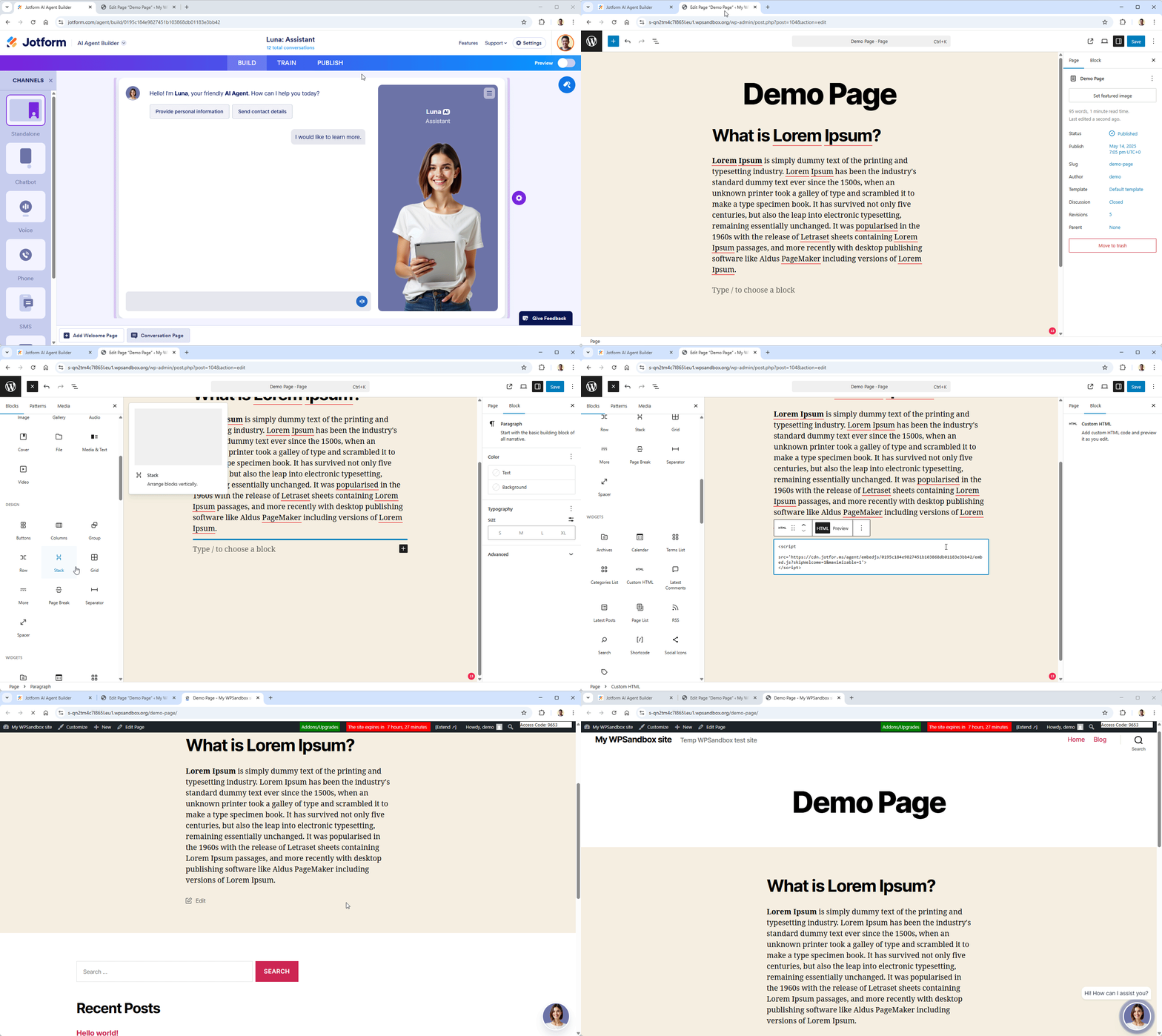
Just to make sure that I understood what you’re asking, you want to add different AI Agent on different pages of your WP site, right? If that’s what you’re trying to do, you can get the chatbot embed code of your AI Agent and then embed it to a page in your WP site where you want it to appear using a Custom HTML block. Let me show you how to do that:
- In the AI Agent Builder, click on Publish tab.
- Look for Embed Style section and select Chatbot.
- Click on the Copy Code button to copy the embed code.
- Go to your WP page, then add a Custom HTML block.
- Paste the embed code and then save the changes or publish the page.
You can check this screencast for reference.
Give it a try and let us know if you need more help from our Contact Us page. We’ll be happy to help.
Forum: Reviews
In reply to: [Jotform - AI Chatbot] Great AI ChatbotHi @tranlanguage,
Thanks for your feedback. While the feature you’re looking for isn’t currently available in our WordPress plugin, I’ve gone ahead and escalated your request to our Developers. Exactly when or if it’s developed depends on their workload, how viable it is, and how many other users also request it. If there are any updates, we’ll circle back to this thread and let you know. You can track the feature request ticket here.
Let us know if there’s anything else we can help you with from our Contact Us page. We’ll be happy to help.
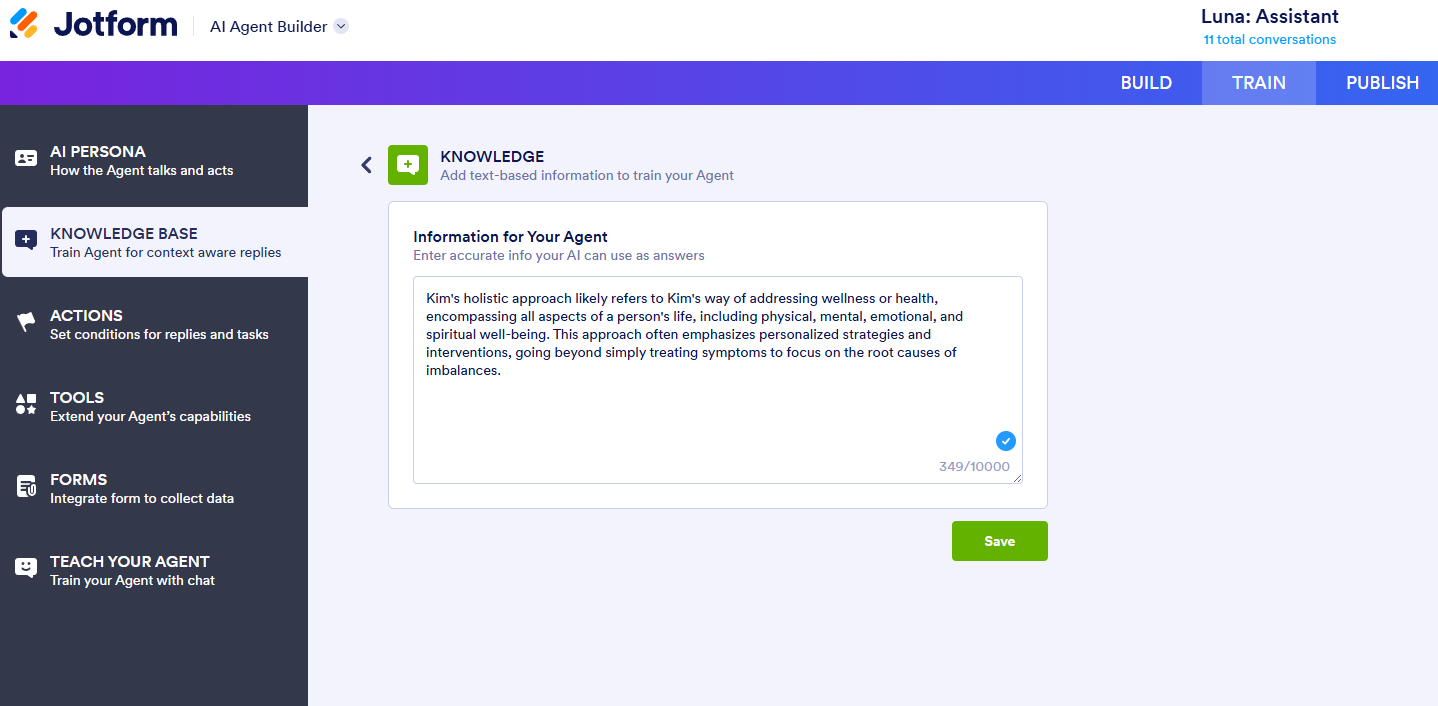
After reviewing your AI agent, we noticed that some of your chat guidelines currently in place are quite general, which might be affecting the clarity of your AI’s responses. To help improve its performance, we kindly recommend refining these instructions to be more direct and specific, similar to the default instructions provided. This will help the AI deliver more accurate and helpful replies. Additionally, we suggest moving these detailed instructions to the Knowledge Base section of your AI agent. Doing so allows the AI to better understand context and provide responses that are more tailored and precise.
Based on the screenshot you shared in your forum ticket, here’s an example of how a revised version could look, along with the resulting improvement:
Screenshot – Knowledge Base
Screenshot – ResultGive it a try and let us know if you still need more help.
Hi Dave,
I tried the latest version of the Jotform Embed Forms WP plugin version 1.3.7 on a latest WordPress site version 6.7.2 running on PHP version 8.2.12 and everything is working properly. I did not encounter any error. Can you update your Jotform plugin to version 1.3.7 and try again?

Give it a try and let us know how it goes.
- This reply was modified 1 year, 3 months ago by Elton Cris.
- This reply was modified 1 year, 3 months ago by Elton Cris.
Hi @bfancych,
Thanks for sharing the alternative method on embedding Jotform into WordPress. As for this plugin, when I tried it on the latest version of WordPress (v6.6.2), everything was working properly. I can see the Jotform icon on the Classic block and able to browse forms that I can embed on the page or post. Check out this screencast to see my result.
Give it a try and let us know if you need any other help from our Contact Us page. We’ll be happy to help.
Hi nateadmin,
I’m sorry you’re having difficulties getting your embedded form to work. When I tried our plugin on the latest WP site (v6.2.2), everything was working properly. It shows the form just like as shown in this screencast:
Can you try it again and see how it goes? If the same thing happens, we suggest that you embed your form using its iframe embed code directly. Let me show you how to do that:
1. Get your form’s iframe embed code.
- Click PUBLISH in Form Builder
- Click EMBED and select IFRAME
- Click COPY CODE to copy the iframe embed code
2. Go to your WP post/page and add an HTML block.
3. Paste your form’s iframe embed code.
4. Click Publish and Preview the page.
Let us know if you have more questions through our Contact Us page. We’ll be happy to help.
- This reply was modified 2 years, 10 months ago by Elton Cris.
Hi azlivin008,
I’m sorry you’re having trouble with our WP plugin. When I tried it on our latest WP site (v6.2.2), everything was working properly. It shows the form when I preview the page just like as shown in this screencast:
Can you try it again and see how it goes? If the same thing happens, we suggest that you embed your form using its iframe embed code directly. Let me show you how to do that:
- Get your form’s iframe embed code.
- Click PUBLISH in Form Builder
- Click EMBED and select IFRAME
- Click COPY CODE to copy the iframe embed code
2. Go to your WP post/page and add an HTML block.
3. Paste your form’s iframe embed code.
4. Click Publish and Preview the page.
Reach out to us if there’s still any problem through our Contact Us page. We’ll be happy to help.
- This reply was modified 2 years, 10 months ago by Elton Cris.
Hello aljazd,
I’m sorry for the delayed reply. I just started providing support in our WP plugins. About your issue, I checked the form on your website but I couldn’t replicate the issue. The captcha appears in full as seen in the image below:
I assume this was resolved. If you can still replicate this issue, please provide us with the device information you’re using when you fill out the form so we can further investigate.
Hello pasqualerose,
Thank you for expressing your interest in Jotform. I’m Elton, a member of the Jotform Customer Support team, and I would be delighted to help you. To simplify the process of selling your products, you can utilize payment tools such as PayPal Business, Square, Stripe, etc. These tools are easily accessible in the Form Builder under the Payments tab. By using this feature, you can configure your products, add various product options, and apply shipping per number of items and tax options. Allow me to guide you through the setup process:
- Log in to your Jotform account and create a new form or edit your existing form.
- In Form Builder, click the Add Form Element then go to the Payments tab
- Search and select the payment gateway you want to use e.g. PayPal Business.
- In the payment settings on the right panel, click Connect button to connect your payment gateway account. After that, you can start setting up your products and product options. You can also enable Shipping and Tax from their separate tabs.
If you want to learn more, please check the full guide here. You might also find this video tutorial helpful on how to create an online order form.
If you have further questions or if you need further assistance, reach out to us in our Support System using our Support Contact Form at https://www.jotform.com/contact/ so we can assist you better.
- This reply was modified 3 years, 3 months ago by Elton Cris.