PostmasterGS

Forum Replies Created
-
I upgraded when 4.0 was first released, and it was a disaster. It didn’t break my front-end, since my galleries tend to be pretty basic. But, it killed my workflow on the backend. The update removed quite a bit of backend functionality. The big ones for me were the ability to edit photo data en masse and the ability to display the gallery shortcode so I could copy and paste it into my page builder modules.
It just seems like the update changed the functionality to focus on a very specific use case, which unfortunately isn’t what I was using it for (I’m not a photographer selling photos on my website, for example). And it isn’t geared toward power users. Tasks that took only a few clicks and a few seconds before 4.0, now take dozens of clicks and minutes (or hours) to accomplish the same tasks. If you’re just adding or editing a couple photos, it’s do-able – if you’re adding or editing 500, it’s not.
I rolled back to the last pre-4.0 version, and haven’t tried again since. I might give it another try when it gets several versions down the road, but as of now, I’m just going to have to stick with pre-4.0 and maintain it myself.Mihai,
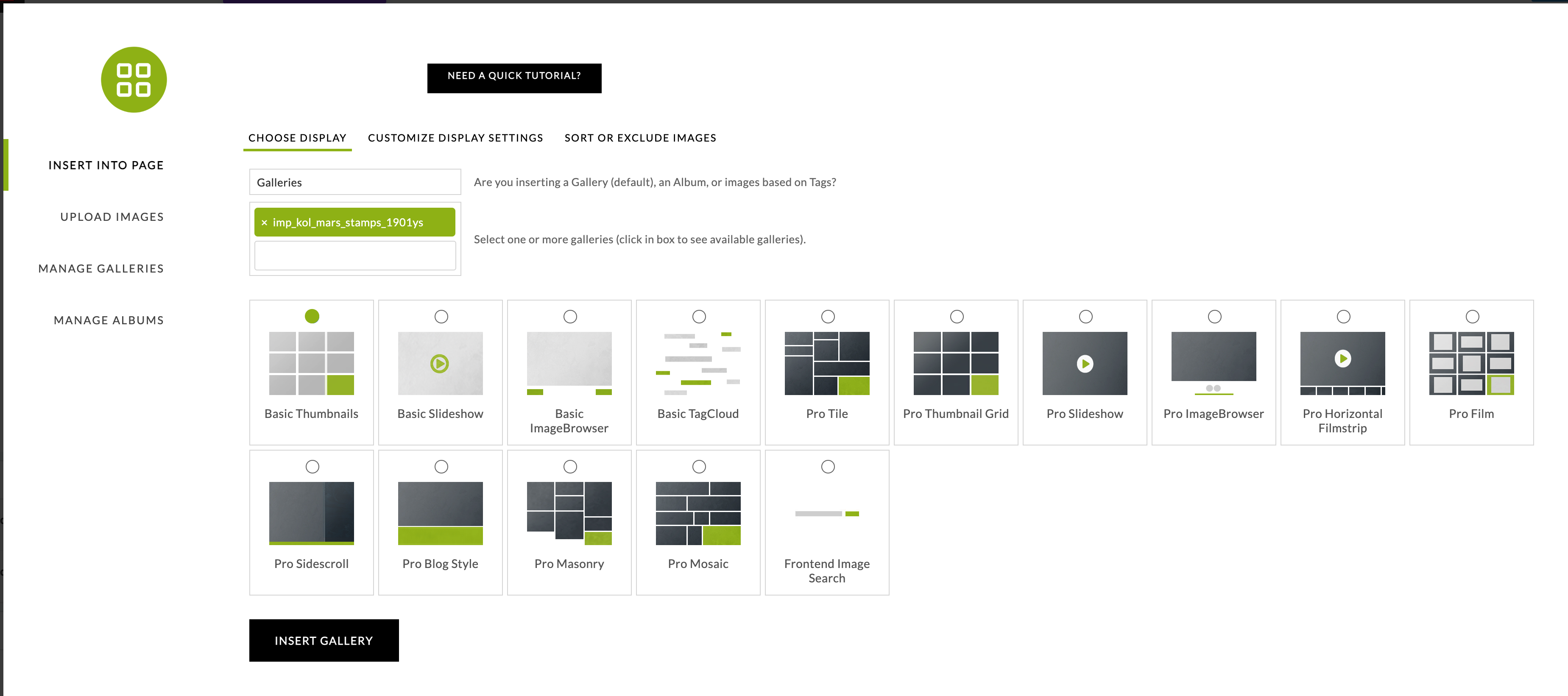
While the dev team is looking at that issue, having a large number of galleries causes a similar issue with the block to add a gallery (the one shown here).
If you have a large number of galleries, the pop-up becomes unresponsive for a time when you open it. I have about 2,000 galleries, and I have to wait about 60-75 seconds for it to become responsive before I can do anything with it. It’s not fatal because it does work, it just takes several minutes to accomplish tasks that should take a few seconds.- This reply was modified 2 years, 5 months ago by PostmasterGS.
With that many images, it could be that the PHP process is timing out. If so, there should be some indication of that in the error log.
You can up that setting by adding or changing the “memory_limit” line in the user.ini file in the root directory of your domain.
Does your new template end in “-view.php”? if not, it won’t appear in the Select View dropdown in your Gallery Settings.
I had the same problem, and I found the typo that was causing it. I’ve let Imagely know so they can fix it in the next update.
But, if you want to manually edit the source code to fix the issue in the meantime, there’s a stray single quote at line 512 of /nextgen-gallery/src/Legacy/admin/functions.php."SELECTfilenameFROM {$wpdb->nggpictures} WHEREgalleryid= %s'",it should read:
"SELECTfilenameFROM {$wpdb->nggpictures} WHEREgalleryid= %s",If you remove that stray single quote, it fixes the problem.
Forum: Fixing WordPress
In reply to: Can’t Disable Comment NotificationsThank you for the response.
I don’t want to disable all notifications, only those to the admin.
Can you elaborate on what this means – the admin email can be removed from the array of recipients through the comment_moderation_recipients’ filter?
Forum: Plugins
In reply to: [WP phpMyAdmin] Getting “Error: Token mismatch” after upgrading to 5.2.1.01Same here. Just started with the .01 update. I can get into and use phpMyAdmin through my server control panel without any issues, so it has to be a bug in WP phpMyAdmin.
Problem solved, but for those who might be experiencing the same problem — I had to add body in front of each custom CSS entry. Ex:
body .ngg-gallery-thumbnail a {
...
}
instead of
.ngg-gallery-thumbnail a { ... }I should also mention that there appears to be a naming requirement for the custom template, ending in template.php or view.php (ex. custom-view.php, default-view.php). This hasn’t changed from the old custom templates.
Also, if you’re attempting to build a custom basic slideshow template, there isn’t a directory for it by default, so you have to create one at:
/wp-content/ngg/modules/photocrati-nextgen_basic_slideshow/templates/quicksilver,
I don’t use albums, but I did a quick test and was able to make a custom template appear as an option. Using the Basic Extended Album for this test, I did the following:
1. I made a copy of the following file and gave it a new name.
/wp-content/plugins/nextgen-gallery/products/photocrati_nextgen/modules/nextgen_basic_album/templates/extended/default-view.php2. I then placed the new file here:
/wp-content/ngg/modules/photocrati-nextgen_basic_extended_album/templates/test-view.php3. Then went to Gallery Settings / Basic Extended Album / Select View and it showed up in the dropdown as custom/test-view.php.
I didn’t attempt to do any customizations on it, but if you can see it, it should at least be working.
I’m not sure if this is the recommended solution, but I was able to get captions under my thumbnails after migrating. To do so, I did the following:
1. Make a copy of
wp-content/plugins/nextgen-gallery/products/photocrati_nextgen/modules/nextgen_basic_gallery/templates/thumbnails/default-view.php(I also renamed it to make it obvious what was what)
2. I inserted this line
<span><?php if (!$image->hidden) { echo $image->alttext; } ?></span>between lines 55 and 56, like so
                />
            </a>
            <span><?php if (!$image->hidden) { echo $image->alttext; } ?></span>
        </div>
				<?php

				$this->end_element();
Note that I use the alt text as my caption. If you need to use the description, substitute “description” in place of “alttext”.
3. Upload the resulting file to
wp-content/ngg/modules/photocrati-nextgen_basic_thumbnails/templates/yourfilename.php4. To make it active as my new default, I then went to NextGen Gallery / Gallery Settings / Basic Thumbnails / Select View and selected “custom/myfilename.php” from the dropdown.
It also required some CSS tweaking, which I’m still working through, but the basic concept is there.
You could probably do something similar for the gallery description, if you can find the correct call to get it.
- This reply was modified 5 years, 5 months ago by PostmasterGS.
- This reply was modified 5 years, 5 months ago by PostmasterGS.
I’m not. I use NextGen Gallery, but deactivating it had no effect on this problem.
David,
It appears to be purely a CSS problem. I opened the browser’s Inspect function, and was able to uncheck two styles and temporarily correct the problem.
There’s an inline style being applied as follows:
<ul tabindex="-1" class="attachments ui-sortable ui-sortable-disabled" id="__attachments-view-1242" style="top: -115px;left: -230px;">The negative top and left styles are shifting the unnumbered list containing the images outside of the modal window. I haven’t been able to find exactly where that code comes from, since it’s an inline style and is a bit difficult to locate. If I uncheck those two styles in the Inspector, however, the images shift back to their proper place in the modal window.
David,
WRT my system:
1. I’ve only been able to make it happen on a page/post insert.
2. Enlarging the browser window has no effect.
3. I’m using Brave browser.
4. Divi theme
5. Divi page builderI can seen screenshots if that would help.
papijo,
I’m having the same problem, but there’s an easy workaround. With the Add Media window up, click over to “Upload Files” then click back to “Media Library.” That fixes it for me, so maybe it will work for you.