statyanenko

Forum Replies Created
-
Hi @dougrdotnet
Image optimization may not work correctly depending on how new images are handled by Media Offloader. If it is configured to upload new media immediately to S3, the images may be uploaded without being compressed.
To avoid this, it’s recommended to first optimize images on your site and then use the Media Offloader plugin to sync or upload them to S3.
You have two options:
- Disable the “Automatically compress newly-added images” option in WP-Optimize under Images > Compression when using Media Offloader to prevent unwanted behavior.
- Alternatively, keep the “Automatically compress newly-added images” option enabled in WP-Optimize, but disable automatic uploading to S3 in Media Offloader. In this case, you should manually sync or upload new media after compression.
There shouldn’t be any issues with lazy loading.
Unfortunately, we currently do not have a plugin or feature to manage offloading media to S3.
@thetallone We have already fixed the issue, and it will be included in the next release. Thank you.
Hi,
It depends on the headers sent by the browser and PageSpeed Insights. Perhaps your browser doesn’t send the ‘Accept: image/webp’ header; therefore, the generated page does not include WebP images and is cached as just index.html. On the other hand, PageSpeed Insights sends this header, generating a page with WebP images; hence, you see .webp.html files in the cache folder.
@rogeriodec This issue happened bacause you have not define
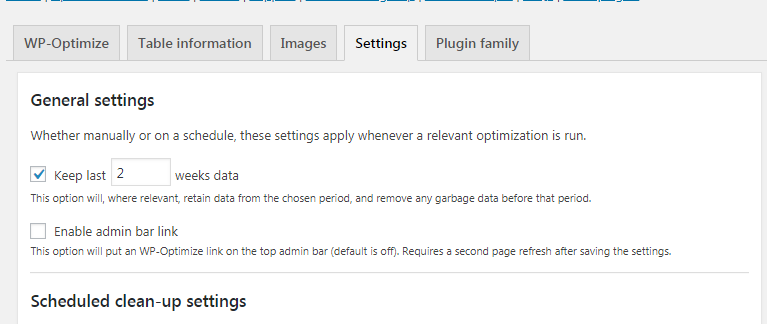
$table_prefix = '';value inwp-config.php. Please, try to set it to the correct value and check again.@bernadettetp Thank you! It happens because you have enabled Keep last X weeks data in the Settings tab. I.e. revisions older than 2 weeks will deleted.