codepeople

Forum Replies Created
-
Forum: Plugins
In reply to: [Calculated Fields Form] Return a value after an understood valueHello @emolotel
Thank you very much for using our plugin, the correct would be:
(function () {
    var first = fieldname41;

    if (AND( 0 < first, first <= 0.3)) return 1;
    if (AND( 0.3 < first, first <= 0.6)) return 2;
    if (AND( 0.6 < first, first <= 0.9)) return 3;
    if (AND( 0.9 < first, first <= 1.2)) return 4;
    if (AND( 1.2 < first, first <= 1.5)) return 5;
    if (AND( 1.5 < first, first <= 1.8)) return 6;

})()
However, as you’re using return instructions, you don’t need to compare with the range, only its right edge, as follows:
(function () {
    var first = fieldname41;

    if (first <= 0.3) return 1;
    if (first <= 0.6) return 2;
    if (first <= 0.9) return 3;
    if (first <= 1.2) return 4;
    if (first <= 1.5) return 5;
    if (first <= 1.8) return 6;

})()
Best regards.
Forum: Reviews
In reply to: [CP Contact Form with PayPal] Excellent plugin!Thank you very much for the review!
Best regards
Forum: Plugins
In reply to: [Calculated Fields Form] Update Problem.Hello @pexel
Yes. Unfortunately, if you pressed the save or preview buttons in the forms builder with the plugin version 5.2.1, the attributes were stored in the database without leading and trailing space characters.
Best regards.
Forum: Plugins
In reply to: [Calculated Fields Form] Update Problem.Hello @pexel
If you modified and saved the form with the 5.2.1 plugin version active, it stored the form structure in the database without leading and trailing space characters in the fields’ attributes. Could you please re-enter the space character in front of the currency symbol and update the changes?
Best regards.
Forum: Plugins
In reply to: [Calculated Fields Form] Appearance SettingsHello @fibbu
The modification will be included in every plugin distribution, including the free one. We are working to make it available as soon as possible.
Best regards.
Forum: Plugins
In reply to: [Calculated Fields Form] Appearance SettingsHello @fibbu
The free plugin distribution renders the forms on the client side. So, an alternative would be to insert the form into a tag with an estimated height to avoid CLS.
Ex.
<div style="height:500px">[CP_CALCULATED_FIELDS id="1"]</div>Or you can enter the form height through the “Customize Form Design” attribute in the “Form Settings” tab:
#fbuilder {height:500px;}We are working on a plugin update to make a height estimation before rendering the form.
Best regards.
Hello @mikkelcrunch
If you want to evaluate the equations only if the required fields were filled and the entered fields are valid, you can do the following:
- Configure the button type as “button” instead of a calculated field.
- Enter the following piece of code as its onclick event:
if(VALIDFORM(this.form)){
   EVALEQUATIONS(this.form);
   SHOWFIELD('fieldname123');
}
The SHOWFIELD code is to display the summaries.
Best regards.
Forum: Plugins
In reply to: [Calculated Fields Form] Appearance SettingsForum: Plugins
In reply to: [Calculated Fields Form] Update Problem.Hello @pexel,
The plugin version 5.2.1 was trimming trailing and leading spaces on every field attribute, not only the postfix and prefix attributes as part of the sanitization process before storing the form structure in the database. So, if you edited a form previous to the plugin update (before installing the plugin version 5.2.2), the plugin removed the extra space characters from the fields attributes.
Could you please indicate the URL to the page that contains the form and the attributes affected?
Best regards.
Forum: Plugins
In reply to: [Calculated Fields Form] Space before and after calculated fieldHello @victoriei101
Thank you very much for letting me know everything is working fine again with space characters.
Best regards.
Forum: Plugins
In reply to: [Calculated Fields Form] Submit button shouldn’t be thereHello @cirus96
Thank you very much for using our plugin. You should select “No” for the “Display submit button?” attribute in the form settings:
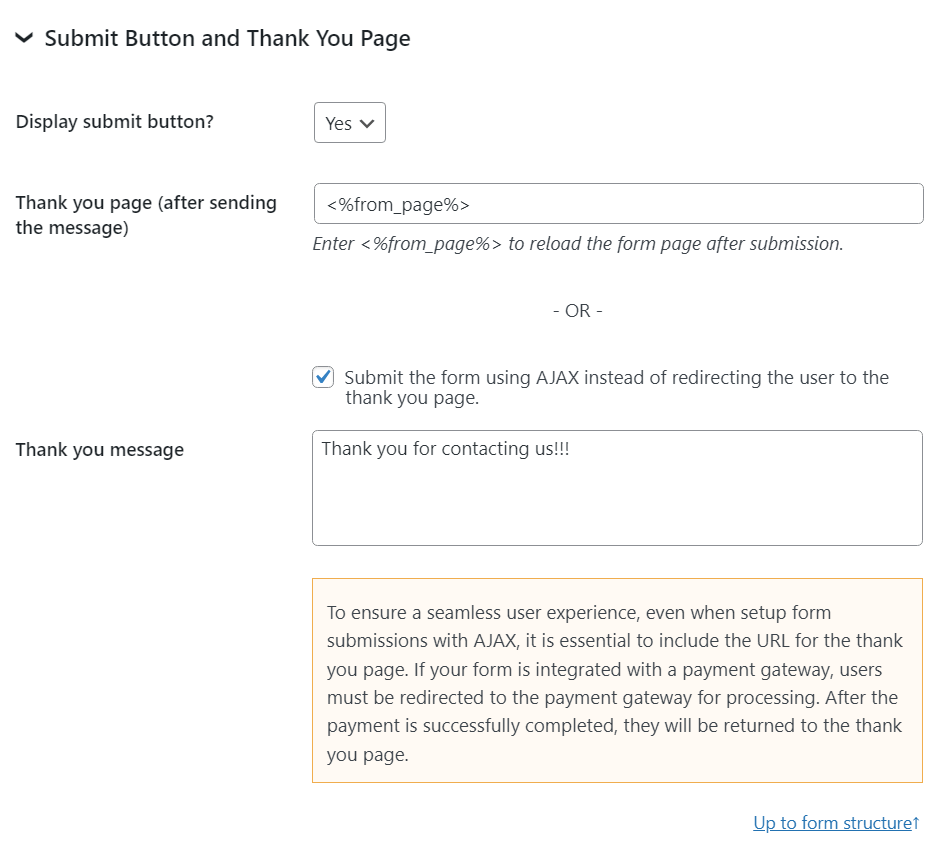
Best regards.
Forum: Plugins
In reply to: [Calculated Fields Form] Space before and after calculated fieldHello @victoriei101
Please install the latest plugin update (v5.2.2) and follow the instructions below.
To separate the field value from the currency, enter the space character in front of the currency code.
To separate the field label from the value in the summary, you can enter the style definition below through the “Customize Form Design” attribute in the “Form Settings” tab:
.cff-summary-title{padding-right:5px;}Best regards.
Hello @mikkelcrunch
If your second form does not contain radio buttons, you can define the dependencies by using calculated fields.
However, if you only want to hide and show the fields, you can assign the
hideclass name to the fields you want to hide. You can assign the class names to the fields through their “Add CSS Layout Keywords” attributes. To display a field that was hidden with the hide class name by pressing a button instead of using dependencies (Ex. the fieldname123 field), you can call the SHOWFIELD operation as the button onclick event. Ex.SHOWFIELD('fieldname123');Best regards.
Hello @mikkelcrunch
In your first form, you configured the fields as dependent on the radio button choices and calculated field results. Please read the following blog post:
https://cff.dwbooster.com/blog/2020/03/01/dependencies
The second form does not have dependencies defined.
Best regards.
Forum: Plugins
In reply to: [Calculated Fields Form] Form DesignHello @klingbeil
What devices are you using for testing? I need to replicate the issue to know what is happening exactly. Our plugin does not modify the fields’ sizes on focus, so, it should be inherited from the theme active on your website.
You can try to pass the iframe attribute to the form shortcode as follows:
[CP_CALCULATED_FIELDS id="1" iframe="1"]Best regards.