WeeConnectPay

Forum Replies Created
-
Forum: Plugins
In reply to: [WeeConnectPay - Clover Payment Gateway for WooCommerce] Partial Refunds@wpdv It should definitely be there. Would you be able to enable debug logging and send us the debug log at [email protected]? See https://intercom.help/weeconnectpay/en/articles/15185789-enable-debug-mode-and-send-us-a-debug-log
Thank you.Forum: Plugins
In reply to: [WeeConnectPay - Clover Payment Gateway for WooCommerce] Partial Refunds@wpdv
It seems the images were not uploaded. Here’s a knowledge base article that should help: https://intercom.help/weeconnectpay/en/articles/15186051-partial-refunds-on-direct-charges-authorization-capture-pre-authorizationLet us know if this helps.
Forum: Plugins
In reply to: [WeeConnectPay - Clover Payment Gateway for WooCommerce] Partial RefundsHi @wpdv, thanks for the report. That error comes from a UX gap on our end, not a misconfiguration on yours. Quick explanation, then the fix.
Why you saw that message
WeeConnectPay supports two payment flows today, and the gap that hit you sits between them.
- Direct Charges (Authorization + Capture, Pre-Authorization): one Clover charge per order, no per-item breakdown on Clover’s side. This is what your store is set to, and it’s what we now use across our newer integrations (Zoho, PrestaShop). It’s simpler, more maintainable, and where new feature work lands first.
- Orders + Payment (the older WooCommerce flow): every cart line becomes a Clover line item. Some merchants depend on this for Clover-side order printing, kitchen tickets, and inventory tracking, so we keep supporting it. We don’t want to pull the rug on those workflows, especially before our own inventory support is in place.
The Refund button at the bottom of WooCommerce’s Order items table is WooCommerce’s own UI, built around refunding line by line. That fits Orders + Payment well, but on Direct Charges there are no line items to refund against, just one charge for the whole cart. So that button can only handle full refunds on Direct Charges today, and any partial amount entered there produces the “Partial refunds are not supported for this payment type” message you got. We can’t change the wording of that button (WooCommerce owns it and doesn’t expose a per-gateway hook), which is part of why it doesn’t tell you where to go instead.
Partial refunds on Direct Charges work fine, just from a different panel on the same page.
How to do a partial refund
Partial refunds work fine, they just live in the WeeConnectPay Charges metabox on the same order page rather than in WooCommerce’s refund interface.
Step 1: Open the order. Scroll to the WeeConnectPay Charges metabox. The panel circled green below is the right one. The red button at the bottom is the WooCommerce one that gave you the error.
Step 2: Click Refund on the charge card.
Step 3: Enter the partial amount (or use a preset: 25% / 50% / 75% / Custom / Full), pick a reason, and confirm. You can issue further partial refunds against the same charge until it’s fully refunded.
If you hit any other issue
Please reach us at [email protected] rather than posting your store details here. Our AI triage agent replies first (trained on common refund and configuration issues), and a human reviews every ticket too. It’s a faster loop than this thread.
If your email is about a refund or transaction issue, attaching a debug log helps us pinpoint the cause without back-and-forth:
- WooCommerce → Settings → Payments → WeeConnectPay → Advanced, turn on Debug Mode.
- Reproduce the issue.
- In the Debug Logs section just below, click Download.
- Email the file to [email protected] with the order number and what you tried.
Making WooCommerce’s interface clearly guide merchants to the right refund path, in both flows, is genuinely tricky, and feedback like yours is what moves it. If you have thoughts on what would have made the right path obvious to you, this thread is the place to share them. We’ll either confirm we already know about it or pass it to the team.
Thank you for the detailed bug report and for taking the time to test our plugin! You’ve identified a genuine issue that we really appreciate you bringing to our attention.
What Happened
The fatal error you encountered was due to a very small (namespace) code issue during our plugin’s initial setup process. When the plugin tries to establish its first connection with our payment system during activation, it encountered an error and couldn’t properly log what went wrong – that’s what caused the fatal error you saw.
The Fix
We’ve just corrected this issue. Version 3.15.2 is live with the fix. Now instead of a fatal error, you’ll see a clear, helpful message explaining exactly what’s happening during activation. This gives you (and us) much better information about any setup requirements.
Why Different Behavior on Different Environments
You’re absolutely right to notice the difference between your local setup and the hosted site – that’s actually expected behavior. Our plugin needs to establish a secure connection with our payment processing system during initial setup. Local development environments (like LocalWP) sometimes have different network configurations, domain setups, or security settings that can affect this initial connection process.
The plugin is designed to work with standard web hosting environments where these connections work seamlessly. This isn’t about blocking local development – it’s just that payment processing requires certain network and security configurations that are standard in hosted environments but can vary in local setups.
Moving Forward
With the upcoming update, you’ll get clear information about what’s happening during activation instead of that cryptic fatal error. This will help you understand exactly what the plugin needs to complete its setup process.
Should you need more help resolving the underlying issue, please reach out to [email protected] and we will be happy to follow up within our ticketing system.
We really appreciate you taking the time to report this – detailed feedback like yours helps us improve the plugin for everyone!
Hi @22wpexpert ,
The reason you’re seeing a 100% decline rate is due to the Address Verification System (AVS) settings in your Clover merchant account.
With WeeConnectPay, our payment gateway securely integrates Clover’s iframe, significantly reducing PCI-DSS compliance burdens and keeping your customers’ data safe.Currently, our Clover iframe includes these fields:
- Card Number
- Card Expiry Date
- Card CVV
- Card Postal Code
All of these iframe fields are validated by Clover. However, AVS (and all other Clover fraud tools) validates fields according to your chosen settings. Since the street address field isn’t enabled on our iframe but street address verification is enabled in your AVS settings, these transactions fail the street address validation and be declined. We’ve intentionally disabled this field because enabling it would negatively impact user experience—customers would have to enter their billing address twice: once for WooCommerce and again within the Clover iframe.
Also, due to Clover’s strict security protocols, neither WeeConnectPay nor any scripts can access the card or address data entered into the iframe. This safeguards card data from malicious scripts but also prevents automatic filling or transferring data from WooCommerce fields.
To resolve this issue, please review your Clover fraud tool settings and ensure the AVS checks align with these supported fields. You can safely enable other available anti-fraud options such as Google ReCaptcha, which we noticed isn’t activated yet.
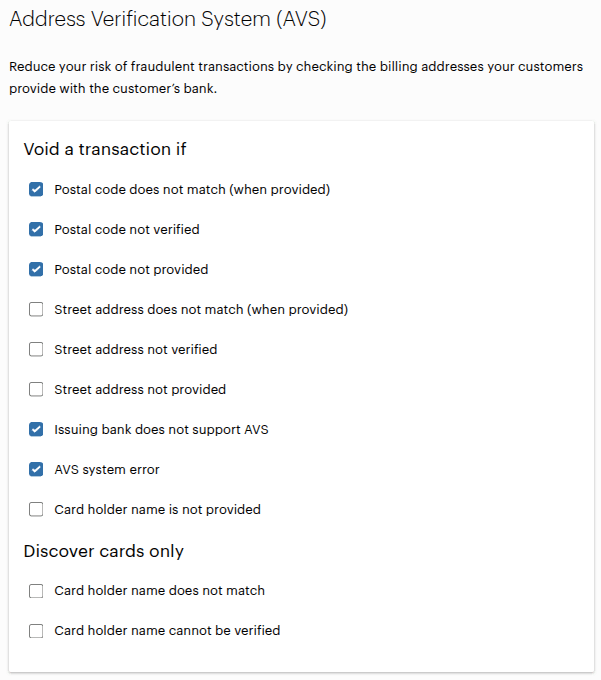
We recommend removing any sensitive information, like screenshots containing detailed order notes, from your public posts to help protect your and your customers’ privacy.
If you need additional help optimizing your Clover fraud settings or enabling Google ReCaptcha, please reach out to our support team directly at [email protected] —we’re happy to help!
Thanks again for working with WeeConnectPay!
Hi @paypact27 ,
I’m glad we could assist you promptly. We strive to offer top-notch support alongside our user-friendly products.
Feel free to reach out again at [email protected] for any future questions or needs.
Forum: Reviews
In reply to: [WeeConnectPay - Clover Payment Gateway for WooCommerce] Great serviceThank you for your review!
We’re thrilled to hear that we could help you resolve technical challenges and came up with an appropriate solution. Your satisfaction is our top priority, and we’re always here to provide the best support possible. Don’t hesitate to reach out again at [email protected] if you have any other questions or needs in the future.
Thanks again for your trust!
Thank you so much for your detailed review! We’re thrilled to hear that our plugin meets your needs better than the alternatives, especially in terms of detailed transaction data and error messaging.
Quick tip: You can use the search field in the orders listing to quickly find the associated order of any Clover Order ID or Clover Payment ID.We appreciate your feedback about the HPOS compatibility, and we’re glad we could resolve it quickly.
Your support and recommendation mean a lot to us. If you need anything else, feel free to reach out!
Thank you for your kind words! We’re glad to hear that you found our service simple and secure. Providing excellent and quick support is our priority. If you have any further questions or need assistance, please don’t hesitate to reach out!
Hi @22wpexpert ,
We have not received a reply in over 2 weeks. Because of this, we consider this issue as resolved.
For any further questions, concerns, or updates, please don’t hesitate to contact us at [email protected].Hi @22wpexpert,
Thank you for reaching out and providing the details about the errors you’re encountering with the WeeConnectPay – Clover Payment Gateway. We’re here to help!
Upon reviewing the screenshot and details, we couldn’t replicate the error on our end. However, we noticed something that might help identify the issue:
- The script error originates from within the Clover iframe, which typically runs smoothly as it’s designed to perform integrity checks. It’s unusual for this script to show errors only on certain sites.
- It appears there are additional elements (red squares) inside the iframe for the Card Number and Zip Code.
This leads us to suspect that a browser extension, possibly a password manager or similar tool, might be interfering with the iframe. Could you please try accessing your checkout on a browser without any extensions enabled? This test will help us determine if an extension is indeed the cause.
While it seems the issue might not be directly related to our plugin but rather an interaction with a browser extension and Clover’s scripts, we’re committed to working with you, the extension developer, and Clover to resolve this, ensuring it doesn’t affect you or other users in the future.
For any further questions, concerns, or updates, please don’t hesitate to contact us at [email protected].
Forum: Plugins
In reply to: [WeeConnectPay - Clover Payment Gateway for WooCommerce] Is it freeHello @assad1999,
The plugin itself is free.
The plugin was made to allow Clover merchants to process payments using their Clover merchant account. Therefore it requires a Clover merchant account to be functional.
At this time, we offer 2 subscription plans for Clover Merchants;
Basic Plan:- Free
- $1.00/transaction
Standard plan:
- $29.99/month
- $0.10/transaction
Should you want more information on setting up a Clover account, or anything else to do with WeeConnectPay, the best way to reach us by sending us an email at [email protected] and we will be happy to help you.Thank you for your review, it’s much appreciated!