wpDataTables

Forum Replies Created
-
Hello,
I am sorry, but we are not sure if we understood your exact use-case.Do you wish to sort the Table on load, like “order by current Year” ( for a column that stores the Year data) and then by another Column that stores the “month” data?
Or do you perhaps wish to have all this in one column – and to have the Table ‘order by/sort’ by first showing the current year/month-1 ;
Or do you wish to filter a table to only show data from the current Year and one month before the current one, something like that?
If you could provide any more details with examples what is the Column structure going to be and which functionality is needed exactly?
The best is if you can add any screenshots/ or a page with an example/or a Video ( as long as it does not contain any sensitive data, since this is a Public Forum).
Thank you.Hello,
Can you please confirm you have the latest Plugin version installed, and is it the Lite/free or Premium Version?
For the Lite, it should be 3.4.2.6 and if it is the Premium wpDataTables, it should be 6.2.1 version.
If you are using the Premium Version, please open a ticket on our main Support platform here, and one of our Agents will respond as quickly as possible.If you don’t have a licence (or if it expired), please open a pre-purchase ticket which doesn’t require a purchase code.
Premium products are not supported in these forums, as per this comment by ww.wp.xz.cn moderators.
2. But if you are using our Lite Plugin Version, we can proceed to advise here.
If that is the case, can you please check what is your current WordPress SQL Database Prefix?
One of our main Plugin tables which stores important details of the Plugin is named wp_wpdatatables, and it gets created in your WordPress Database during the Plugin installation and activation.
This is very rare to happen, but it could be that your WordPress SQL Table Prefix, for some reason, does not correctly ‘match’ with what our Plugin is expecting.
Can you please log in your Database via PHPMyAdmin or any other DB Management Tool you use;
and search if you can find any Table that contains “wpdatatable” as part of the table name?
The default prefix is wp_ so the table name is wp_wpdatatables, but the DB prefix on your Site could be anything;
So check if you find “yourDBprefix_wp_wpdatatables” or “yourDBPrefix_wpdatatables”.
–
1. The easiest way to try and fix this is, to uninstall our Plugin and re-install it.
If you have not made any important Tables or Data yet that you don’t wish to lose in our Plugin;then you can go in the Main plugin settings, and disable/uncheck this option : Prevent deleting tables in database.

That option is used to keep all the tables/charts/any data safely stored in the WP Database in case if you delete the Plugin from the WP Back-End’s Plugin List.
But in this case, ( if you don’t have anything important yet) we want to completely delete any trace of our Plugin and to start again – in hope that it creates the right DB prefix in your WP Database for the wp_wpdatatables Table.
Now, you can deactivate our Plugin and delete it completely from the “Plugins” section in WP-Admin.
After that, reinstall it again, activate it, purge cache of your Site, then try to make a new Table again.
See if that solves the issue?
If it does – then just re-enable/check that option from the Main Plugin settings, because we want your future Tables+settings to stay safe in the WP Database when this is fixed.
2. If that does not help, and if you can find our wp_wpdatatables Table, just with a ‘wrong DB Prefix’,
try to rename our wp_wpdatatables Table in the WP Database to have your DB prefix, like “yourPrefix_wpdatatables”.
And check if this solves the issue.
3. If none of that helps, we can try to remote in and take a closer look, but we would need remote access and we can not achieve that on this Public Forum.
If you need us to do that, please open a PRIVATE ticket on our main Support platform here, and one of our Agents will respond as quickly as possible.
If you don’t have a licence (or if it expired), please open a pre-purchase ticket which doesn’t require a purchase code.
Hello,
We do not have any way to add a Custom Column for a Table linked from a Forminator Form.
You can only choose from the Form’s available Fields, which Columns will be shown/rendered in our Table.
The only Table type which can add Custom Columns is our Manual table type – but that is only available in the Premium Version – and that table type can not be linked to any Form as a data source.
2. In regards to the alternative use-case you described;
If you add an additional Field to the source Form, which will store the links for PDF’s, in that case it should work –you can output PDF links in our Table’s URL Column and/or String Column types, depending on how the source URL will be formatted.
( In other words – if the Form Field will save the link just as the link without any Custom HTML like “a href” , then you can use our URL Column type;
Or if the Form Field will wrap the link inside its own Custom HTML “a href” links – then you can use our String Column type to render it);
If you need more details about the Forminator integration, please open a Post on the Page for our Forminator integration Add.
On this Page, we are focused on the Main Plugin, wpDataTables.
Kind regards.Hello,
Sorry to disappoint you, but we do not have any solution like that in the Lite/Free version of our Plugin.
We only have a Conditional Formatting Feature which can be used to set some Conditional Rule, a rough example :
if any cell of this Column is “today’s date”, then ‘do something ( from the available formatting options)’, but that is not available in the Lite Version.
If you need more details on Conditional Formatting, please open a ticket on our main Support platform here,and one of our Agents can provide more details if needed.
If you don’t have a licence (or if it expired), please open a pre-purchase ticket which doesn’t require a purchase code.
Premium products are not supported in these forums, as per this comment by ww.wp.xz.cn moderators.
Thank you for understanding.
Kind regards.
Hello,
To begin, I want to extend my heartfelt apologies for the delayed reply, which is due to an unexpectedly high volume of inquiries.We truly value your patience during this period.
I am sorry to disappoint you, but there is no way to pass any formatting or styling such as colors, font type etc, when you are copying the data from Excel to our Plugin.
It can only paste the ‘raw values’.
But you will be able to add custom colouring to columns/cells/rows in our Plugin.
In Simple Tables, you can easily select multiple cells at the same time and set a background color ( and text color) for the selected cells.
An example screenshot if I want to color multiple cells in red background color at the same time.

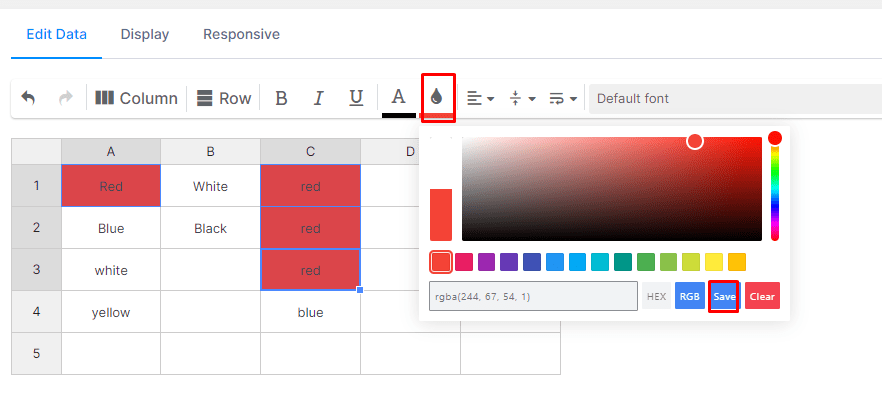
So, you can use the Table’s Tools above to set text color and background color manually like that.

2. There are also ways with Custom CSS to add any styles you need.
If you wish to use CSS , here is an example if we wanted to set a custom Column Width.
You can add a CSS class directly in a cell of a table, and then you can edit, for example, for cell number 1 :
<div class="abc">Some text 123</div>Then on the front end, we would add this custom CSS:
td .abc {
width: 350px;
}
and this will change the column width on the front end.
It is a similar method to do any CSS rules that you wish to apply.
In order to apply this CSS, you can either apply it directly to the WordPress page where the table is :
Custom code needs to be applied to the page where the booking form is. Depending on what you’re using (Gutenberg blocks, or some page builder), adding the CSS or JS can be done in a few different ways.
If you need help with adding custom CSS to the page, please take a look at this article.
–
Or you can add this CSS in the main plugin settings/Custom JS and CSS/Custom CSS.
If you need to ‘target’ only a specific Simple Table with ID, you can add the Table ID like this :
#wpdtSimpleTable-2 td .abc {
width: 350px;
}
I hope that helps.
Hello,
Our apologies for the long waiting time on this reply.
You can achieve this with our Premium Add-on Powerful Filters.
It is not possible with the Free Plugin Version.
If you need more details about it, please open a ticket on our main Support platform here,and one of our Agents will respond as quickly as possible.
If you don’t have a licence (or if it expired), please open a pre-purchase ticket which doesn’t require a purchase code.
Premium products are not supported in these forums, as per this comment by ww.wp.xz.cn moderators.
Thank you for understanding.
Kind regards.
Hello,
Our sincere apologies for not catching your reply here right away.
The situation you described can be easily solved with basic Custom CSS, our Support will provide it for you.
Since your Envato Premium Support has expired, you can open a Private pre-purchase ticket which doesn’t require a purchase code.
Just send the URL of the Page there with your Table and our Agent will devise the CSS for you;
Or, if the Page can’t be accessed, he will still give you an example of hiding the filter with CSS that is easy to follow, and you can apply it to your Table or page.Kind regards.
- This reply was modified 2 years, 3 months ago by wpDataTables.
Hello again,
We are just making another follow-up since our QA Team did further testing and we can confirm that this is actually not a bug, but rather the current default behaviour of how our Simple Table’s images ‘follow’ the width of their Column.Here are a couple of screenshots where our QA Team tested how the image will shrink simply when we edit the column width/then the image size decreases with it.
And in that case, the image size properly shows on all device previews.Here are some screnshots, how it looks by default, if we just add three images that are the same size and just decrease the column width on one of them.
Then, naturally, that image shrinks due to the less Column size ( in this case less width) compared to other Columns/images.
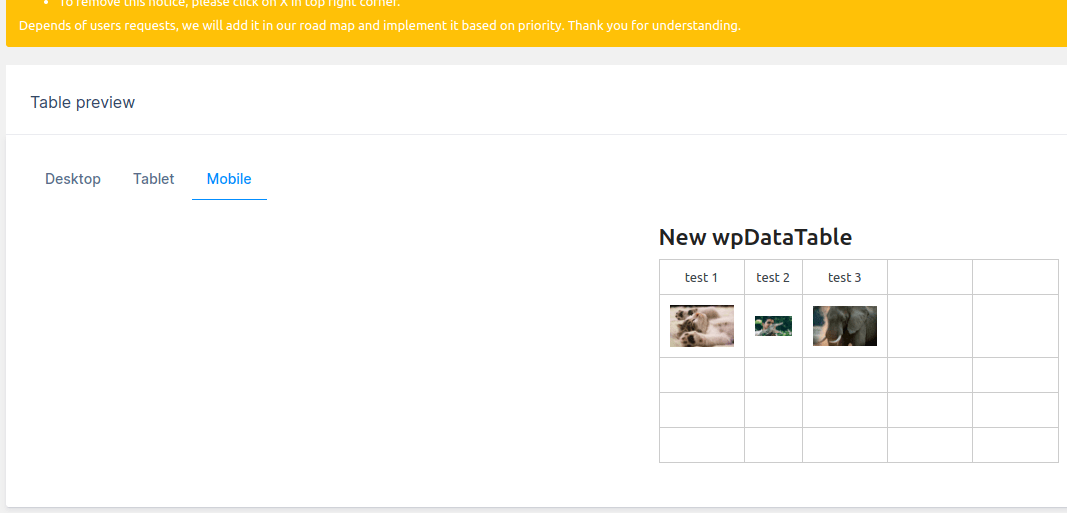
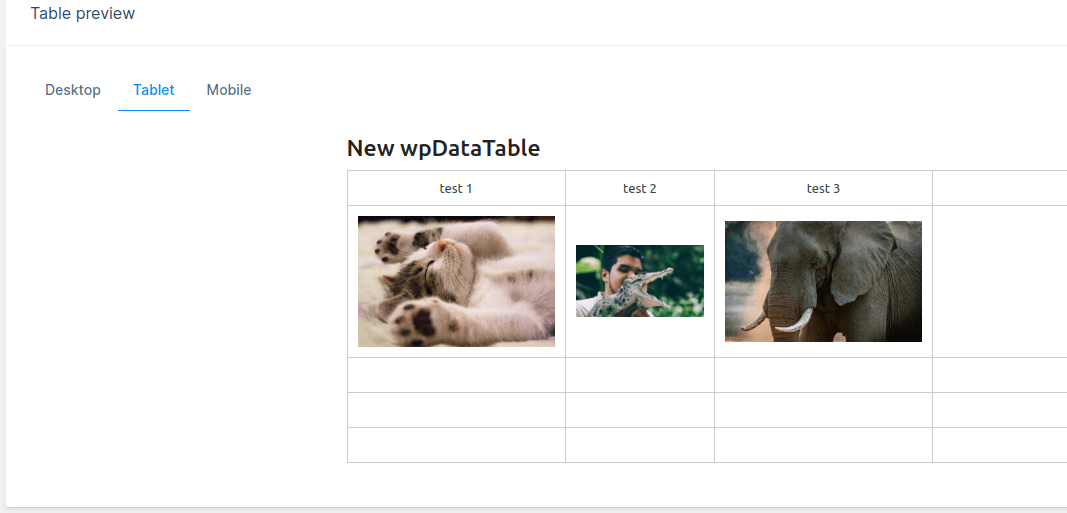

In your specific use-case, you have tried to ‘force’ a certain image size to make them all equal even though you change the middle Column width – the Simple Table’s features are not ‘designed’ to work that way;
so the CSS i sent you can be used to ‘override’ that default behaviour as a solution.
Any CSS you add will not be changed by our Plugin Updates, so you won’t have to repeat adding it.
If you have an idea what we could try to improve this in the future, in terms of how the image ‘follows’ the size of the columns – you can leave a development suggestion and our management will take it into consideration.
Please feel free to search on our suggestions page (https://features.wpdatatables.com/), to see if someone may be already suggested this feature. If you can’t see it, feel free to add your suggestion there, and as more people vote, the feature will move higher on the priority list.
You can certainly follow our changeLog if you’d like(https://ww.wp.xz.cn/plugins/wpdatatables/#developers), where we state any changes/new features/bug fixes during updates;
and our newsletter(https://wpdatatables.com/newsletter/), so you’re informed about new features, bug fixes, freebies, etc.
Thank you.
If you notice anything else, please don’t hesitate to open new Posts.
Kind regards.
Hello,
You mentioned the URL pre-filtering, so we assume you are using the Premium version of the Plugin?
And if we understood, you basically wish to hide that advanced column filter with CSS so that a user can not change/clear it, right?
That is possible, but the filter options are only available in the Premium version.
So, since you’re using the Premium version of the plugin, please open a ticket on our main Support platform here,
you can basically copy the same description/question from here, and one of our Agents will respond as quickly as possible to share an example with CSS for you there.
Premium products are not supported in these forums, as per this comment by ww.wp.xz.cn moderators.
Thank you for understanding.
Kind regards.
Hello,
Thank you for confirming that the suggested CSS fix works, we are happy to hear that. 🙂
In regards to fixing the bug, we will do our best.
Can’t say an ETA yet, but you can follow our ChangeLog as suggested above, to keep informed about new fixes/improvements, etc.
Thanks again.
If you notice anything else, please don’t hesitate to open new Posts.Hello everyone;
We are just following up once more to clarify everything about this issue and to show you a way how you can ‘downgrade’/reroll to an older Lite installation version if you wish.
( We do not recommend using older versions on Production Site version, though)
–
We will elaborate in more detail on everything on this subject :In the new plugin versions, our developers introduced improved error checking for Tables linked from source files and improved error handling messages.
Our Plugin is based on libraries from DataTables JQuery Plugin, it follows some of their main limitations – one of them is not being able to have empty/blank Header name in any Column from the linked Table’s data source file.
Previously, ( on Lite version 2.1.71 or older) we had some specific User cases where they were able to have one or more Columns with empty Header Names on the source files for linked Tables ( such as CSV/Excel) and that somehow worked – even though it should not – our Plugin was intended like that from the start, to not allow any blank Headers on the Table’s source data.
From now on – that will no longer be possible, so please check your source file ( Csv/Excel) and make sure that each column has a Header Name.
We will not be changing this error checking because it needs to exist for some other important new Plugin functionalities.
I am sorry if that causes an inconvenience.
If you can’t isolate the issue on your own, our Support can help you try to isolate what the issue is with the source File.
If you can’t find any empty Headers, can you please send us your source File?
If it does not contain any sensitive data, you can wrap it inside a zipped folder and upload it anywhere like weTransfer/GoogleDrive and send us a download link.
Then we can inspect your file and reproduce the error on our end.
Or, if your file has any sensitive Data, please open a PRIVATE pre-purchase ticket (which doesn’t require a purchase code) and send your source file to our Agents there – they will try to debug it as quickly as possible.
–
If you don’t wish to debug the issue with your file, another option will be to downgrade your Lite Plugin version to an older version which does not have this error checking.
You can download version 2.1.71 version here.
Just scroll down to the “Previous Versions” section.
Please note : Previous versions of plugins may not be secure or stable. They are not recommended for use on production websites.
Kind regards.
Hello,
Firstly, I would like to sincerely apologize for the delayed response as we have been experiencing an unusually high number of tickets. I am sorry that it has taken longer than usual to respond to your concern and your patience is highly appreciated.
–
In the new plugin versions, our developers introduced improved error checking for Tables linked from source files and improved error handling.Our Plugin is based on libraries from DataTables JQuery Plugin, it follows some of their main limitations – one of them is not being able to have empty/blank Header name in any Column from the linked Table’s data source file.
Previously, ( on Lite version 2.1.71 or older) we had some specific User cases where they were able to have one or more Columns with empty Header Names on the source files for linked Tables ( such as CSV/Excel) and that somehow worked even though it should not – our Plugin was intended like that from the start, to not allow any blank Headers on the Table’s source data.
From now on – that will no longer be possible, so please check your source file ( Csv/Excel) and make sure that each column has a Header Name.
We will not be changing this error checking because it needs to exist for some other important new Plugin functionalities.
I am sorry if that causes an inconvenience.
If you can’t isolate the issue on your own, our Support can help you try to isolate what the issue is with the source File.
If you can’t find any empty Headers, can you please send us your source File?
If it does not contain any sensitive data, you can wrap it inside a zipped folder and upload it anywhere like weTransfer/GoogleDrive and send us a download link.
Then we can inspect your file and reproduce the error on our end.
Or, if your file has any sensitive Data, please open a PRIVATE pre-purchase ticket (which doesn’t require a purchase code) and send your source file to our Agents there – they will try to debug it as quickly as possible.
–
If you don’t wish to debug the issue with your file, another option will be to downgrade your Lite Plugin version to an older version which does not have this error checking.
You can download version 2.1.71 here.
Just scroll down to the “Previous Versions” section.
Please note : Previous versions of plugins may not be secure or stable. They are not recommended for use on production websites.Kind regards.
Hello,
Firstly, I would like to sincerely apologize for the delayed response as we have been experiencing an unusually high number of tickets.
I am sorry that it has taken longer than usual to respond to your concern and your patience is highly appreciated.
In order for us to inspect this properly, we would need to go into more detail about how you set up some options from the WP Rocket;
we also need to check how the Charts are loading on the Back-End and which Chart Engines/types they are;
then our developers can try to provide you with the appropriate scripts to exclude them from WP Rocket’s optimizations for the Front-End.
The quickest way to do all of this, without compromising any of your data, since this is a Public Forum;
if you can please open a PRIVATE pre-purchase ticket (which doesn’t require a purchase code) and provide our technical support agents with more details/if you can show them some screenshots or a Video of which optimizations you have enabled in WP Rocket and which files from wpDataTables have you excluded so far;
as well as granting them remote access for your site, so they can take a look and see what’s going on.
As we mentioned, just make sure to open a private ticket there, for security reasons.
Thank you.Hello,
To begin, I want to extend my heartfelt apologies for the delayed reply,which is due to an unexpectedly high volume of inquiries.
We truly value your patience during this period.
It seems we are able to reproduce this issue.
We made a Simple dummy Table which has three images ( each in one Column) similar to your Table, and if we make the middle Column ‘less width‘ than the others and we don’t activate “Basic Responsive” , then, in the Back-End Mobile Preview of the Simple Table, all three column widths and images render the same ( we set them as square ratio 150px by 150px).Here is how the back-End Editor for this Simple table looks – we made the middle column have ‘a lot less width‘ as a test, but all the images are around 150px width and height – the middle image is not visually smaller than them.

Here is how the Mobile Preview looks – it makes all the columns and images have same size ( we will also check if that is as designed, to make all columns same width for mobile screen – but at least all images are still the same):

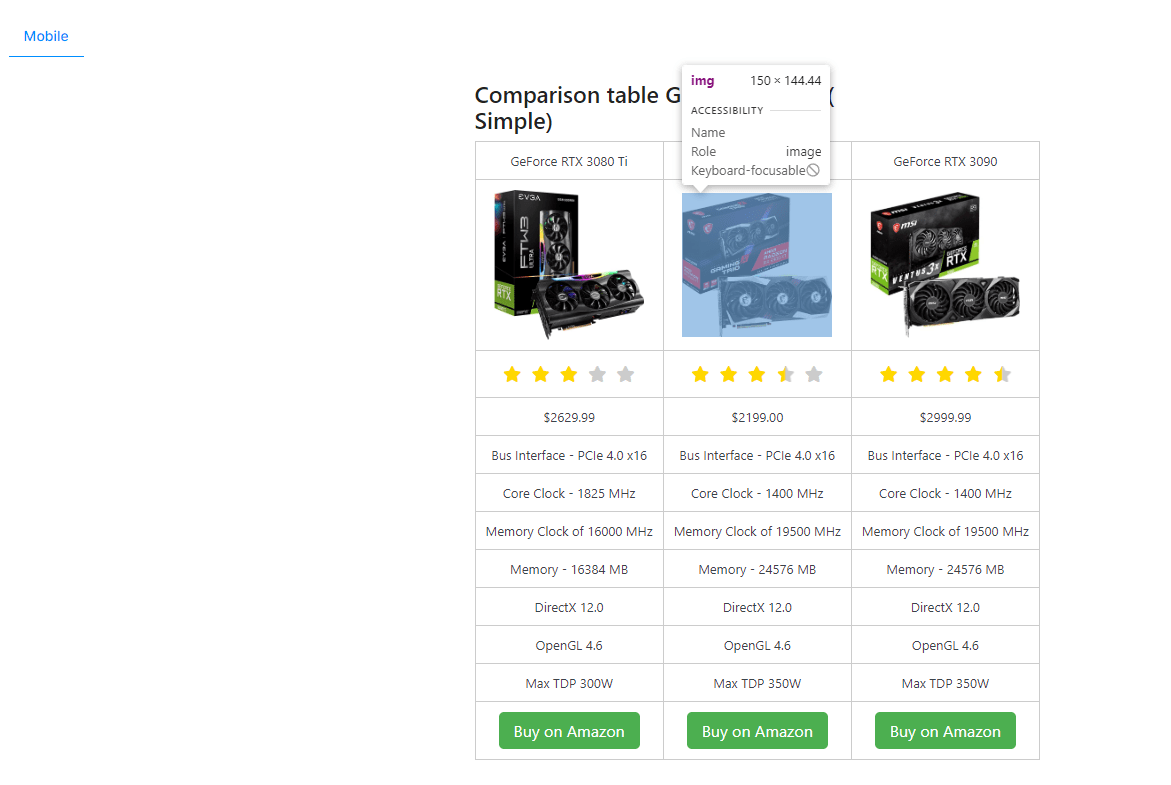
But on our Front-End Page, the same ‘effect’ happens as on your Table;
The middle column which had less width – now has a much smaller image overall ( less height and width).

So it seems that on Front-End, it somehow ‘transposes’ the width with the height and ‘shrinks’ the image vertically. The height is shrinked to only 65 px, while it was 144px in the Back-End Desktop and Mobile Previews.
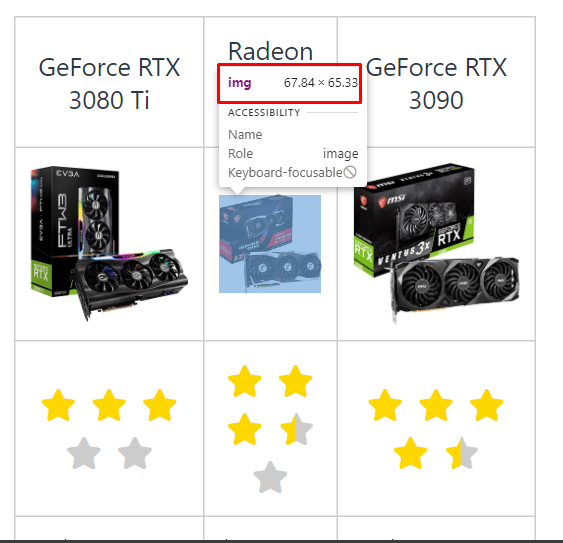
2. Now, if we try the ‘opposite width effect’, to make the middle Column much wider and the side columns smaller;
we get the opposite result – now the middle image is much larger in both height and width – while the left and right column images have shrunk significantly.
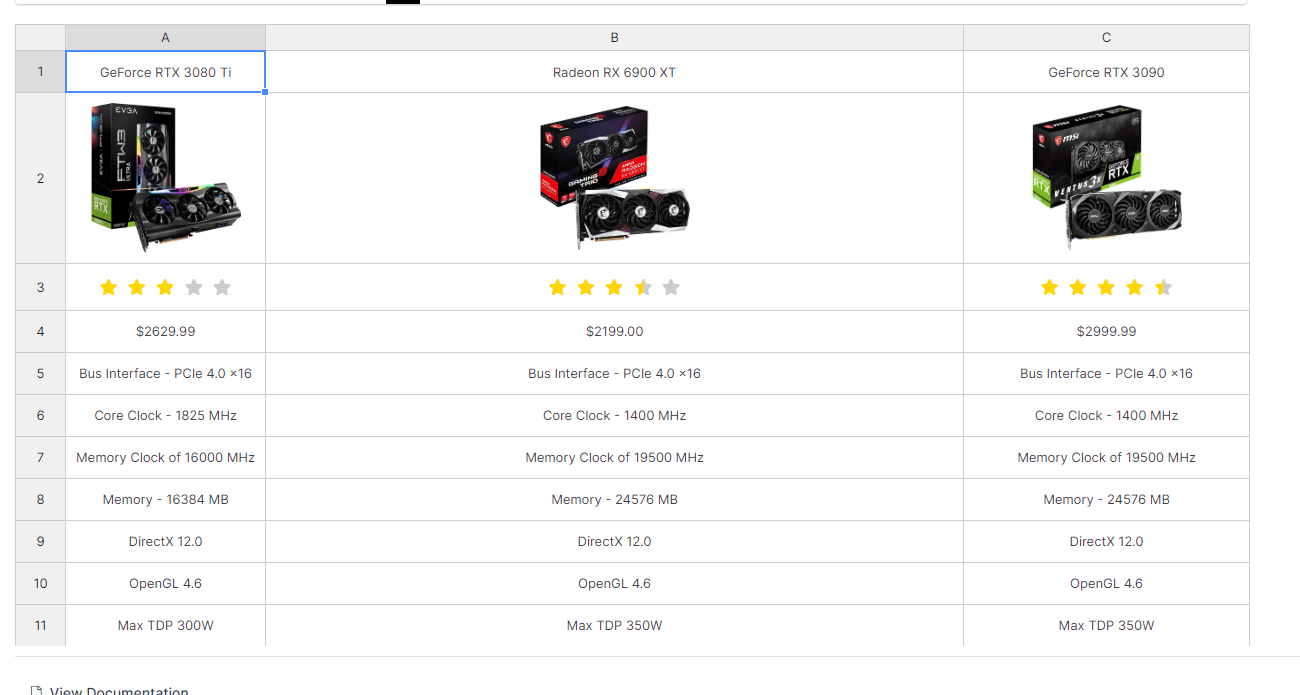

It seems we have a bug. We are passing this for further testing to our QA Team.
Thank you for pointing it out for us.
You can certainly follow our changeLog if you’d like(https://ww.wp.xz.cn/plugins/wpdatatables/#developers), where we state any changes/new features/bug fixes during updates;
and our newsletter(https://wpdatatables.com/newsletter/), so you’re informed about new features, bug fixes, freebies, etc.
If our developers make any ‘temporary fix’ for this issue in between Updates, we will come back to share it with you.
For the time being, you can use this CSS to ‘force’ a specific height and width for these images in your Table, and this is a Media Query which only activates for Mobile screen, when it is less than 480px screen width :
@media only screen and (max-width: 480px) {
img.alignnone.size-square {
width: 108px !important;
height: 108px !important;
}
}
Of course, you can change the width and height properties as needed.
Add this directly to the WP Page as Additional CSS, where you have this Table.
This selector targets your images which have CSS classes of ‘alignnone’ and ‘size-square’.
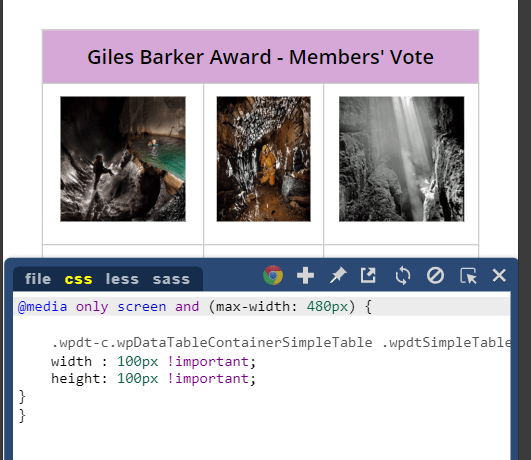
If you wish to have all images in your Simple table for that mobile breakpoint to have specific width and height, use this :
@media only screen and (max-width: 480px) {
.wpdt-c.wpDataTableContainerSimpleTable .wpdtSimpleTable td img {
width : 100px !important;
height: 100px !important;
}
}
We hope that helps.
Hello,
To begin, I want to extend my heartfelt apologies for the delayed reply, which is due to an unexpectedly high volume of inquiries.
We truly value your patience during this period.
We are unable to reproduce this issue on our end, so it seems it is an isolated issue on your Site/Page.
You can see our screenshots, when we try with our Tables and Charts, it is the same on Back-End and Front-End.
( We tested the Google chart engine and the Chart.JS since these are available on the Lite Plugin)
When we don’t set the Vertical Axis min value to 0 on back-End, then the Chart does not start the Y from 0 :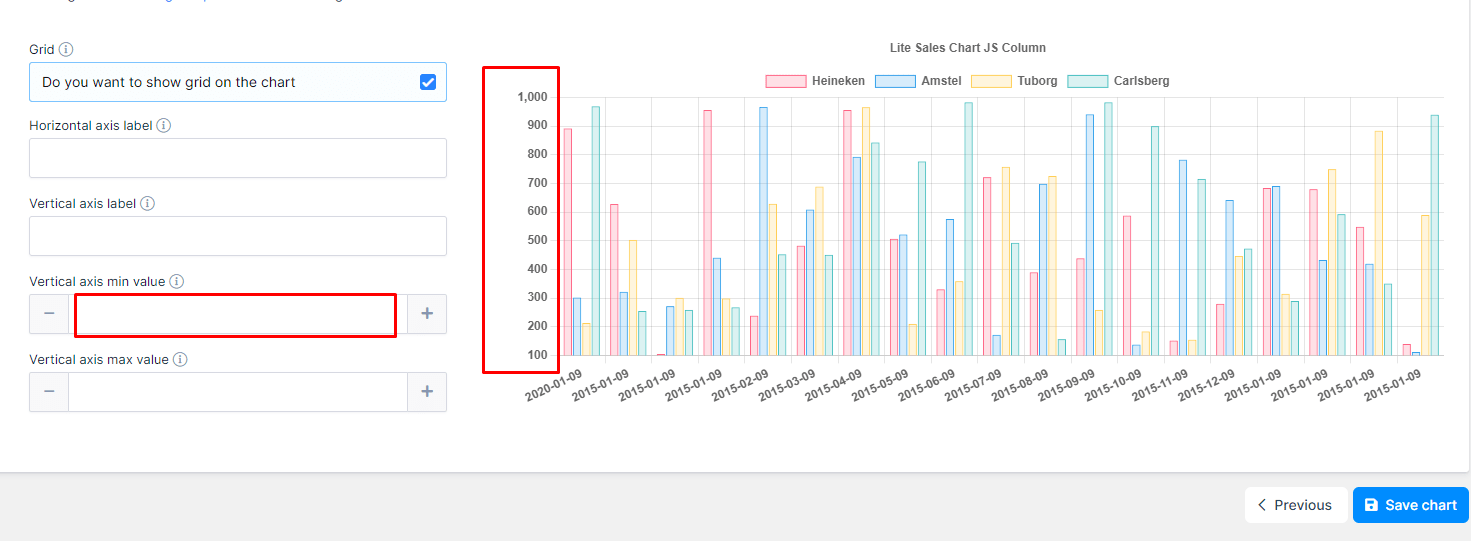
Here is the Back-End when it is changed to 0 :
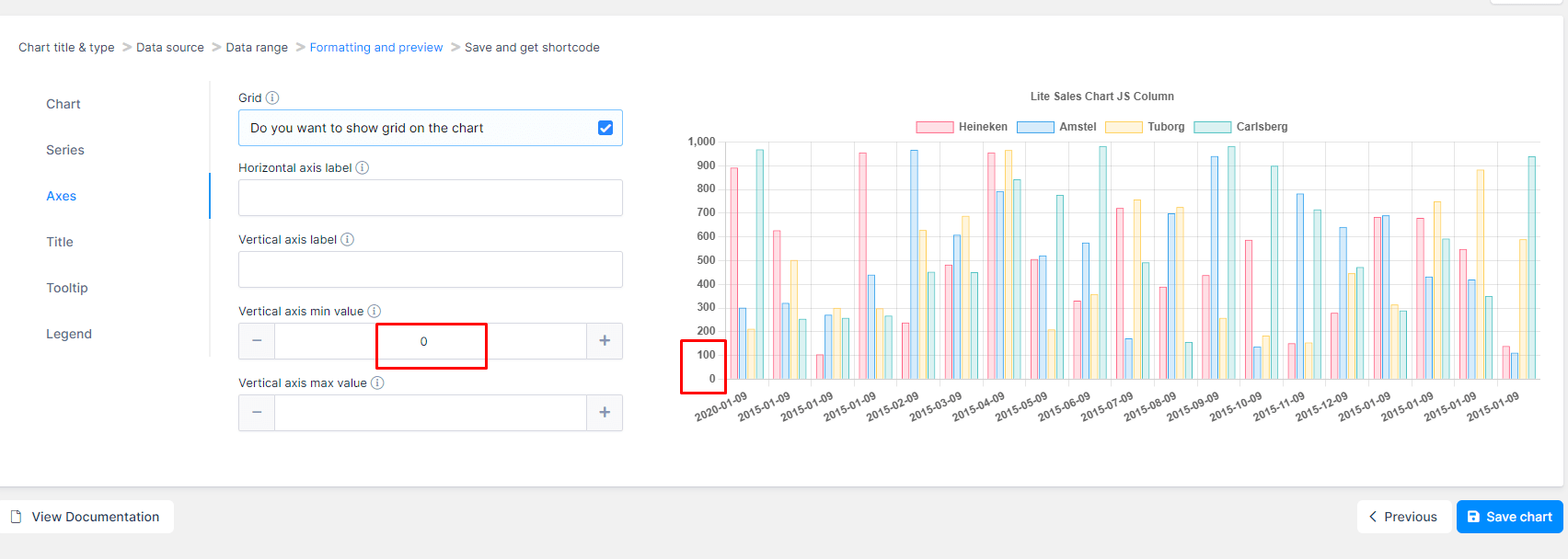
And the Front-End how the Chart loads on the Page :

wpDataTables is a WYSIWYG (What You See Is What You Get) concept-based plugin. This means that the chart should look the same both in the back-end and in the front-end.If your front-end chart looks and behaves differently than in the back-end, this usually implies that there is another plugin (or the current theme) that’s changing the behavior of our plugin.
Can you please change the theme and see if the issue is resolved?
If not, then please deactivate all other plugins except for our plugin, refresh the page where the issue is, and see if it is resolved (it should be).If it is, then start activating other plugins one by one, and after each activation refresh the page to see if the issue reoccurred.
Once it does reoccur, you will have found the plugin causing the issue.
Let us know if you isolate a conflict for this issue with these steps?
If not, can you confirm do you have the Lite or the Premium Plugin installed, and which version?
Thank you.- This reply was modified 2 years, 3 months ago by wpDataTables.