wpDataTables

Forum Replies Created
-
Hi there.
We’re aware that, during a security scan (with WordFence, for example), a vulnerability can be reported.
The vulnerability was found in the full version of wpDataTables v6.3.1, so all commercial versions before that can be affected.
The Lite version does not have these functionalities (such as SQL based tables), so Lite version was never affected.
As Lite users, you don’t have to worry. If you’re a commercial user, you will need to update the plugin above v6.3.1, but we also recommend keeping the plugin updated to the latest version as older versions are not supported, and should be used for testing purposes only.
Hi there.
With the Lite version, you can only use Chart.js and Google Charts. Google charts can’t be changed as they are being generated as SVG images. Chart.js allows you to increase the width and the height of the chart using custom CSS:
#chartJSContainer_2 {
    width: 150% !important;
    height: 600px !important;
}
“2” represents the ID of the chart.
Let us know if there’s anything else we can do to help.
Hi there.
Thank you for reaching out to us. We tried replicating this issue locally, but we couldn’t. This is a result of a 1-row simple table with the background color set to yellow:
<style id="wpdt-custom-style-3">
        .wpdt-bc-FFEB3B { background-color: #FFEB3B !important; }
 </style>
When the color is removed, it’s just an empty style:
<style id="wpdt-custom-style-3"></style>Since you have “thead”, td, and th, it appears you’re not using Simple Tables, but instead a different table type. Which table type was that? Did you manually define the background color, or did you define a rule for the background color? We tried replicating the issue in a CSV-based table, and we couldn’t. Can you please explain in more detail and we’ll gladly explore this issue further?
The issues reported by validator.w3.org are related to the HTML structure, not the CSS code itself. The CSS code you provided is valid, but when validating through an HTML validator, it’s important to ensure the HTML document is properly structured.
If you were to enclose this CSS in HTML (as it’s enclosed on an actual page), it wouldn’t return any errors. You can try this:
<!DOCTYPE html>
<html lang="en">
<head>
    <meta charset="UTF-8">
    <meta name="viewport" content="width=device-width, initial-scale=1.0">
    <title>Document Title</title>
    <style id="wpdt-custom-style-17"></style>
    <style>
    /* th background color */
    .wpdt-c.wpDataTablesWrapper table.wpdtSimpleTable.bt[data-has-header='1'] td.wpdt-header-classes,
    .wpdt-c.wpDataTablesWrapper table.wpdtSimpleTable thead th,
    .wpdt-c .wpDataTablesWrapper table.wpDataTable thead th,
    .wpdt-c .wpDataTablesWrapper table.wpDataTable thead th.sorting {
        background-color: #FEEA33 !important;
        background-image: none !important;
    }
    </style>
</head>
<body>
    <!-- Your content here -->
</body>
</html>- This reply was modified 1 year, 10 months ago by wpDataTables.
Hi there and sorry for the delayed response.
We never faced this issue nor have we ever heard a similar issue being reported. If you deactivate wpDataTables it shouldn’t reactivate on its own. If you delete it, there is no way it can reinstall itself.
There’s definitely an issue present, but without looking at your site, we can’t say for sure.
Here are some potential causes for reactivation of the plugin:
- Another plugin or theme might be conflicting and causing the reactivation. This can happen if there is code that checks for and reactivates specific plugins;
- Corrupt or misconfigured database entries related to the plugin can sometimes cause it to reappear as active;
- Incorrect file permissions might prevent the deactivation process from completing properly, causing the plugin to appear reactivated;
- Custom code added to the theme’s functions.php file or a custom plugin could be written to automatically reactivate certain plugins.
And here are some potential causes for being unable to delete the plugin:
- Insufficient file permissions on the server can prevent the deletion of plugin files. Ensure that the
wp-content/pluginsdirectory and its subdirectories have the correct permissions; - Sometimes files might be locked by the server or in use by another process, preventing them from being deleted;
- If a plugin wasn’t properly deactivated, remnants of it might prevent deletion. This includes incomplete removal of plugin-related database entries or files;
- The server configuration, such as mod_security rules or other security measures, could block the deletion of certain files.
While we can’t provide you with our direct assistance through this forum, we can advise some troubleshooting steps:
- Ensure that the
wp-content/pluginsdirectory has appropriate permissions (typically 755 for directories and 644 for files); - Temporarily disable all other plugins to check if one of them is causing the issue;
- Switch to a default WordPress theme (like Twenty Twenty-One) to rule out theme-related issues;
- Try manually deleting the plugin files via FTP or your hosting control panel’s file manager;
- Review your server error logs for any clues about why the plugin might be reactivating or why it cannot be deleted.
By systematically checking these potential causes, you should be able to identify and resolve the issue of the plugin reactivating itself or encountering errors during deletion but if that’s not the case, please feel free to reach out to our technical support team (link accessible through our official website) and they’ll gladly assist you with this.
Hello,
The latest premium version is 6.6, while the latest Lite version is 3.4.2.20.
Our developers will keep using this method of the Lite version always having a much lower version number compared to the premium for the time being, we don’t plan to change that in the near future.
In regards to using wp-cli for checking for new updates, as in your case, if it returns the lesser Plugin version number, this means you have it configured to pull the version from ww.wp.xz.cn and that is only used for our Lite/free version of wpDataTables.
In that case, since you have the premium Plugin version, you need to modify your wp-cli configuration because all the updates for the premium version are being pulled from our TMS Store website/server.
Please try that and if you encounter any further issue on this subject, since you’re using the Premium version of the plugin, please open a ticket on our main Support platform here and one of our Agents will respond as quickly as possible.If you don’t have a licence (or if it expired), please open a pre-purchase ticket which doesn’t require a purchase code.
Premium products are not supported in these forums, as per this comment by ww.wp.xz.cn moderators.
Thank you for understanding.
Kind regards.
Hello,
We are not sure what you are trying to achieve exactly when you say a ‘painting’, but if you wish to make a background of our Table transparent, here is how it can be done with adding custom CSS to the Page where your table is.
For making the background transparent ( if you use table linked from CSV or Excel) for the Table’s HTML container, try this CSS :
.wpdt-c .wpDataTables.wpDataTablesWrapper {
    background: transparent !important;
}
Custom code needs to be applied to the page where the booking form is. Depending on what you’re using (Gutenberg blocks, or some page builder), adding the CSS or JS can be done in a few different ways.
If you need help with adding custom CSS to the page, please take a look at this article.
Here is how my example Table looks, when i set a purple background color on the Page, and the Table container is transparent :
We also have a “Customize” Section where you could easily set some colors inside your table, like odd and even row background color, etc, but the Customize is not available in our Free version.If you need more details on that subject, please open a ticket on our main Support platform here,
and one of our Agents will respond as quickly as possible.
If you don’t have a licence (or if it expired), please open a pre-purchase ticket which doesn’t require a purchase code.
Premium products are not supported in these forums, as per this comment by ww.wp.xz.cn moderators.
2. Or if you use a Simple table type, then you can use this CSS to make the background color of the entire table, including all cells transparent by adding the alpha value as 0.0 in RGBA :
.wpdt-c.wpDataTableContainerSimpleTable .wpdtSimpleTable.wpDataTable tbody td {
background-color: rgba(0, 0, 255, 0.0) !important;
}Or if you just wish to ‘target’ a specific Simple Table, you can add its ID like this :
table#wpdtSimpleTable-135 tbody td {
background-color: rgba(0, 0, 255, 0.0) !important;
}Just make sure to use your Table ID instead of 135 in the code.
Here are two ‘before’ and ‘after’ CSS screenshot comparisons to see how it makes the Simple table transparent for all cells :

Let us know if this achieves your desired use-case or if you wanted something else/ or more specific.
Kind regards.
Hi David,
Firstly, I would like to sincerely apologize for the delayed response as we have been experiencing an unusually high number of tickets. I am sorry that it has taken longer than usual to respond to your concern and your patience is highly appreciated.
Sorry to disappoint you, but if you mean to use the Table Tools for the export functionality like export a CSV/Excel from the Table, the Table Tools feature is not available for the Simple Tables in either Lite or Premium versions.
If you wish to see this possibility added in the future, please feel free to search on our suggestions page (https://features.wpdatatables.com/), to see if someone may be already suggested this feature.
If you can’t see it, feel free to add your suggestion there, and as more people vote, the feature will move higher on the priority list.
We can’t say an ETA, but you can certainly follow our changeLog if you’d like(https://ww.wp.xz.cn/plugins/wpdatatables/#developers), where we state any changes/new features/bug fixes during updates; and our newsletter(https://wpdatatables.com/newsletter/), so you’re informed about new features, bug fixes, freebies, etc.
At the moment, you can only migrate all the Simple tables from your WordPress database/all our Plugin data like this, in two ways :
When you are moving on live site from local or stage site (or vice-versa) we can suggest using Plugin Duplicator. We use it and it’s working fine because it will transfer all the files and also the tables to the database.Other than cloning the site, another option would be to copy all database tables (wp_wpdatatable_#) along with tables wp_wpdatatables, wp_wpdatacharts, wp_wpdatatables_rows and wp_wpdatatables_columns. Then, in wp_options table, you would also need to export the following option_names:
- wdtPreventDeletingTables
- wdtUseSeparateCon
- wdtSeparateCon
- wdtTimepickerRange
- wdtTimeFormat
- wdtTabletWidth
- wdtTablesPerPage
- wdtSumFunctionsLabel
- wdtRenderFilter
- wdtRenderCharts
- wdtIncludeBootstrap
- wdtIncludeBootstrapBackEnd
- wdtPreventDeletingTables
- wdtParseShortcodes
- wdtNumbersAlign
- wdtBorderRemoval
- wdtBorderRemovalHeader
- wdtNumberFormat
- wdtMobileWidth
- wdtMinifiedJs
- wdtMinFunctionsLabel
- wdtMaxFunctionsLabel
- wdtLeftOffset
- wdtTopOffset
- wdtInterfaceLanguage
- wdtGeneratedTablesCount
- wdtFontColorSettings
- wdtDecimalPlaces
- wdtCSVDelimiter
- wdtDateFormat
- wdtCustomJs
- wdtCustomCss
- wdtBaseSkin
- wdtAvgFunctionsLabel
- wdtInstallDate
- wdtRatingDiv
- wdtMDNewsDiv
- wdtTempFutureDate
It is rather cumbersome to do all this, but unfortunately at the moment, it’s the only way.
Important to note, for tables linked to an existing data source, you would need to change the file path, because at the moment the file path depends on the domain, so if you change the domain, the URL to the file will also have to be changed.
Our developers will be working on adding an easier solution to export everything, but we can’t say an ETA on this.
– There are also certain export functionalities, to export individual tables using Table Tools, but as mentioned, this feature is not available for Simple Tables, it is available for any other table type, though.
- This reply was modified 1 year, 10 months ago by wpDataTables.
- This reply was modified 1 year, 10 months ago by wpDataTables.
Hello,
Firstly, I would like to sincerely apologize for the delayed response as we have been experiencing an unusually high number of tickets. I am sorry that it has taken longer than usual to respond to your concern and your patience is highly appreciated.
Can you tell us do you have any symbols inside the cells where your numeric data is,for example a currency sign or percentage symbol?
If so, this will not work with our Plugin for numeric Columns such as Floats or Integers.
The solution is, to remove any symbols and just leave pure numeric data in the cells of your source Sheet, then you can make integer or Float Column from this in our connected Table.
( Just also double check if you have the same Number Format matched in the main plugin settings, and the decimal numbers)
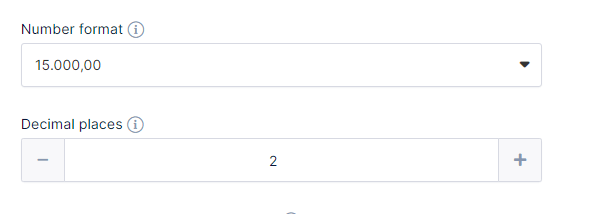
After this, just go in the Display settings of the column, and add any prefix or suffix symbol there.
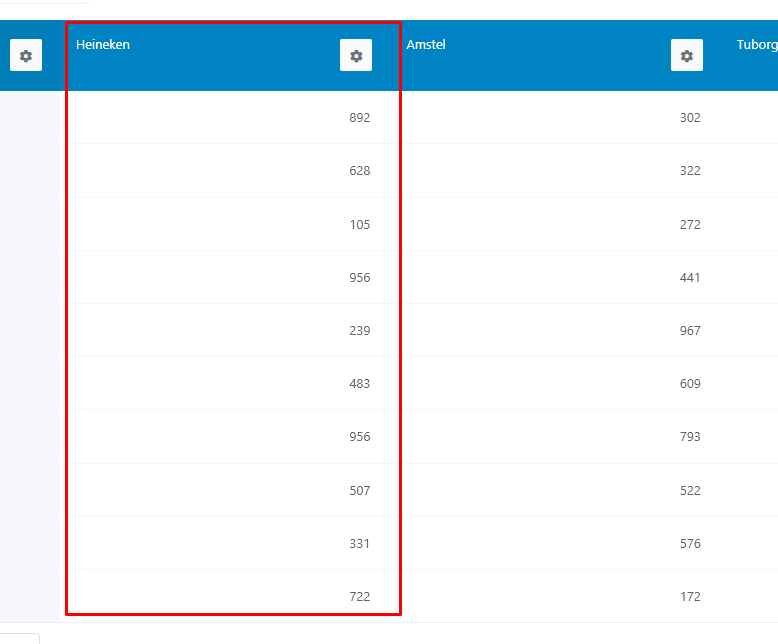
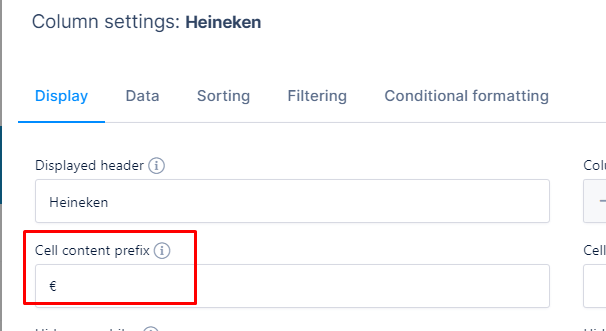
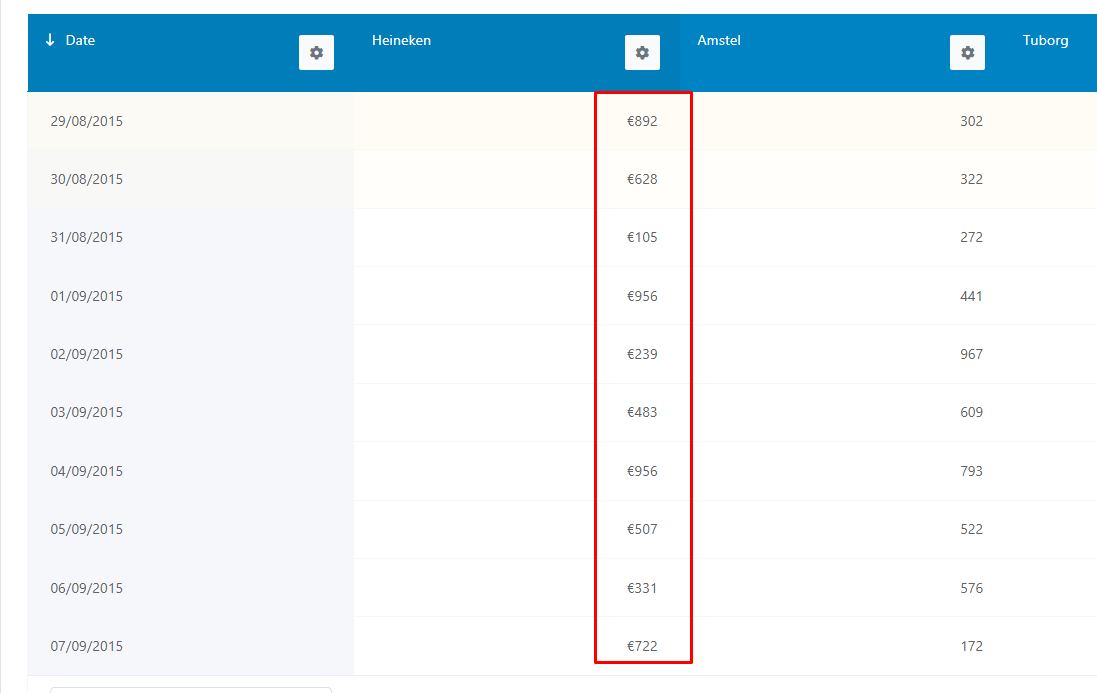
Let us know if that helps, it should work to be able to change this Column from String to Float or integer.
Or if you make a new Table from the source, the Plugin should automatically ‘guess’ the right Numeric Column format right away.
Then you will be able to use it in a Pie chart as the ‘slices’/series data.Thank you.
Hello,
Firstly, I would like to sincerely apologize for the delayed response as we have been experiencing an unusually high number of tickets. I am sorry that it has taken longer than usual to respond to your concern and your patience is highly appreciated.
There are several important points to be aware of when working with a CSV in our Plugin.
1. Firstly, make sure not to use duplicate header names in origin Headers for columns.
If you make a duplicate Header name for one or more columns, our Plugin only takes the first occurence and ignores the other, duplicate column Header. So for column “Number” duplicate header, just add anything, in this case we add space and letter B (“Number B”) just to have it generate the table with three Columns and later we go in the Column Display settings and change the “Displayed Header” to the duplicate, now it shows both as “Number”.
So the original Header row in the CSV is like this :
Name, %, Number, Number B
The first row of data will be like :
UNITED STATES, 18.3, 42.07, 3.51
and second row, we added just to test sorting for numerical/floats :
Serbia, 10.02, 02.83, 5.33

We change the “Number B” Displayed Header to “Number” in order to have them both as duplicate Header in the Table visually.

2. Make sure to set our CSV delimiter to comma in Main Plugin Settings.
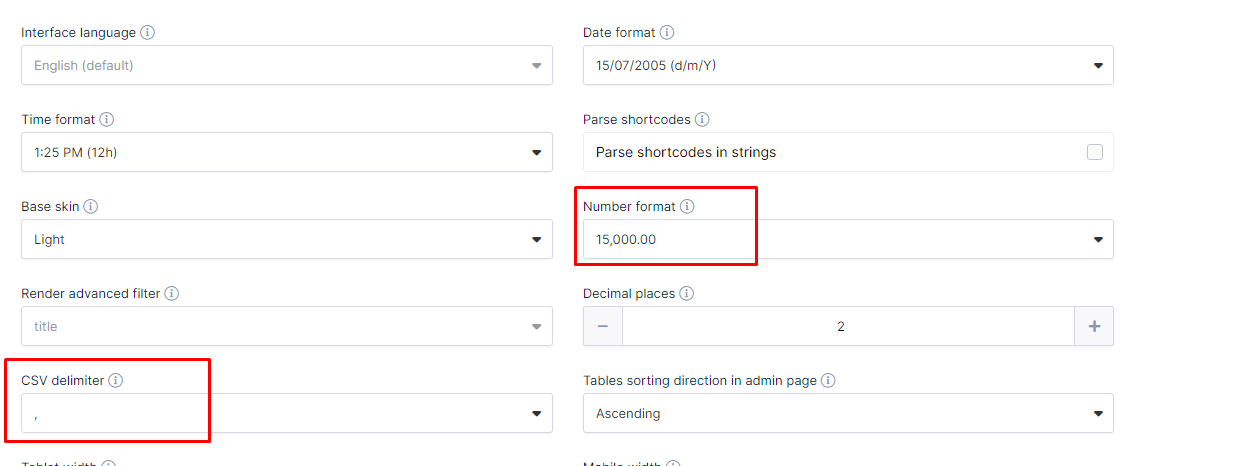
3. The Number Format for Floats is set to the US Format ( comma for thousands separator, dot for decimal separator).
4. One more important point, remove the percentage symbol from any numeric data if you need it to render as Floats ( or integer).
Then in our Plugin’s column display settings, simply add it as suffix.

And this is how a new Table connected to this CSV looks. The sorting for Floats also works.

We recorded a Video demonstration, so you can see how it looks bad if we change the CSV delimiter or wrong Number Format, etc, you can download it here.
Let us know if that helped to fix the issues when you follow these pointers or if you still encounter any issue?
If there is still an issue, it is best to first record a Video of your screen to show us the exact steps you do when you are creating the Table and how are all these settings configured on your Plugin installation.
Then, send us your CSV source file here so we can inspect if it has some specific formatting or anything like that which we did not take into account to try and reproduce the issue, etc.
If the Video or CSV does not contain any sensitive data, you can just upload to weTransfer and send us a download link.
Or if it shows any sensitive data, please open a ticket on our main Support platform here and one of our Agents will respond as quickly as possible to help you with further troubleshooting.
If you don’t have a licence (or if it expired), please open a pre-purchase ticket which doesn’t require a purchase code.
Thank you for understanding.
Hi Wayne,
Just a small follow up to check how it is going.
It seems you managed to resolve this by splitting the number of total rows per each page, that sounds as a good plan.
Let us know if you encounter any further issues on that subject.
Thank you.Hello,
Firstly, I would like to sincerely apologize for the delayed response as we have been experiencing an unusually high number of tickets. I am sorry that it has taken longer than usual to respond to your concern and your patience is highly appreciated.
Thank you for the kind words about the Plugin.
When it comes to the use-case you described, there might be a couple of different ways to achieve that kind of filtering for the Charts.1. For example, if you wish to have one or more column filters which can be used on front-end by a user to select which ‘year’ value they wish to change to;
we have a workaround to have the filters and the chart showing similar to one of the examples from that Page, as on this screenshot :

We use custom CSS to hide the Table, then we can just leave the filters with the chart on the Page, and we have a “Follow Table filtering” feature for Charts to achieve that ‘change data on the fly per chosen filter value’ effect.
But that is not available in the free/Lite Plugin version, since both advanced column filters and the ‘follow table filtering’ are only included with premium version;
so we are unable to discuss any details on that here.
If you wish to see the full guide how that is done for the premium version, please open a ticket on our main Support platform here, and one of our Agents can show you more details about that use-case.
If you don’t have a licence (or if it expired), please open a pre-purchase ticket which doesn’t require a purchase code.
Premium products are not supported in these forums, as per this comment by ww.wp.xz.cn moderators.
Thank you for understanding.
2. Or, if you use Tabs, at the moment we do have some issues with specific tab solutions.
Our developers are working on a fix, but we can’t say an exact ETA.
It will be best if you can also open a ticket for that on our main Support, and please send us more details here such as how you created the tabs/content via chart shortcode inside and if you added any kind of custom code/script on your Page;
then we can investigate it there in more details.
Thank you.
Hello,
You will find various tutorials online on the subject of how to use hooks in WordPress.
For example, here is one from wpBeginners.
You will also find this introduction from our developers on our Hooks Documentation :Filters (hooks) in WordPress are a type of callback functions that can be defined by the user, and are applied to certain values – strings, integers, objects, etc. It is a simple way to adjust code output without actually having to modify the code. Essentially, you add a given function on top of an existing one, to override the logic. Then, when the plugin is updated later, you won’t lose any of your changes.
You can get a detailed description on WordPress hooks here in WP Codex.
That being said, one of the ways how you can add your code/custom function is to add it to your functions.php of the current WP Theme or Child Theme.
This won’t be affected by wpDataTables updates since you are saving it outside of our Plugin’s files.
Please note that using hooks requires certain level of programming skills and included support refers only to advice.
I hope that helps.
Kind regards.Hi @emielb,
I am sorry, but our developers already tried this approach.
They tried to align having the same Plugin version number between the premium and Lite versions;
as well as only setting the Lite Plugin to be ‘above a version which has the false-positive security flag’;but unfortunately, then we had new issues due to that and they reverted it back to the Lite Version having a different/older version number.
Please refer to this Post which we pinned on the Support Section, it explains everything in details.
Our developers are doing their best to think of any possible solution, which will be implemented as soon as possible.
We just can’t advise on an ETA at this time, but we can guarantee that there is nothing to worry about for any Lite users.
As we mentioned on that pinned Post, the Lite version never had these functionalities which are being flagged, because the Security Plugins are unable to differentiate between our Lite and Premium Plugins since they got the same ‘slug name’.
It might also be an idea if the WordFence developers could devise a way for you to exclude our Lite Plugin from being checked for SQL injection, because the free Plugin never had any SQL Tables available, and it also does not have any table editing – a similar way how you can exclude a folder or file from anti-virus software, since this is definitelly a false-positive flag.
That is just an idea, though, we are not familiar if it is possible for them to do this and we realise it is not the best solution.
In the meantime, our developers are still doing their best to devise a solution from our end, too.
Sorry once again for this inconvenience.
Kind regards.Hi Wayne,
I am sorry, but due to the strict guidelines, we are not able to go into any details about our premium licence plans here.
Premium products are not supported in these forums, as per this comment by ww.wp.xz.cn moderators.
If you wish to compare our plans and see exactly which features are included, you will see a comparison list of them, in your Plugin back-end in the “Lite vs Premium” Page.
Basically, as we advised before, to summarize :
– If the total number of rows from all tables on the same Page do not go over several thousands, approximately ~5 thousand rows – in this case, you can try our free Feature “Cache and Auto Update cache” in your Tables.
That can help a lot with loading performance, but only up to that point.
If the total number of rows on your Page goes over ~5 to 6 thousand rows, then you would need to try our server-side processing, because it uses AJAX calls to only load one Table’s page at a time.
Yes, if you split your tables onto multiple Pages – for example, if one table has 2 to 5 thousand rows, you can have Page 1 only for this Table and activate our “Cache” Feature on it.
Then, on another Page, let’s say if you got two tables, each has ~2000 rows, that can also work, if you enable our “Cache” feature on both of them.
So as long as you don’t experience extremely slow load or freeze the Page, you can test how much your Hosting server and WordPress can handle.
If you reach the point where you need to try our Plugin’s premium version, the features you need to have server-side tables are :
– Creating editable tables by importing CSV, Excel or Google Sheet table data.
That is if you wish to have source data on CSV/Excel/Google Sheet and import it to make a Manual table in your SQL database.
– Creating and filling in the tables manually.
– And Update manual tables from source files.
You will find all these under the “Lite vs Premium” in your back-end Plugin Page, so you will see which plans have them, and decide what is best.
2. In regards to being unable to open a pre-purchase ticket :
If our Ticksy Support System already recognised your Email, just go to “Sign in”, then hit “forgot password” button, then hit “Reset my Password” and it will send you a ‘recovery Email’.
Then you can use this to re-log in your existing Support Account and it should allow you to create a pre-purchase wpDataTables category ticket.
It is the only way to get more details about any premium features.
Let us know if you still get any issue to open a ticket there and we can advise.
Just make sure to not share any sensitive details here, since it is a Public Forum.
Thank you.Hello,
Firstly, thank you for taking the time to evaluate our plugin’s functionalities and provide feedback. We are truly sorry to hear about your negative experience with our plugin so far.
After checking with our Support Team on both the Lite and Premium platforms, we were unable to find any support ticket under your name. Could you please confirm if you reached out to our Support Team before posting your review?
If not, it’s unfortunate, as our Support Team could have likely resolved most, if not all, of the issues you described. We prefer not to speculate without knowing the full details of your use case, such as the type of table you are using, whether you have any symbols combined with numbers in the numeric cells of your source data, and your specific concerns about import/export functionalities.
Here are some potential solutions based on the issues you mentioned, just please note, these are only our assumptions based on initially reading the description from your end. For more detailed advice, our Support would still ask you additional questions.
1. You mentioned an import/export feature.
We have the Table Tools feaure which allows you to export table data as CSV, Excel, copy to clipboard, or print the data from the table, but we are not sure exactly what you meant by that point.
2. In regards to importing the data, we have this premium feature which you can use to create an editable/Manual table made by importing the data from your Sheet (CSV/Excel/Google Sheet);
and you can also update an existing Manual table via file upload.
We are just not allowed to discuss any details here about premium features, since this Forum is only made for the Lite/Free Plugin Support.
You can reach out to our Main Plugin Support Team here, though, with a pre-purchase ticket, if you have any question about any premium functionality.
3. In regards to what you described about the Plugin reading the numbers wrong :
– If you have floats in your Source data, and perhaps the Table does not show/match the correct Float Number Format, this can be solved by changing the default Number Format in your Main Plugin Settings.
You can also set your default desired decimal point number there, and later on you can change the number of decimals per individual column setting.
4. Additonally, if you have any symbol combined with numbers in the source numeric cells, this can’t be rendered as numbers in our Plugin, but there is a solution.
You would remove any symbols from the numeric cells in the source data/so just leave the pure numbers in your source cells – then in our Plugin, you can set a prefix/or suffix in the Column Display settings, such as a currency sign, for example or any other content.
Then the Plugin will read this as numeric Data and you won’t have to change it to String Column type.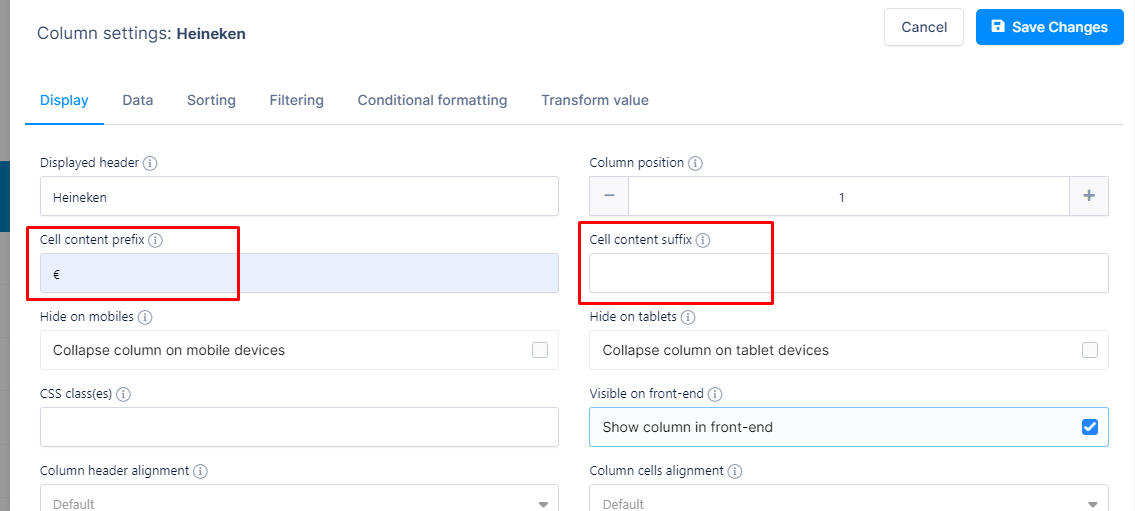
5. Integers showing a decimal separator :
Do you perhaps mean the thousands separator?
If that is the case, please enable the “Skip thousands separator” option in the Data tab of your integer column settings to resolve this.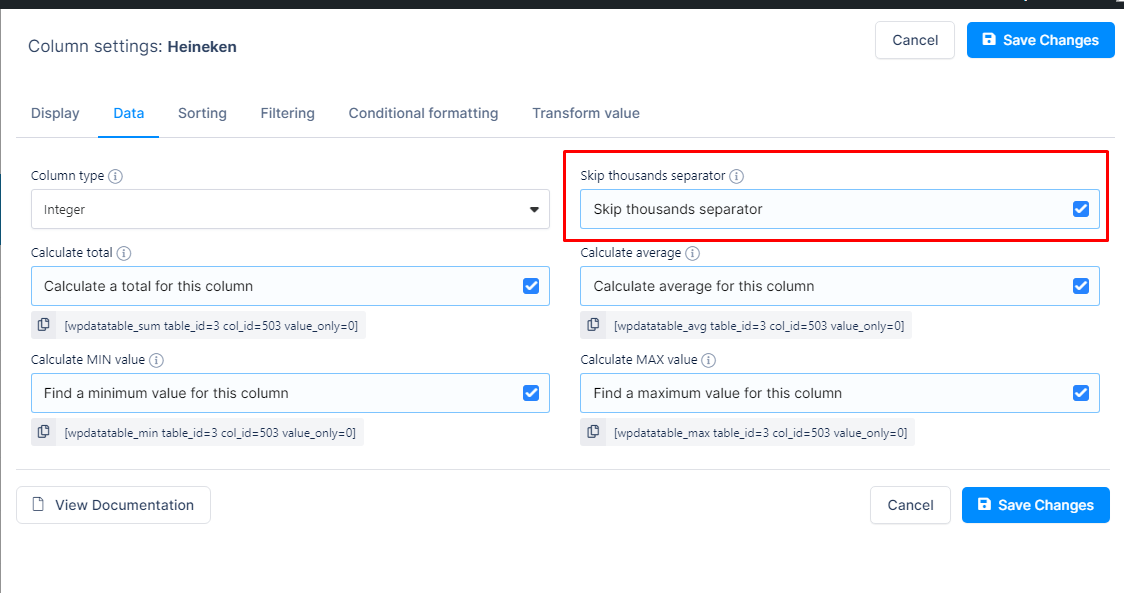
6. Tables with larger data :
The loading speed depends on multiple factors, but our Plugin has multiple features to handle larger tables.
For the Lite version, please try using the Cache and Auto-Update Cache Feature for source files up to few thousand rows.
This can help with performance, but only up to around 5 to 6 thousand rows.
If your source file gets larger than that, and if you reach the limits of your Hosting Server and WordPress in general( such as extremely slow load or crash of the Page), then you would need to try the premium Plugin’s server-side processing, there is no other way to solve that specific issue.
That issue does not come from our Plugin itself, but you are rather simply reaching the limit of what WordPress and your Hosting Server performance can achieve.
With non-server-side tables, when the row count goes over a certain number, you can reach the limit of the Hosting Server, if you encounter extremely slow table load, or even crash the browser; because in that case, all the rows are loading at the same time via the HTML of the browser Page;
compared to server-side processing Tables, they use an Admin-Ajax call to only load one Table’s page at a time, which is useful for very large tables, but that would require you to move to SQL based Tables and import your Excel/CSV data in the Database, which is only available in our premium Plugin version.
For example, you can check the table on this Documentation Page, which has 2.560.000 rows and see how it loads.
Please note, that table is an SQL Query based type and uses the said server-side processing to achieve this performance.
We are not allowed to discuss any details about premium features here due to forum guidelines, but our Support Team is ready to assist you further if you open a ticket on our main support platform.
If you would give the Plugin another chance, please open a ticket on the main Support platform here and one of our Agents will respond to advise you on all issues/details as quickly as possible.If you don’t have a licence (or if it expired), please open a pre-purchase ticket which doesn’t require a purchase code.
Premium products are not supported in these forums, as per this comment by ww.wp.xz.cn moderators.
Just to be clear, if you plan to have only up to around few thousand rows in your source Sheet for the linked Tables, as you wrote ~1000 rows, then we should be able to easily help you solve any slow load with the Lite Plugin version;
We are just unsure about all the details needed, and that is why we recommend it is best to reach out to our Main Support, so they will advise you if all of the details for your use-case can be achieved with the Lite Plugin or if some premium function is needed for one or more points.We hope you will give our Support Team a chance to help you resolve these issues and consider updating your review.
Kind regards.- This reply was modified 1 year, 11 months ago by wpDataTables.
- This reply was modified 1 year, 11 months ago by wpDataTables.