CodePeople2

Forum Replies Created
-
Forum: Reviews
In reply to: [Calculated Fields Form] BEST plugin and excellent support !!!Hello @massimo1971
Thank you so much for your feedback. I apologize for the misunderstanding, I was referring to the plugin review section on https://ww.wp.xz.cn/support/plugin/calculated-fields-form/reviews/. Your review there would be incredibly helpful. If you have any further questions or need assistance, please feel free to let us know.
Best regards.
Hi @massimo1971
If you have been satisfied with both the plugin and our support, we would be immensely grateful if you could leave us a review on the plugin. Your feedback will help us reach more users.
Thank you very much.
Hello @massimo1971
Excellent! You’re referring to a collapsible fieldset that is contained within another collapsible fieldset, which adds an extra level of complexity. This means you need to verify not only whether the field is collapsed or expanded, but also whether it is visible, that is, if its parent fieldsets are expanded.
Insert an “HTML Content” field in the form.
Tick the checkbox in its settings to accept JavaScript in its content.
Finally, enter the following piece of code as its content:
<script>
function changeState(){
   let fieldset = getField('fieldname117').jQueryRef();
   getField('fieldname82').setVal(IF(OR(fieldset.is(':hidden'), fieldset.hasClass('cff-collapsed')), 2, 1));
}
fbuilderjQuery(document).on('cff-collapsible formReady', function(){
   changeState();
});
</script>
Best regards.
Hello @massimo1971
I need a bit more detail in order to answer your question accurately:
Could you clarify how the fieldset fields are being displayed? Are you referring to a collapsible fieldset with different states (collapsed versus expanded) or a dependent fieldset where visibility is triggered by certain conditions?
If it is a dependent fieldset, could you describe the conditions that determine when the fieldset is visible or hidden?
Additionally, please provide a link to the page containing the form so I can better understand the context.
Best regards.
Forum: Plugins
In reply to: [Calculated Fields Form] E-mail notifications with HTMLHello @thomasmichaelmoller
Excellent !!!.
If you want to receive the email in HTML format with a more elaborate design, simply choose the “HTML” option for the “Email format?” attribute.
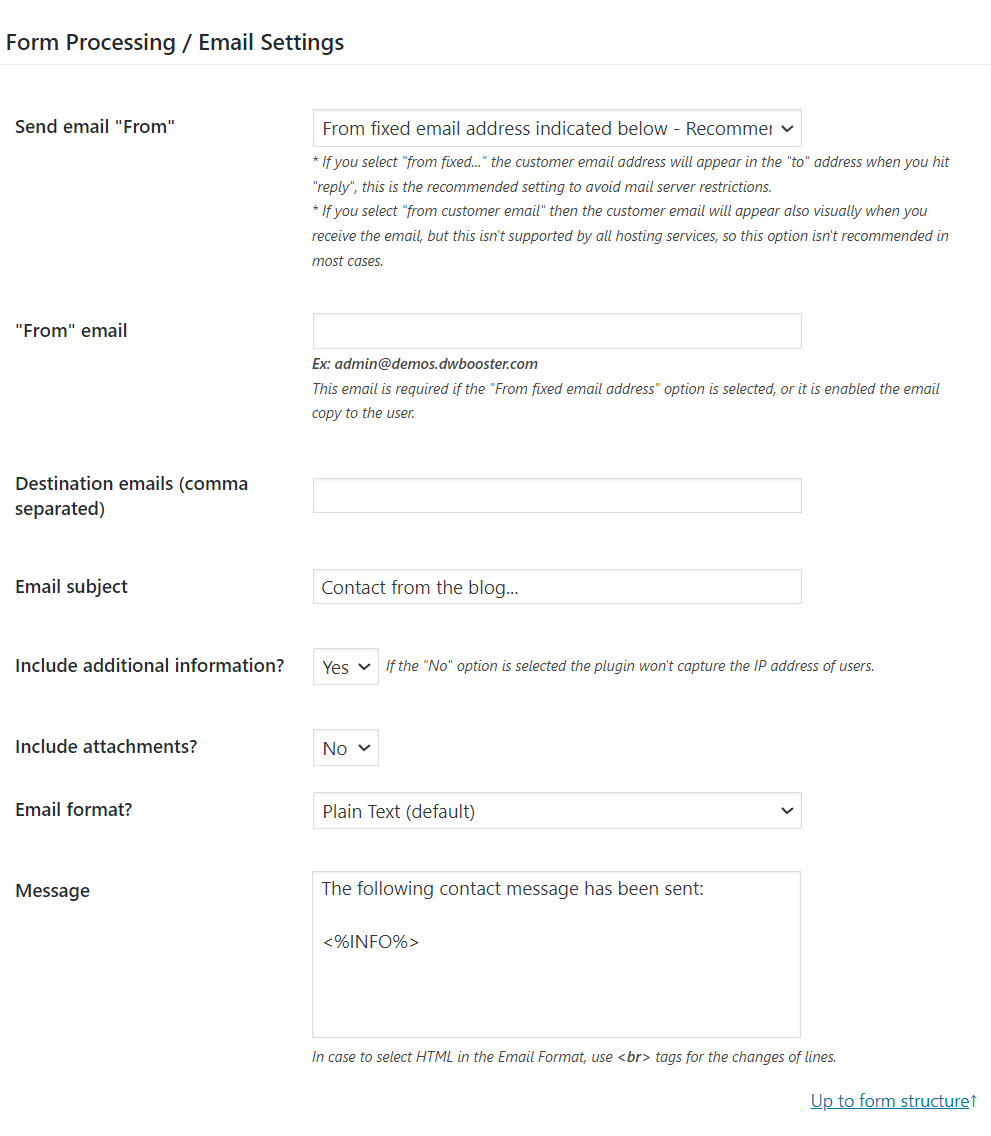
Finally, input a combination of HTML and field tags to compose the email content. The form fields come with tags that let you access their labels, values, and additional attributes for use in notification emails (In commercial plugin distributions you can use the same tags in the thank you pages, to generate the PDF files, and in the cart and orders information for the integration with WooCommerce):
https://cff.dwbooster.com/documentation#special-tags
Consider a scenario where your form contains two fields, fieldname1 and fieldname2, and you’d like to display both in the notification email, with their labels in bold and their values in italics. In this example, you could enter the following HTML snippet into the “Message” attribute within the Notification Email settings:
<b><%fieldname1_label%></b>: <i><%fieldname1_value%></i><br>
<b><%fieldname2_label%></b>: <i><%fieldname2_value%></i>
Best regards.
Forum: Plugins
In reply to: [Calculated Fields Form] Deutsche Hilfe für kleinen Honorarrechner gesuchtHello @urbandivision
The new description is similar to your previous entry. It includes several fields, each contributing to the pricing process; however, the formula to apply depends on your pricing policy, which was not specified in your entry.
In the previous example, the final price is determined by the combination of all field values simultaneously. If this describes your situation, then for any additional fields, you simply need to create an object with extra levels or add more conditional statements.
However, if each field increases the base price, as demonstrated in the following example, you would adjust your pricing calculation accordingly. In such a scenario, each field contributes an incremental value to the base price, and the final price is obtained by summing these increments with the original base price.
For instance, consider a form with two dropdown fields:
The first dropdown (fieldname1: “Ort des Shootings”) presents three choices:
- Choice A: sets the base price to 10.
- Choice B: sets the base price to 20.
- Choice C: sets the base price to 30.
The second dropdown (fieldname2: “Zu bearbeitende Bilder”) offers six options:
- 5 images: add 1 to the base price.
- 10 images: add 2 to the base price.
- 15 images: add 3 to the base price.
- 20 images: add 4 to the base price.
- 25 images: add 5 to the base price.
- 30 images: add 6 to the base price.
Using this configuration, if a user selects “B” from the first dropdown and “15” from the second dropdown, the pricing calculation would be as follows:
Base price from fieldname1 (“B”) = 20
Additional amount from fieldname2 for “15 Bilder” = 3
Final Price = 20 + 3 = 23This approach clearly distinguishes between the base price set by one selection and the incremental price modifications applied based on another field’s selection.
In this hypothetical example, you only need to provide the numeric values directly in the fields settings (Note each choice in a dropdown field includes pair of boxes for the choice text and value) as follows:
For fieldname1 (“Ort des Shootings”):
- Option with text “A” → value: 10
- Option with text “B” → value: 20
- Option with text “C” → value: 30
For fieldname2 (“Zu bearbeitende Bilder”):
- Option with text “5” → value: 1
- Option with text “10” → value: 2
- Option with text “15” → value: 3
- Option with text “20” → value: 4
- Option with text “25” → value: 5
- Option with text “30” → value: 6
This means that when constructing your form logic, the base price is derived directly from the numeric value selected in fieldname1. Then, the additional cost is the numeric value chosen in fieldname2. The final price will be calculated by summing these two values. For example, if a user selects “B” on fieldname1 (20) and “15” on fieldname2 (3), the final price will be:
Final Price = 20 (base price) + 3 (additional cost) = 23
This setup simplifies the calculation by directly using the assigned numeric values from each dropdown selection. So, the calculated field equation would be:
fieldname1+fieldname2If you need us to implement your project, you can contact us with the detailed form description via the plugin website. Contact Us.
Best regards.
Forum: Plugins
In reply to: [Calculated Fields Form] Increase size for file uploadsHello @thomasmichaelmoller
The “Upload File” control includes an attribute that restricts the file size users can upload. This value must be entered in kilobytes. Remember that 1 megabyte is equal to 1024 kilobytes. For example, if you want to allow a maximum upload size of 5 megabytes, you should enter 5120.
It’s important to ensure that this size does not exceed your server’s configured file size limit. If you set a file size higher than your server limit, the server will ignore the files selected by the user.
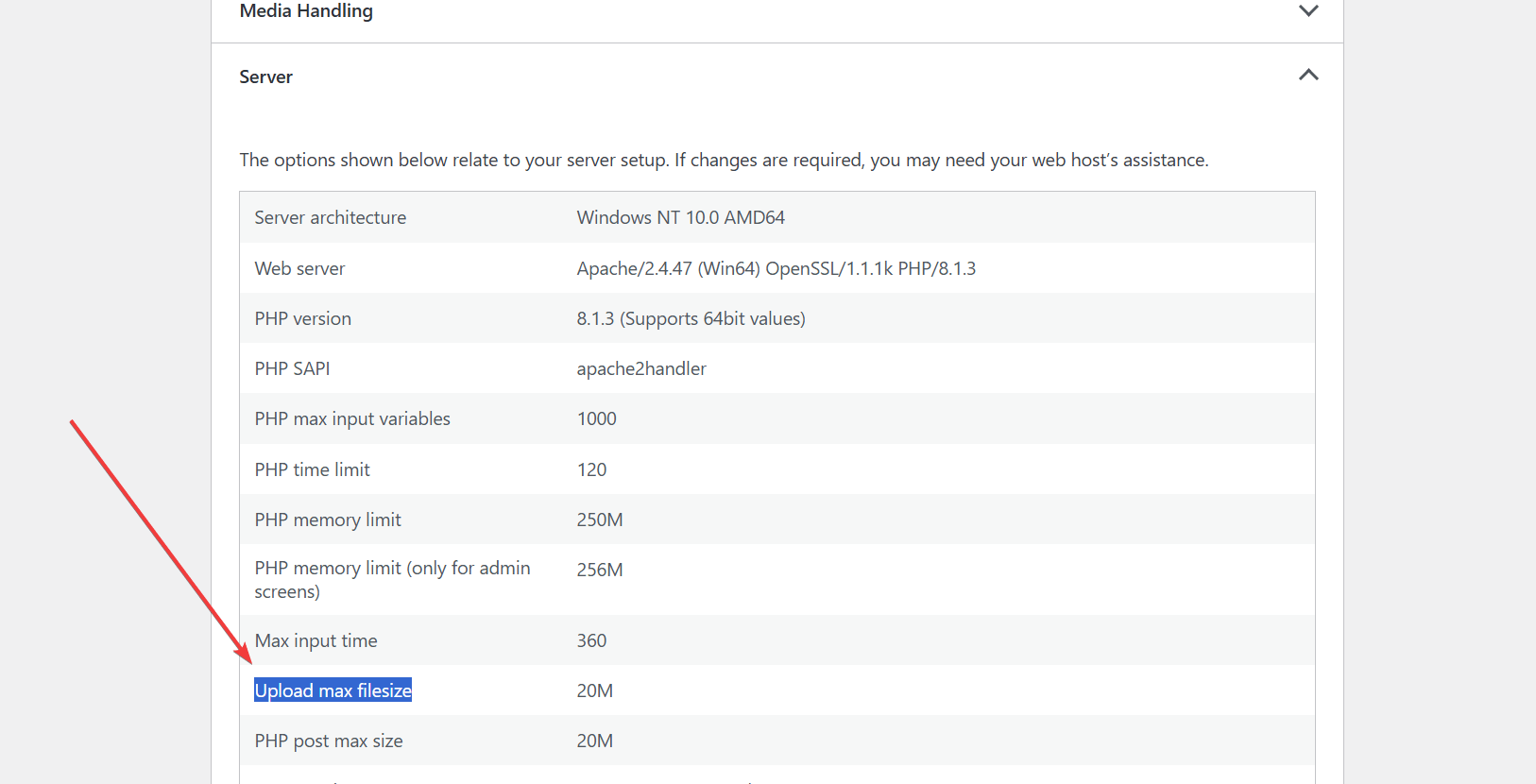
To verify your server’s upload file size restrictions, you can check the “Upload max filesize” information. This can be found under the “Tools > Site Health” section in WordPress, in the “Info” tab.
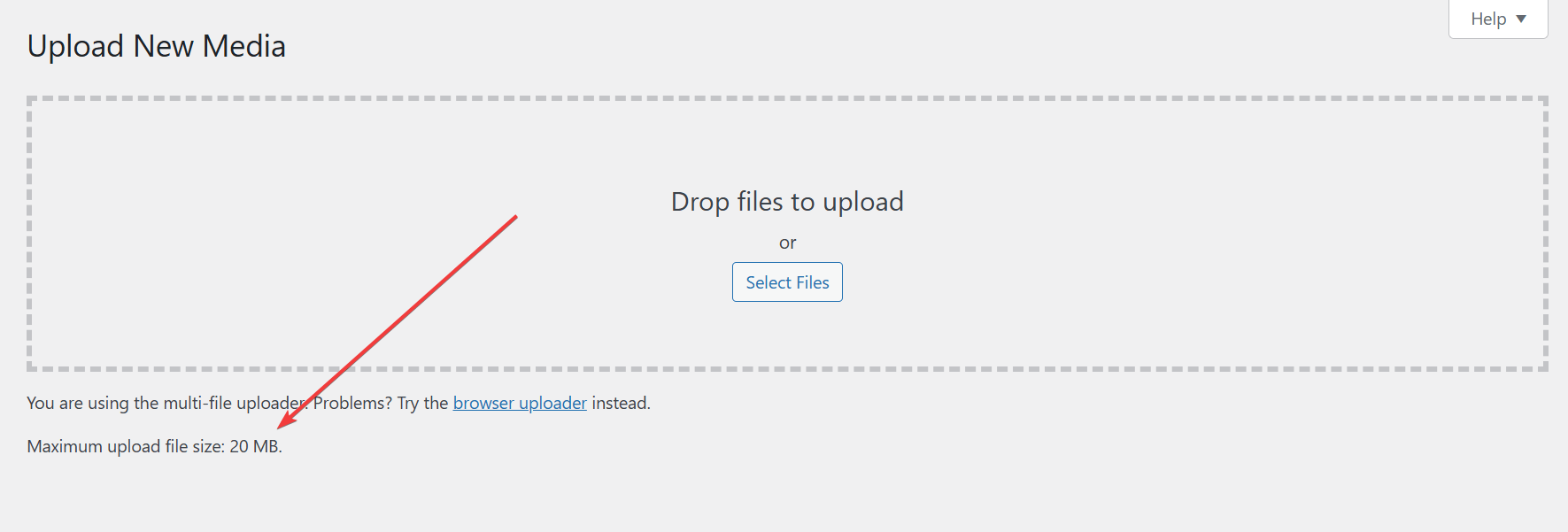
Alternatively, you can visit the “Media > Add Media File” menu option, which displays the file size limit directly on the screen.
Unfortunately, this limit cannot be modified within the plugins. Instead, you’ll need to adjust the PHP settings on your server.
Best regards.
Forum: Plugins
In reply to: [Calculated Fields Form] Deutsche Hilfe für kleinen Honorarrechner gesuchtHello @urbandivision
Thank you so much for using our plugin. You have multiple alternatives to implement your project. I’ll try to describe some of them by using a basic example.
Assuming your form includes two dropdown fields, fieldname1 for “Ort des Shootings” with three choices, I’ll call them: A, B, and C, and the fieldname2 for “Zu bearbeitende Bilder” with the choices: 5, 10, 15, 20, 25, and 30.
To calculate the price, you must insert a calculated field in the form and enter the equation through the “Set equation” attribute in its settings.
I’ll describe some possible equations, from easier to understand, but less optimal, to a more elaborate alternative (in the following examples, the prices are hypothetical, used only to illustrate the process):
The first alternative includes an “if” conditional statement for every pair of “Ort des Shootings” and “Zu bearbeitende Bilder” values:
(function(){
let x = fieldname1, y = fieldname2;

if(AND(x == 'A', x == 5)) return 10.5;
if(AND(x == 'A', x == 10)) return 11.5;
if(AND(x == 'A', x == 15)) return 12.5;
if(AND(x == 'A', x == 20)) return 13.5;
if(AND(x == 'A', x == 25)) return 14.5;
if(AND(x == 'A', x == 30)) return 15.5;

if(AND(x == 'B', x == 5)) return 20.6;
if(AND(x == 'B', x == 10)) return 21.6;
if(AND(x == 'B', x == 15)) return 22.6;
if(AND(x == 'B', x == 20)) return 23.6;
if(AND(x == 'B', x == 25)) return 24.6;
if(AND(x == 'B', x == 30)) return 25.6;

if(AND(x == 'C', x == 5)) return 30.7;
if(AND(x == 'C', x == 10)) return 31.7;
if(AND(x == 'C', x == 15)) return 32.7;
if(AND(x == 'C', x == 20)) return 33.7;
if(AND(x == 'C', x == 25)) return 34.7;
if(AND(x == 'C', x == 30)) return 35.7;

})()
The second example uses switch conditional statements to reduce the number of conditions to check. It is better than the previous one:
(function(){
let x = fieldname1, y = fieldname2;

switch(x){
    case 'A':
        switch(y){
            case 5: return 10.5;
            case 10: return 11.5;
            case 15: return 12.5;
            case 20: return 13.5;
            case 25: return 14.5;
            case 30: return 15.5;
        }
    case 'B':
        switch(y){
            case 5: return 20.6;
            case 10: return 21.6;
            case 15: return 22.6;
            case 20: return 23.6;
            case 25: return 24.6;
            case 30: return 25.6;
        }
    case 'C':
        switch(y){
            case 5: return 30.7;
            case 10: return 31.7;
            case 15: return 32.7;
            case 20: return 33.7;
            case 25: return 34.7;
            case 30: return 35.7;
        }
}

})()
The last example uses a plain object with the values and does not require any conditional statement:
(function () {
    let x = fieldname1, y = fieldname2;
	let obj = {
		'A' : {
			5:  10.5,
			10: 11.5,
			15: 12.5,
			20: 13.5,
			25: 14.5,
			30: 15.5,
		},
		'B' : {
			5:  20.6,
			10: 21.6,
			15: 22.6,
			20: 23.6,
			25: 24.6,
			30: 25.6,
		},
		'C' : {
			5:  30.7,
			10: 31.7,
			15: 32.7,
			20: 33.7,
			25: 34.7,
			30: 35.7,
		}
	};

	return obj[x][y];
})()
The las alternative is the optimal solution.
Best regards.
Forum: Reviews
In reply to: [Calculated Fields Form] Great features and amazing support!Forum: Plugins
In reply to: [Calculated Fields Form] No E-mail notificationHello @thomasmichaelmoller
Thank you so much for using our plugin. The issue with the notification emails has two possible causes: the form is misconfigured, or your server has deactivated the send emails feature.
The form settings includes the following section for configuring the notification emails:
Note: If you are using the free plugin distribution, the “Send email from” attribute is not present in your plugin copy.
Please configure it as follows:
- Enter an email address belonging to your website’s domain (E.g., [email protected]) through the “From” attribute. Or if you have installed an SMTP connection plugin, enter the email address you used with the SMTP connection plugin.
If you enter an email address belonging to a different website’s domain through the “From” attribute, and you are not using an SMTP connection plugin, your emails might be classified as phishing emails.
- Enter the email address where you want to receive the notification emails through the “Destination” email. Ensure it is a valid email address. Please check the spam folder in your email application to ensure the emails received from your email were not classified as spam.
- Enter the
<%INFO%>tag as part of the email content to ensure the email will include a summary of the information collected by the form.
Please provide a screenshot for this section to check if the form was configured correctly. If you don’t want to include the screenshot here, you can contact us directly through the plugin website: Contact Us.
The second possible <span style=”box-sizing: border-box; margin: 0px; padding: 0px;”>c</span>ause of the issue is related to your server configuration. Our plugin does not send emails itself. It calls the wp_mail WordPress function and lets WordPress decide how to deliver the email.
If you have installed and configured an SMTP connection plugin on your website, WordPress will send the emails via SMTP. Otherwise, it will try to send the emails using the PHPMailer module on the web server.
Suppose your server has the PHPMailer module deactivated. In that case, you need to install any of the SMTP connection plugins distribution for free in the WordPress directory (https://ww.wp.xz.cn/plugins/search/SMTP/), and configure it to use the SMTP server provided by your hosting.
Note that WordPress includes some plugins, like email-log, that allow you to debug when the problem with the emails occurs.
My final recommendation are:
- Install any of the SMTP connection plugins.
- Configure it to use the SMTP server in your hosting provider (most SMTP connection plugins include an area for sending test emails to check if the connection was configured correctly).
- Enter the email address configured in the SMTP connection plugin through the “From” attribute of the form settings.
- Enter the email address where you want to receive the notification emails in the “Destination” attribute of the form settings (Enter the email address configured in the “From” attribute in your contacts list to ensure the emails are not classified as spam).
- Enter the
<%INFO%>tag as part of the email content.
Best regards.
Forum: Plugins
In reply to: [Loading Page with Loading Screen] Logo colorHello @atomicbong
Thank you so much for using our plugin. Please untick the “Grayscale to color effect” checkbox in the plugin settings page. Finally, clear your website and browser caches.
Best regards.
Forum: Plugins
In reply to: [Calculated Fields Form] JS Error CalculateHello @pexel
Please note that support is offered only for our plugin in this forum. If you require a different service, please contact us through the plugin website. Contact Us
Best regards.
Forum: Plugins
In reply to: [Calculated Fields Form] JS Error CalculateHello @pexel
The issue is not related to the calculation or our plugin; in fact, it isn’t even occurring within the plugin’s context. Please refer to the screenshot below for the source code of your page.
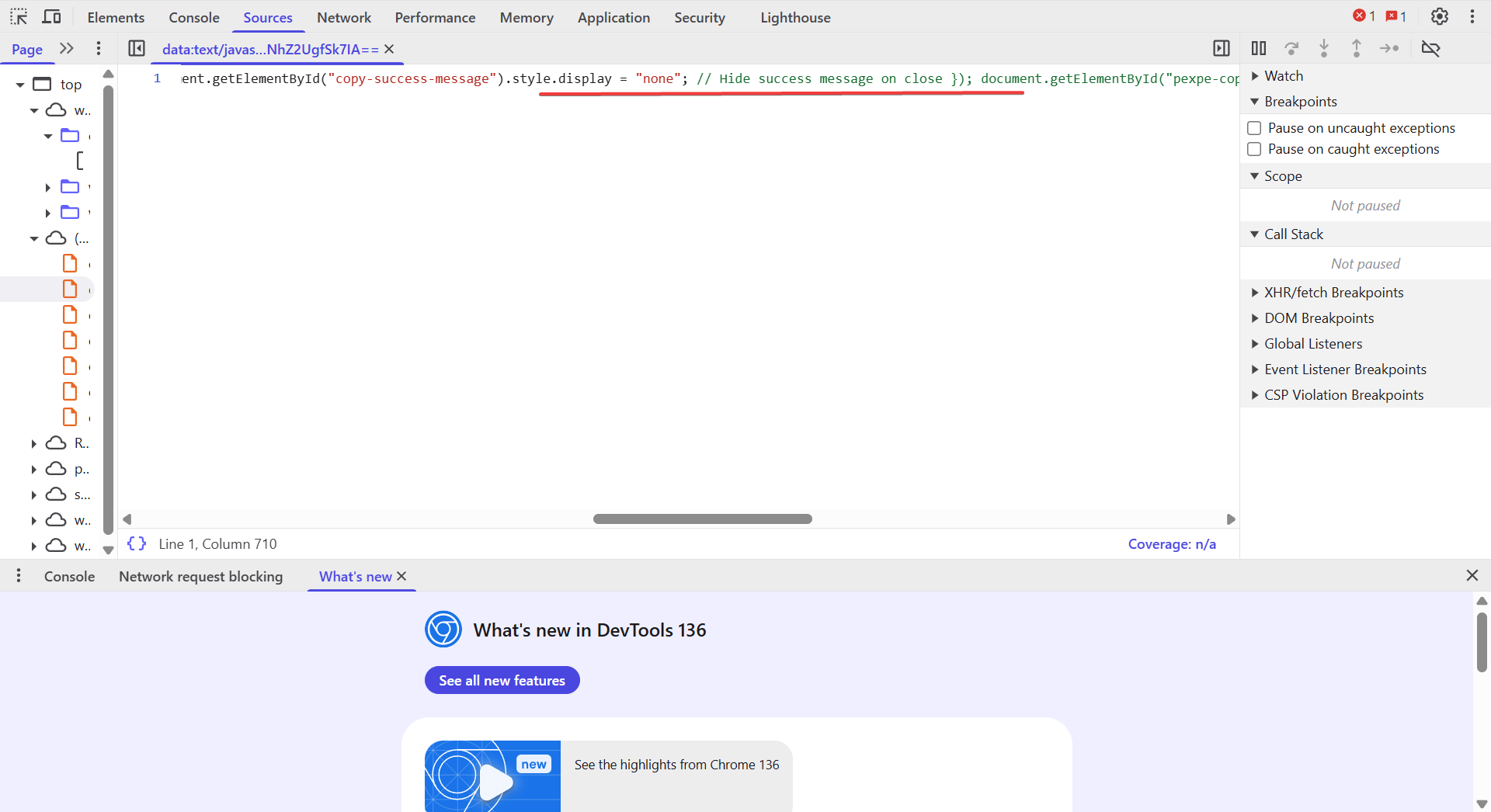
You are using an optimizer plugin on your website with JavaScript and HTML minification enabled. The optimizer fails to correctly detect and remove JavaScript comments. As a result, it simply removes line breaks, causing any code or tags that follow the “
//” to be treated as part of the comment.To identify the issue is not caused by our plugin, you can visit directly the form URL:
https://www.pexpe.com/?cff-form=55
Best regards.
Forum: Plugins
In reply to: [Calculated Fields Form] Amend form’s email settings globallyHello @paultidal
The “from” and “destination” attribute values are set independently for each form. This allows you to create forms that are associated with different company departments or assigned to various individuals responsible for the form. A simple solution is to update all forms at once by executing a query in your database using tools like phpMyAdmin. For example, if the prefix of your WordPress database is
wp_, you can run the following query:UPDATE wp_cp_calculated_fields_form_settings SET fp_from_email="[email protected]", fp_destination_emails="[email protected],[email protected]"Of course, replacing the email addresses with the preferred ones.
Best regards.