wpDataTables

Forum Replies Created
-
Hello again,
We apologize, just wanted to add the comment about your second point, you asked if it is possible to achieve the Fixed Header row, so that when a user scrolls down to the bottom on the horizontal scroll, to still be able to see the Headers.
We do have this feature, it is just not available in the free/Lite version of the Plugin.
You can check more details about our built-in Fixed Headers Feature here.
For the Lite Plugin, we don’t have any built-in option for it, so you can only try a custom solution.
If you have any additional questions about the Fixed Headers for the premium version, please open a ticket on our main Support platform here, and one of our Agents will respond as quickly as possible.If you don’t have a licence (or if it expired), please open a pre-purchase ticket which doesn’t require a purchase code.
Premium products are not supported in these forums, as per this comment by ww.wp.xz.cn moderators.
Thank you for understanding.
Kind regards.
Hello,
At the moment, this is still not included, our developers have more work to do in order to add a built-in option to position the horizontal scroll at the top above the table.
Right now, it can still only be achieved with a custom solution.
We still can’t say an ETA on when it will be added, but we will make sure to add a patch note about it on our ChangeLog report (which can also be seen in the Plugin’s back-end Dashboard) during one of the future updates when it gets finished.
Kind regards.Hello,
This is most probably a conflict with your current Theme, if it might be using Bootstrap version higher than 3.Can you please change the WP Theme to any other, and check if the issue goes away in that case?
That will show if it is a conflict with your specific Theme.
If that happens, you can try this :
Go to the main plugin settings, and disable/uncheck the options “Include full bootstrap front-end” and “Include full bootstrap back-end”.
Then refresh the page, and check if dropdowns are now working.
Let us know how it goes and if you isolate the root of the issue with these steps.
Thank you.Hello,
We extend our sincere apologies for the delay in addressing your inquiry.
Our team has been working through a significant influx of support tickets, resulting in longer response times than usual.Furthermore, please note that our operational hours do not include weekends, which may have contributed to the delay in our response.
We appreciate your patience during this time and assure you that we are working diligently to address your concerns as swiftly as possible.
Thank you for your understanding.
Our Support Team is not able to identify which of the Support ticket might be the one in question, since we can’t find any ticket with your name, and it seems they have covered/responded to any new tickets from the past several days.
Can you please send us a link to your Support ticket or at least confirm the ticket ID so that our Support Agents can check it out and make sure it has been followed-up on?
We hope you could give us a chance to assist and isolate any issue you might be having with our Plugin.
Kind regards.Hello,
The Date input Format is only available in some specific Table types and columns, but you can solve this issue by setting the ‘global default’ Date Format.
Please go to your Main Plugin settings, and set the Date Format there as Month/Day/Year.
Let us know if you still encounter any issues after that. 🙂
Thank you.Hello,
Can you please confirm are you using the Lite Version of our Plugin or the Premium?
If you mean the “table search” feature, that is available in the Lite/free Version;
but if you are troubleshooting a slow load with the Advanced Column filtering;

If you need help in regards to advanced Column filters, we are not allowed to provide any support for a premium Feature on this Forum.
If you wish to try to debug why your filtering might be slow on your Table;please open a ticket on our main Support platform here,
and one of our Agents will respond as quickly as possible.
If you don’t have a licence (or if it expired), please open a pre-purchase ticket which doesn’t require a purchase code.
Premium products are not supported in these forums, as per this comment by ww.wp.xz.cn moderators.
Thank you for understanding.
Kind regards.
Hello,
You’re welcome, we are happy to advise.
I am just not sure about your question.
1. If you mean to import an Excel file and make an editable table from it ( like on this Documentation);
this is not available in the free/Lite Version.The Manual ( and SQL)/editable tables are only available in the Premium version, if that is what you need for your use-case.
2. On the other hand, if you just need to have the Excel Sheet file linked/synchronized with a Table (as explained on this Documentation);in that case, this method to have a table linked from Excel is available in the Free/Lite Plugin.
So, to summarize, you can make a chart from any Table type other than Simple Tables.
Let us know if anything remains unclear.
Thank you.Hello,
We are glad to see that you found a working solution.
If you encounter any further issues, please don’t hesitate to reach out to us.
Thank you.Hello again,
We are just following up; happy to report, our developers made a new fix for this issue.
It is still in the testing stage.
We will share the instructions on how you can edit our Lite Plugin’s code to apply the fix.
Find this PHP file via FTP or your Hosting File Manager or the Plugin File Editor, in the path :
../wp-content/plugins/wpdatatables-lite/source/class.wpdatatable.php.
Then around line 1754 search with “CTRL+F” for this line :$headingsArray = $objWorksheet->rangeToArray('A1:' . $highestColumn . '1', null, true, true, true);
Under it, add this :
while (!end($headingsArray[1])) {
    array_pop($headingsArray[1]);
};
So in the end, that part of the code should look like this :
$headingsArray = $objWorksheet->rangeToArray('A1:' . $highestColumn . '1', null, true, true, true);
while (!end($headingsArray[1])) {
    array_pop($headingsArray[1]);
};
Save changes, and purge cache of your Site, then try to load the existing Table/ or link a new Table from the same file and now it should work without throwing the error about empty Headers.
We have one sample Excel from one of our users who sent us a file, we can confirm it works when this fix is applied on both Lite and Premium Plugin versions.
Before the fix – on our latest Lite/and Premium plugin versions, this file was throwing that error “One or more columns does not have a Header”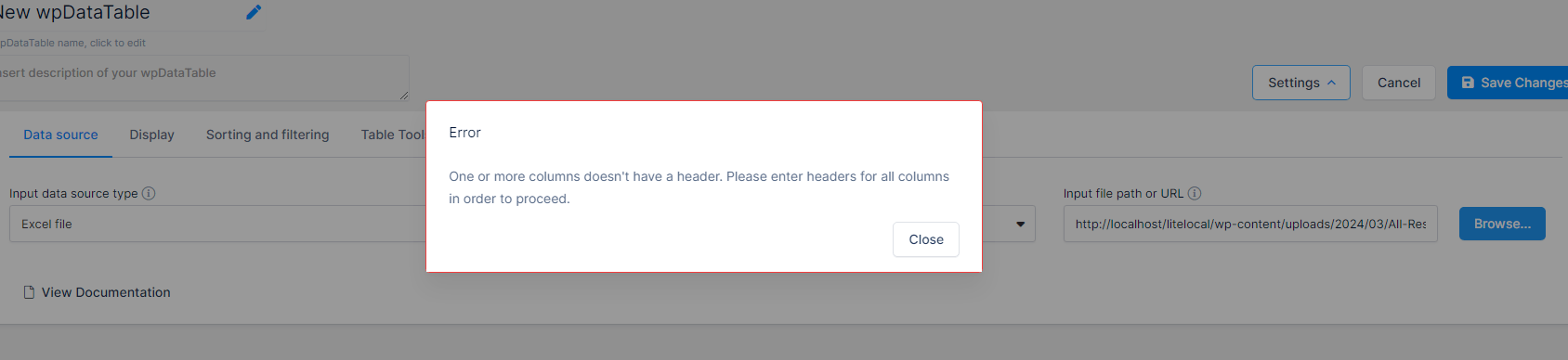
and after the fix applied, it is not throwing any errors.
So we tested the fix works on the files we tested so far, but we can use your help if you can send us your files to make sure.
This fix should be included in the next Update, but we can’t guarantee the exacet ETA because our QA Team is still conducting final tests to ensure there are no negative effects before it is added to the Plugin’s core and we wish to try to make sure it works on all the files and use-cases as it should be.
So if you can try this fix, then let us know if any of your source files (CSV/Excel) are still not working with the existing or new Tables.
If that is the case, can you please send us your source files here so that our developers can work on an improved fix?
If the source CSV/Excel does not contain any sensitive Data, you can just upload it to weTransfer and send us a download link here;
Or if it has any sensitive Data, please open a Private Pre-Purchase Ticket on our main Support platform here, then our Agents can take your file and we can perform testing in order to help our developers build an improved fix that would work on all your files.
Let us know how it goes, we will keep following up.
Thank you.Hello everyone,
We are happy to report, our developers made a new fix for this issue.
We will share the instructions on how you can edit our Lite Plugin’s code to apply the fix.
Find this PHP file via FTP or your Hosting File Manager or the Plugin File Editor, in the path :
../wp-content/plugins/wpdatatables-lite/source/class.wpdatatable.php.
Then around line 1754 search with “CTRL+F” for this line :$headingsArray = $objWorksheet->rangeToArray('A1:' . $highestColumn . '1', null, true, true, true);Under it, add this :
while (!end($headingsArray[1])) {
    array_pop($headingsArray[1]);
};
So in the end, that part of the code should look like this :
$headingsArray = $objWorksheet->rangeToArray('A1:' . $highestColumn . '1', null, true, true, true);
while (!end($headingsArray[1])) {
    array_pop($headingsArray[1]);
};
Save changes, and purge cache of your Site, then try to load the existing Table/ or link a new Table from the same file and now it should work without throwing the error about empty Headers.
We have one sample Excel from one of our users who sent us a file, we can confirm it works when this fix is applied on both Lite and Premium Plugin versions.
Before the fix – on our latest Lite/and Premium plugin versions, this file was throwing that error “One or more columns does not have a Header”
and after the fix applied, it is not throwing any errors.So we tested the fix works on the files we tested so far, but we can use your help if you can send us your files to make sure.
This fix should be included in the next Update, but we can’t guarantee the exacet ETA because our QA Team is still conducting final tests to ensure there are no negative effects before it is added to the Plugin’s core and we wish to try to make sure it works on all the files and use-cases as it should be.
So if you can try this fix, then let us know if any of your source files (CSV/Excel) are still not working with the existing or new Tables.
If that is the case, can you please send us your source files here so that our developers can work on an improved fix?
As mentioned above,
If the source CSV/Excel does not contain any sensitive Data, you can just upload it to weTransfer and send us a download link here;
Or if it has any sensitive Data, please open a Private Pre-Purchase Ticket on our main Support platform here, then our Agents can take your file and we can perform testing in order to help our developers build an improved fix that would work on all your files.
Let us know how it goes, we will keep following up.
Thank you.Hello again,
We are just following up – our developers made a fix for this issue.
We will share the instructions on how you can edit our Lite Plugin’s code to apply the fix.
Find this PHP file via FTP or your Hosting File Manager or the Plugin File Editor, in the path :
../wp-content/plugins/wpdatatables-lite/source/class.wpdatatable.php.
Then around line 1754 search with “CTRL+F” for this line :$headingsArray = $objWorksheet->rangeToArray('A1:' . $highestColumn . '1', null, true, true, true);Under it, add this :
while (!end($headingsArray[1])) {
    array_pop($headingsArray[1]);
};
So in the end, that part of the code should look like this :
$headingsArray = $objWorksheet->rangeToArray('A1:' . $highestColumn . '1', null, true, true, true);
while (!end($headingsArray[1])) {
    array_pop($headingsArray[1]);
};
Save changes, and purge cache of your Site, then try to load the existing Table/ or link a new Table from the same file and now it should work without throwing the error about empty Headers.
With this sample Excel, we can confirm it works when this fix is applied on both Lite and Premium Plugin versions.This fix should be included in the next Update, our QA Team is just conducting final tests to ensure there are no negative effects before it is added to the Plugin’s core.
Let us know if you still encounter any issues regarding that error about empty Headers after applying this fix.
Thank you.Hello,
This Forum is used for Lite Support, so we assumed you were using the Lite/Free Version.
Our developers managed to build a fix for both the Lite and the Premium versions, so we will certainly help you sort everything out.
The Page we sent you is for Lite Users. They can download older Lite Plugin versions there, but for the Premium Plugin users, it is a different process.
We can certainly confirm that we are able to create a Table from your Excel file now ( in both Lite and Premium versions) when we apply the said fix, so on this Forum we will help all Lite users directly, while you can contact our Premium Support and they will help you there to provide the premium version of the fix.
Since you are using our Premium Plugin, please open a private pre-purchase ticket which doesn’t require a purchase code, but you can send your Envato Licence key there ( or copy of your Envato invoice) and our Agents will provide you with the fix for the latest full/premium version.
2. For any Lite users that might come across this Post, we will share the instructions on how you can edit our Lite Plugin’s code to apply the fix.
Find this PHP file via FTP or your Hosting File Manager or the Plugin File Editor, in the path :
../wp-content/plugins/wpdatatables-lite/source/class.wpdatatable.php.
Then around line 1754 search with “CTRL+F” for this line :$headingsArray = $objWorksheet->rangeToArray('A1:' . $highestColumn . '1', null, true, true, true);Under it, add this :
while (!end($headingsArray[1])) {
    array_pop($headingsArray[1]);
};
So in the end, that part of the code should look like this :
$headingsArray = $objWorksheet->rangeToArray('A1:' . $highestColumn . '1', null, true, true, true);
while (!end($headingsArray[1])) {
    array_pop($headingsArray[1]);
};
Save changes, and purge cache of your Site, then try to load the existing Table/ or link a new Table from the same file and now it should work without throwing the error about empty Headers.
With this sample Excel, we can confirm it works when this fix is applied on both Lite and Premium Plugin versions.This fix should be included in the next Update, our QA Team is just conducting final tests to ensure there are no negative effects before it is added to the Plugin’s core.
If any Lite/free Plugin user comes across this, and if the fix does not work for you, feel free to open a new Post and send us your source file there;
Or if it has any sensitive data, please open a private Pre-Purchase ticket on our Main Support – so we can debug the issue there.Hello,
We tried to reproduce the same issue on our end, but we are not able to replicate it. For example, if we just copy the HTML element of each of your cells along with the link and image, on our Simple Table ( both Back-End and Front-End) all the images have the same size.
Here is a screenshot how it looks on a Front-End Page :

So, as long as we just don’t set any custom Column width, but just set up each cell with the same images as from your Table – there is no issue, as you can see.
But, for example, if we increase the width of a specific cell, by default the image width is set to “max width” to take up 100% of the cell;
so naturally, then the image would increase along with the cell width.


Can you please check did you set the Columns which have the larger image to be a bit wider than the others in the Back-End Editor of the Simple table?
It seems it might be the case, when we inspect the width of each column, the ones with the larger images are a bit wider.
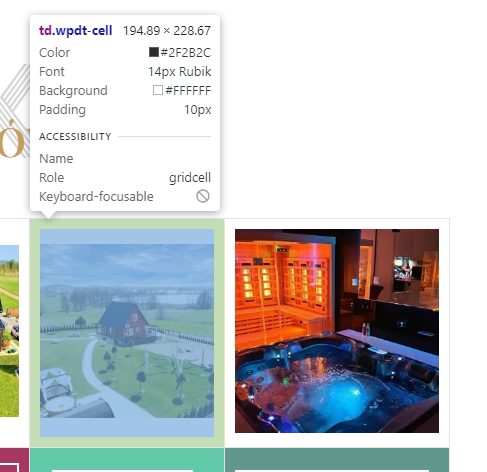

Let us know if that helps.
If you wish to try a workaround to increase the width of some Columns while ‘forcing’ a specific image size;
there can be two says :
1. If you wish to force all Columns with images to have the same width with a specific ‘max-width’, you can do this :
.wpdt-c.wpDataTableContainerSimpleTable .wpdtSimpleTable td img {
max-width: 200px !important;
height: auto;
}
So this will change/set each Column that has an image to be a specific pixel width.
–
Or, if you do this :
.wpdt-c.wpDataTableContainerSimpleTable .wpdtSimpleTable td img {
width: 200px !important;
height: auto;
}
That will keep any custom Column width you set, it will just ‘force’ all images in the table to have a specific width and by default the image is centered inside the cell.
Custom code needs to be applied to the page where the Table is. Depending on what you’re using (Gutenberg blocks, or some page builder), adding the CSS or JS can be done in a few different ways.If you need help with adding custom CSS to the page, please take a look at this article.
Let us know if that helps and if you have any questions.Kind regards.
- This reply was modified 2 years, 2 months ago by wpDataTables.
Hi Philippe,
Can you make sure you have the latest wpDataTables version as well as the latest Forminator integration add-on version and finally, the latest Forminator version?
We had an issue with the Forminator integration, but our developers resolved that in the latest update of the main Plugin and the add-on.
If you already have everything updated, in that case, we would need to to take a closer look to try and debug the specific issue on your Site.
If you need us to take a closer look from our end, please open a ticket on our main Support platform here,and one of our Agents will respond as quickly as possible.
If you don’t have a licence (or if it expired), please open a pre-purchase ticket which doesn’t require a purchase code.
Premium products are not supported in these forums, as per this comment by ww.wp.xz.cn moderators.
Thank you for understanding.
Kind regards.
Hello,
Maybe it could be possible with an advanced custom SQL Query, but we are not allowed to discuss any premium options or workarounds here.Since you’re using the Premium version of the plugin, please open a ticket on our main Support platform here,
and one of our Agents will respond as quickly as possible.
You can either just refer to this correspondence or copy the use-case description on the ticket there and they will check if the premium version has a workaround you could use.If you don’t have a licence (or if it expired), please open a pre-purchase ticket which doesn’t require a purchase code.
Premium products are not supported in these forums, as per this comment by ww.wp.xz.cn moderators.
Thank you for understanding.
Kind regards.